Look after installed apps
You want to see where your apps stand, maintain their data, or find what needs attention.
- For
- anyone who works with installed apps. Installing, updating, and removing apps is up to the Owner.
- Prerequisite
- at least one installed app
- Where in the portal
- Apps › My apps
On this page
My apps lists every app your organization has installed, shows where each one stands, and offers the next step. On an app's own page you maintain its data, see its widgets, and decide on updates.
Steps
Check the status of your apps
- Open Apps. My apps lists your installed apps. The class and the data areas stand at the name, with the number of scenes that use them and their status.
- Narrow the list with Search my apps or a filter. Not in scenes shows apps that nobody uses, and Needs attention shows apps waiting for a decision.
- Click the action at the end of a row. It always fits the status.
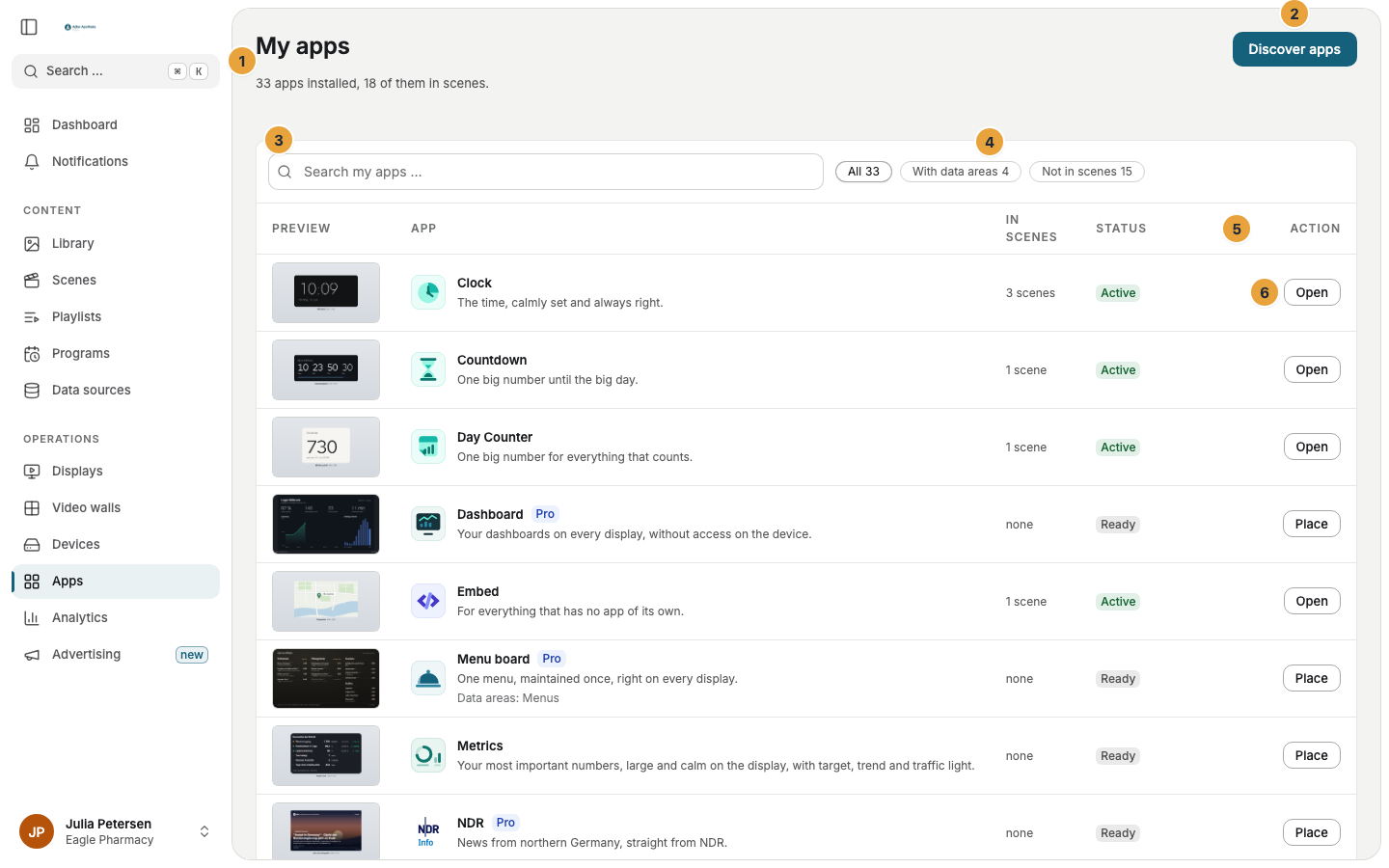
| Status | Meaning | Action |
|---|---|---|
| Active | The app runs in at least one scene. | Open |
| Ready | Installed, but not yet in any scene. | Place |
| Update waiting | A new version asks for your consent. Until then, the app keeps running on its current version. | Decide |
| Not in your package | Your package no longer includes the app. Settings and data stay. | View packages |

Work on an app's page
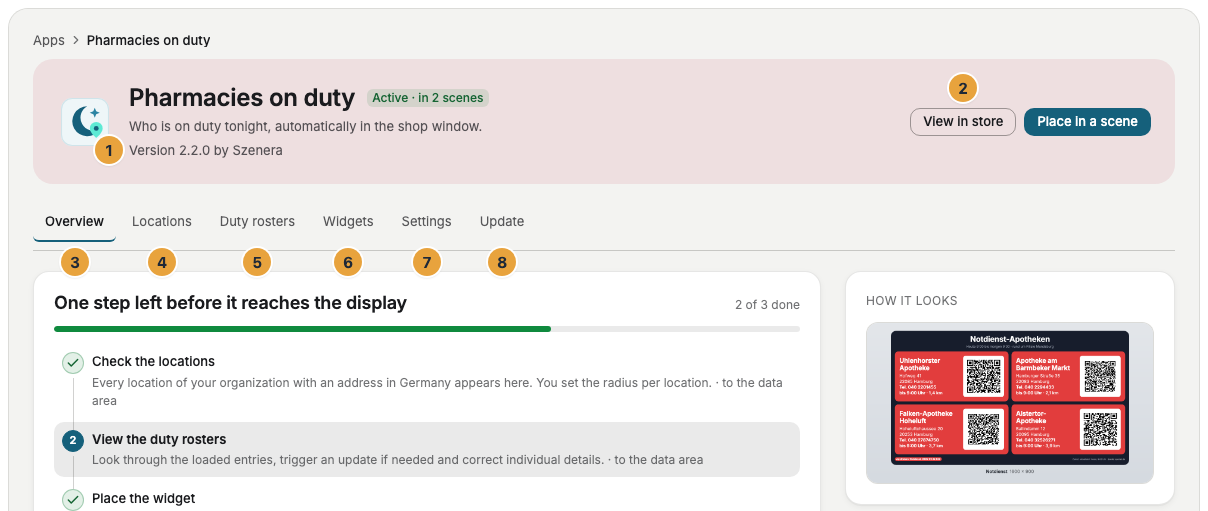
Click a row to open the app's page. Its tabs are always the same, plus one tab for each data area the app keeps.
| Tab | What you find there |
|---|---|
| Overview | The open setup steps, the data areas, the widgets, and the scenes that use the app |
| Data areas | One tab for each, such as Locations and Duty rosters |
| Widgets | Every view of the app's widgets |
| Settings | What the app does with your data, who on your team may use it, and Remove app |
| Update | A waiting decision and the earlier ones |
As long as Setup on the Overview tab shows open steps, the app doesn't show anything useful on the display yet. Each step leads to the place where you complete it.
Maintain an app's data
Some apps keep data of their own, which you maintain in their data areas:
| App | Data areas |
|---|---|
| Pharmacies on duty | Locations and Duty rosters |
| Menu board | Menus |
| Calendar | Calendars |
How to fill them is on the app's own page, such as Pharmacies on duty or Menu board. Who may edit a data area is set by the app's permissions. You find them under Settings › Roles & permissions. Without the permission, the form is missing.
Check the result
Setup complete appears on the app's Overview tab, the status in My apps is Active, and the widget shows real content in the scene preview.
If something goes wrong
| Symptom | Cause | Solution |
|---|---|---|
| A widget can't be placed in the scene editor | An update is waiting, or the app is Not in your package. | Check the status in My apps and click the action. |
| A form in a data area is missing | Your role lacks the app's permission. | Ask the Owner to adjust your role. |
| “The interface of this app could not be loaded.” | The data area couldn't be opened. | Reload the page. If it persists, see When an app doesn’t work. |
| No app installed yet. | Your organization hasn't installed anything. | Click Discover apps. |
Related
Was this helpful?