
YouTube
Show a video, a short, a playlist or a live stream from YouTube edge to edge in the scene.
From your organization the app reads: nothing.
YouTube: The display loads the video through the embedded player of YouTube. What leaves your account: The IP address of the display, which YouTube learns when the video loads.
The app embeds third-party content. The device loads it directly from the outside provider, which receives the network address of the device in the process. You show only what you may play in public, respecting platform terms, rights to music, images and sound as well as GEMA and GVL. You do not get around any access restrictions. We accept no liability for the availability, content, advertising or age rating of outside sources. Read the full terms


- For
- anyone who wants to show YouTube videos
- Prerequisite
- the app installed, permission to edit scenes, and a network connection at the display
- Where in the portal
- Apps › Discover apps › YouTube. The widget is in the scene editor under Web & video.
On this page
The YouTube app plays a video, a short, a whole playlist, or a live broadcast from YouTube in a scene, without a browser around it. It is also the way to show videos with sound.
What the app shows
The app comes with one widget: YouTube. It shows the player edge to edge in its frame, without controls. The display loads the video through the privacy-friendly delivery youtube-nocookie.com.
Four templates place the widget at a suitable size:
| Template | Size | Shows |
|---|---|---|
| Video | 1280 × 720 | the video edge to edge in 16 : 9 |
| Full-screen | 1920 × 1080 | the video filling the display, without rounded corners |
| Portrait | 608 × 1080 | shorts and portrait videos, at the edge |
| Small | 480 × 270 | the video as a tile beside other content |
The widget cannot be dragged smaller than 200 × 200, because YouTube’s player does not play at smaller sizes.
Playback is set up for displays: the video starts by itself as soon as its scene is visible, and it repeats or stays at the end with its preview image. If you like, title and channel appear small in the picture, and a slim bar at the bottom edge shows how far along the video is.
If playback stalls or the player reports an error, the display reconnects by itself, first after a few seconds, then at growing intervals. Until then, the video’s preview image appears, never the player’s error page. If the network drops, the last picture stays slightly blurred with the note “Last updated 02:05 PM · reconnecting”, and the video reloads as soon as the network is back.
On still areas, that is, in the thumbnails of the scene list, the video’s preview image appears.
Settings
Open the settings with the gear icon on the toolbar above the widget. They are on the tabs Content, Appearance, Data, and Playback. The toolbar also offers Template and Colors, plus Sound and At the end.
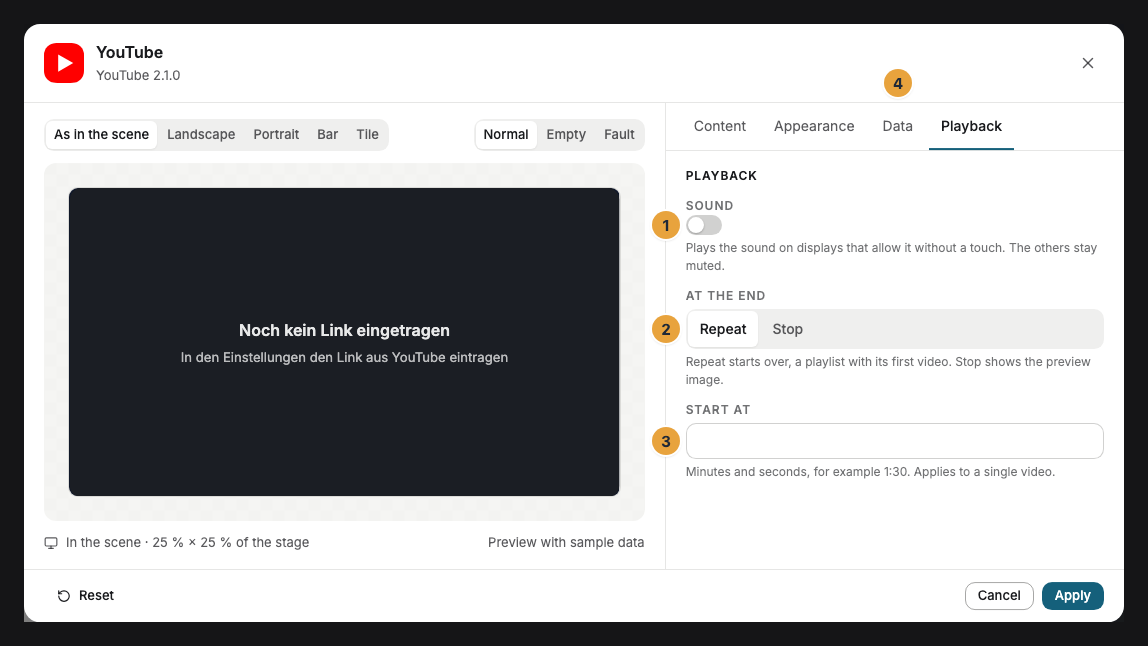
| Setting | Tab | Meaning | Default |
|---|---|---|---|
| Link | Data | The link from YouTube to a video, a short, a playlist, or a live broadcast, or the bare ID. If the link contains a playlist, the playlist plays. Check shows title and channel and says whether the video may be embedded. | empty |
| Sound | Playback | Plays the sound on displays that allow it without a touch. When sound is on, the line below says which of your displays play it and which stay muted. | Off |
| At the end | Playback | Repeat starts over, a playlist with its first video. Stop shows the preview image. | Repeat |
| Start at | Playback | Minutes and seconds, for example 1:30. Applies to a single video, also when repeating. |
empty |
| Colors and Font | Appearance | Style of the app, Brand colors, or Custom colors, plus the font. See Configure widgets. | Style of the app |
| Show title | Appearance | Title and channel of the video small in the picture, at the top, in portrait at the bottom. In small frames, the title drops out. | Off |
| Progress bar | Appearance | A slim bar at the bottom edge shows how far along the video is. Live broadcasts have none. | On |
| Background | Appearance | Dark, Light, Glass, or Transparent: the background behind the player while it loads and around the video. | Dark |
| Corners | Appearance | Rounded, growing with the frame, or Sharp. | Rounded |
| Controls | Content | Under Advanced, only for displays with touch: The player’s controls appear, and you can tap. | Off |
Limits
- Ads: YouTube may show ads in the player. They cannot be turned off, because neither you nor we have any influence over them.
- Sound: Displays with SzeneraOS and Fire TV play the sound. Without a touch, browsers and TVs from Samsung and LG play only muted. For music and sound in your shop, you need the rights, for example through GEMA and GVL.
- Embedding prohibited: Some channels do not allow playback inside other pages. Check tells you beforehand, and the display then shows the preview image or the plain area.
- Live broadcasts: A channel’s live page works through its channel address with
/channel/or through the link of the running broadcast. The live page via the name (@kanal/live) cannot be embedded. If no broadcast is running at the moment, the display tries again every minute. - No network, no video: The video comes live from YouTube. Without a network, the last picture stays.
- Outside requests: YouTube learns the display’s network address when the video is fetched.
If something goes wrong
| Symptom | Cause | Solution |
|---|---|---|
| The preview image appears instead of the video. | The video has ended and At the end is set to Stop, or the player reported an error. | The editor gives the reason below. Choose Repeat or check the link. |
| The video stays silent. | Sound is off, or the display plays sound only after a touch (browser, Samsung, LG). | Switch Sound on. The line below names the displays that stay muted. |
| The widget stays dark. | The link is missing, does not lead to YouTube, or leads to the live page via the name. | The editor gives the reason. Paste the link from the YouTube address bar. |
| The title is missing. | Show title is off, or the frame is too small for it. | Switch Show title on or drag the frame larger. |
| The widget cannot be dragged smaller. | YouTube’s player does not play at less than 200 × 200. | For small tiles, use a picture or a QR code to the video. |
| The widget cannot be inserted. | The app is not installed, an update is waiting for your decision, or it shows Not in your package. | Check the status under Apps (When an app doesn’t work). |
Related
- Live stream — cameras, live streams, and radio without YouTube.
- Embed — for videos from other providers that supply an embed code.
- Configure widgets: template, preview, and fields
Was this helpful?