
Opening hours
Whether your location is open right now, until when, today and the week.
From your organization the app reads: player-location, location-hours. The app calls no outside service.
The app shows the opening hours your organization maintains for a location, by default those of the location the display is assigned to. We calculate the statutory public holidays from the selected federal state, without guarantee. You enter holidays of individual municipalities as special days. You are responsible for correct hours. The app reads only the name, town, time zone and opening hours of the location and transmits nothing to third parties. Read the full terms


- For
- anyone who designs scenes, and anyone who maintains the hours of the locations
- Prerequisite
- the Pro package and the app installed. Placing the widget needs permission to edit scenes, and maintaining the hours permission to edit locations.
- Where in the portal
- Settings › Organization › Locations › location › Opening hours. The widget is in the scene editor under Business & industry.
On this page
Opening hours shows your hours on a display and says what no paper note can: whether you are open right now. You enter the hours once at the location, and every display there reads them.
What the app shows
In large type, the widget shows whether you are open right now: Open, Closing soon, or Closed. Below it, it shows until when or when you open again, such as “until 6:30 PM”, “again from 2:30 PM”, or “tomorrow from 8:00 AM”. Where the frame has room, today’s hours follow in a block with a fine green line, and then the week, with identical days combined (“Mon – Fri”). If a public holiday or special date is coming up in the next two weeks, the widget points it out.
The hours come from the location. You maintain them once on the location’s page: weekly hours, special dates, and the state from which Szenera calculates the public holidays (see Create locations and assign displays to them). Every display shows the hours of the location it is assigned to. One scene is therefore enough for all branches. There is deliberately no second “we are open” switch, because it could contradict the maintained hours.
The display works out the status itself every minute. Half an hour before closing, it says Closing soon. Lunch breaks, hours past midnight, and opening around the clock show correctly, and two time ranges that merge seamlessly count as one.
The templates when you insert the widget:
| Template | Size | Shows |
|---|---|---|
| Now | tile | The status in large type, below it until when or when again. |
| Week | larger tile | The status, below it today and the week. |
| Today and week | landscape | The status on top, below it today next to the week. |
| Column | portrait | The status on top, today and the days one below the other, for the edge of a scene. |
| Bar | narrow strip | One line with the status and until when, with the next day with different hours added where the width allows, such as “Sat 9:00 AM – 1:00 PM”. |
The template is a start. You then drag the frame as you like, and the widget arranges itself to its shape and size. Whatever has no room drops out in a fixed order: first the note about the special date, then the week, then today. The status always stays. Making the frame wider never removes anything.
Settings
Open the settings with the gear icon on the toolbar above the widget. They are on the tabs Content, Appearance, and Data. The toolbar also offers Template and Colors, plus the Background.
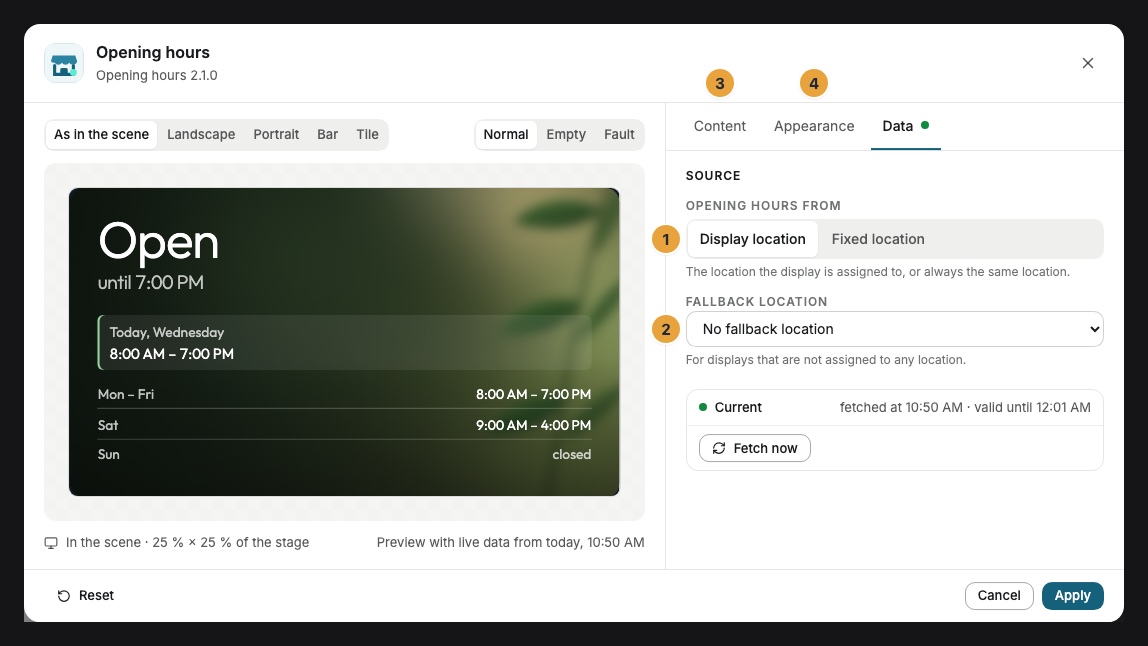
| Setting | Tab | Meaning | Default |
|---|---|---|---|
| Opening hours from | Data | Display location shows on each display the hours of its location. Fixed location shows the same ones everywhere. | Display location |
| Location | Data | Only with Fixed location: the location whose hours the widget shows. A location without hours carries the suffix “no opening hours”. | Choose location |
| Fallback location | Data | Only with Display location: the hours for displays that are not assigned to any location. | No fallback location |
| Point out special dates | Content | The next public holiday or special date of the coming two weeks, if the frame has room. | On |
| Colors and Font | Appearance | Style of the app, Brand colors, or Custom colors, plus the font. See Configure widgets. | Style of the app |
| Background | Appearance | Green and Wood are calm, blurred moods, plus Dark, Light, and Image. Also on the toolbar above the widget. | Green |
| Image | Appearance | Only with Image: an image from the library, toned down so that the text stays legible. Without an image, Green applies. | no image |
| Corners | Appearance | Rounded (growing with the frame) or Sharp. | Rounded |
With Style of the app, the app brings its own design. Above the preview, Empty and Fault show how the widget looks without data and with outdated data.
Limits
- Calculation happens in the time zone of the location whose hours the widget shows. The limit counts like on a shop sign: With “until 6:30 PM”, it is closed at 6:30 PM.
- Public holidays exist only with a state. Without a chosen state, the widget shows the times of the weekly hours on public holidays. You enter holidays of individual municipalities as a special date.
- The “when again” preview reaches 14 days. If the calculation finds no opening within it, such as during a long company holiday, it says “Closed” with the name of the special date below it.
- Offline: The app fetches nothing from the outside. A display without a network keeps showing the hours and the status, going by the time it last knew from the server.
- The bar shows no week. It is a single line. To show the week, use another template.
If something goes wrong
| Symptom | Cause | Solution |
|---|---|---|
| The display shows the background without any hours. | No opening hours are entered at the location, or the display is attached to no location. The editor names the reason in the widget. | Enter the hours at the location (Create locations and assign displays to them), assign the display to a location, or choose a Fallback location. |
| The widget shows the hours of another location. | Opening hours from is set to Fixed location, or the display is assigned to the wrong location. | Check the setting and correct the assignment under Displays › display › Settings. |
| On a public holiday, it says “Open”. | No state is chosen at the location, or a special date opens on this day. | Choose the state at the location and check the special dates. |
| The note about the special date is missing. | The frame is too small, the toggle is off, or the date is more than two weeks ahead. | Drag the frame larger or switch Point out special dates on. Under the preview, the editor says what is missing in the frame. |
| The widget cannot be inserted. | The app is not installed, an update is waiting for your decision, or it shows Not in your package. | Check the status under Apps (When an app doesn’t work). |
Related
- Create locations and assign displays to them — maintaining the opening hours, special dates, and state of a location.
- Configure widgets: template, preview, and fields
- Notice board — the written notice beside it, such as for substitutes.
Was this helpful?