
Scrolling Text
Your own messages as a calm scrolling band, as a notice one by one or stacked in a column.
From your organization the app reads: nothing. The app calls no outside service.
The app shows content you create yourself. No data goes to third parties in the process. You make sure the content is lawful: rules on advertising medicinal products, prices including the total price, labeling of allergens and additives, rights to images and trademarks, and the target of a QR code. The display does not replace a legally required notice. We do not review your content, accept no liability for it and owe no legal advice. Read the full terms


- For
- anyone who wants to show short messages that change
- Prerequisite
- the app installed, and permission to edit scenes
- Where in the portal
- Apps › Discover apps › Scrolling Text. The widget is in the scene editor under Text & design.
On this page
Scrolling Text shows your own short messages, as a calm band along the edge of a scene, as an urgent notice, or as a tile that changes message by message.
What the app shows
The app comes with one widget: Scrolling Text. It shows your messages in calm type that is easy to read from a distance. It fetches nothing and stores no data of its own, and it keeps running without a connection. A fixed Mark stands in front of the messages, such as Latest. An exclamation mark at the start of a message highlights it in the accent color and does not appear itself.
Four templates place Scrolling Text at a suitable size:
| Template | Size | Shows |
|---|---|---|
| Strip | 1320 × 110 | the mark fixed on the left, the messages run through as a band, a fine dot between them |
| Breaking news | 1920 × 140 | a red Important field, the first message large, the others quieter behind it |
| Notice | 600 × 300 | the mark on top, below it one message after another, large and static, with dots for the messages |
| Column | 340 × 640 | the mark on top, the messages one below the other with fine lines, for the edge |
After that, Scrolling Text arranges itself to fit its frame: a flat strip becomes a scrolling band, a landscape or square frame becomes a notice, and a tall one becomes a column. The type grows with the frame. When space gets tight, the dots drop out first, then the mark. Your messages never drop out: in the notice, the type gets smaller, and the column turns a page every ten seconds if not all messages fit at once. Dragging wider never removes anything. If the mark is missing, the settings window says why below the preview.
Two examples: A shop puts a Strip with three offers of the week below its shop-window video. A medical practice that closes at short notice switches the mark to Important and writes “Closed from 4 p.m. today” as the first message, followed by a note saying when it reopens.
Settings
Open the settings with the gear icon on the toolbar above the widget. They are on the tabs Content, Appearance, and Playback. The toolbar also offers Template and Colors, plus the Background.
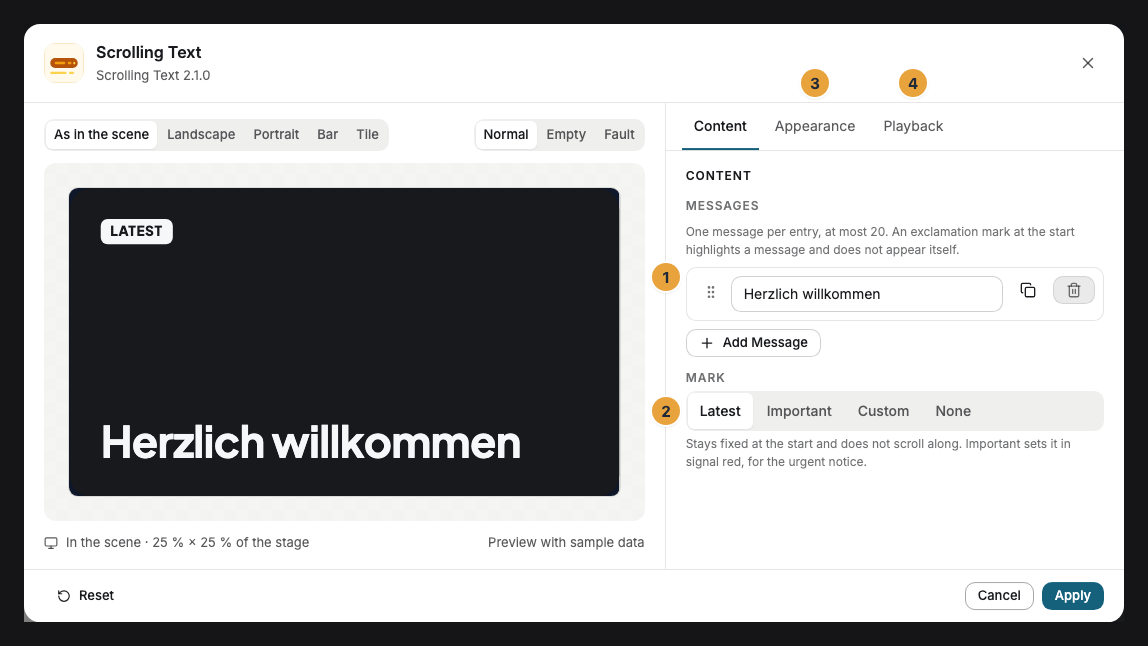
| Setting | Tab | Meaning | Default |
|---|---|---|---|
| Messages | Content | A list with one entry per message, at least one and at most 20, each up to 200 characters. Add message creates an entry. With the handle, you drag an entry to another position, duplicate it, or remove it. An exclamation mark at the start highlights a message. An empty entry does not appear. | “Herzlich willkommen” |
| Mark | Content | Latest, Important (in signal red, for the urgent notice), Custom, or None. It stands fixed at the start and does not scroll along. Latest and Important appear in your organization’s language. | Latest |
| Custom mark | Content | Only for Custom: a short word such as “New” or “Offer”, at most 24 characters. | empty |
| Colors and Font | Appearance | Style of the app, Brand colors, or Custom colors, plus the font. See Configure widgets. | Style of the app |
| Background | Appearance | Dark, Light, Glass (blurred over the scene), or Transparent (only the text, for dark pictures). | Dark |
| Corners | Appearance | Rounded or Sharp, for example for a strip exactly at the edge of the picture. | Rounded |
| Speed | Playback | Under Advanced: Slow, Normal, or Fast. | Normal |
| Direction | Playback | Under Advanced: To the left (in reading direction, the text enters from the right) or To the right. | To the left |
| Separator | Playback | Under Advanced: Dot, Line, or Space between two messages. | Dot |
You do not choose the font size: Scrolling Text sets it according to its frame so that it stays legible on every display.
Limits
- Twenty messages, 200 characters per message. The field accepts no more. Twenty long messages already take several minutes for one pass in the scrolling band.
- The speed depends on the width of the band. A word takes the same time to cross any strip. A long band therefore runs longer instead of whizzing past faster.
- Short bands do not scroll. If the whole text fits into the strip, it stands still. That is not a fault but the calmer solution.
- Notice and column change every ten seconds. The rotation starts with the first message as soon as the scene shows Scrolling Text.
- Thumbnails and previews stand still. There the widget shows the start without motion. If a device is set system-wide to reduce motion, the scrolling band stands still as well, and the messages change without a crossfade.
- A very long message in a small notice ends with “…” if it does not fit even in the smallest type. A larger frame or a shorter message shows it in full.
- Timing: Scrolling Text does not fetch messages. It shows what is in the published scene, and a change reaches the display with the next publication.
- Offline: The app needs no connection to the outside and keeps running without a network.
If something goes wrong
| Symptom | Cause | Solution |
|---|---|---|
| A message cannot be removed. | It is the last one, and Scrolling Text needs at least one. | Change the message instead of removing it. |
| Add message is disabled. | The list already holds 20 messages. | Combine or delete messages. |
| At most 200 characters per message | A message is too long. | Shorten the message or split it into two messages. |
| The display shows only the background. | All messages are empty. | Enter a message under Messages. |
| The band stands still. | The whole text fits into the strip, or the device is showing a still preview. | Nothing to do. If it should scroll, enter more messages. |
| The mark is missing. | The frame is too narrow for mark and messages at the same time, and the messages take priority. | Drag the frame wider or choose a shorter custom mark. |
| The exclamation mark is missing on the display. | An exclamation mark at the start is the markup for a highlighted message and is not drawn along with it. | Nothing to do. If the character should be visible, put it at the end of the message. |
| The widget cannot be inserted. | The app is not installed, an update is waiting for your decision, or it shows Not in your package. | Check the status under Apps (When an app doesn’t work). |
Related
- Configure widgets: template, preview, and fields
- Notice board — the same text of your own, but static and detailed.
- How do you design content that people can read? — why a strip looks different from a tall area.
Was this helpful?