
Notice board
Notices like a poster: a strong headline, lists and callouts.
From your organization the app reads: nothing. The app calls no outside service.
The app shows content you create yourself. No data goes to third parties in the process. You make sure the content is lawful: rules on advertising medicinal products, prices including the total price, labeling of allergens and additives, rights to images and trademarks, and the target of a QR code. The display does not replace a legally required notice. We do not review your content, accept no liability for it and owe no legal advice. Read the full terms


- For
- anyone who wants to show their own text on a display
- Prerequisite
- the Pro package, the app installed, and permission to edit scenes
- Where in the portal
- Apps › Discover apps › Notice board. The widget is in the scene editor under Text & design.
On this page
The Notice board puts your own text on a display, typeset like a poster: changed opening hours, a notice, a promotion, or the house rules. It replaces the note taped to the door.
What the app shows
The app comes with one widget. It computes entirely from its settings, fetches nothing, and stores no data of its own. In the store, the Notice board sits together with Pharmacies on duty and Opening hours in the For pharmacies collection, the three apps that replace the paper notice.
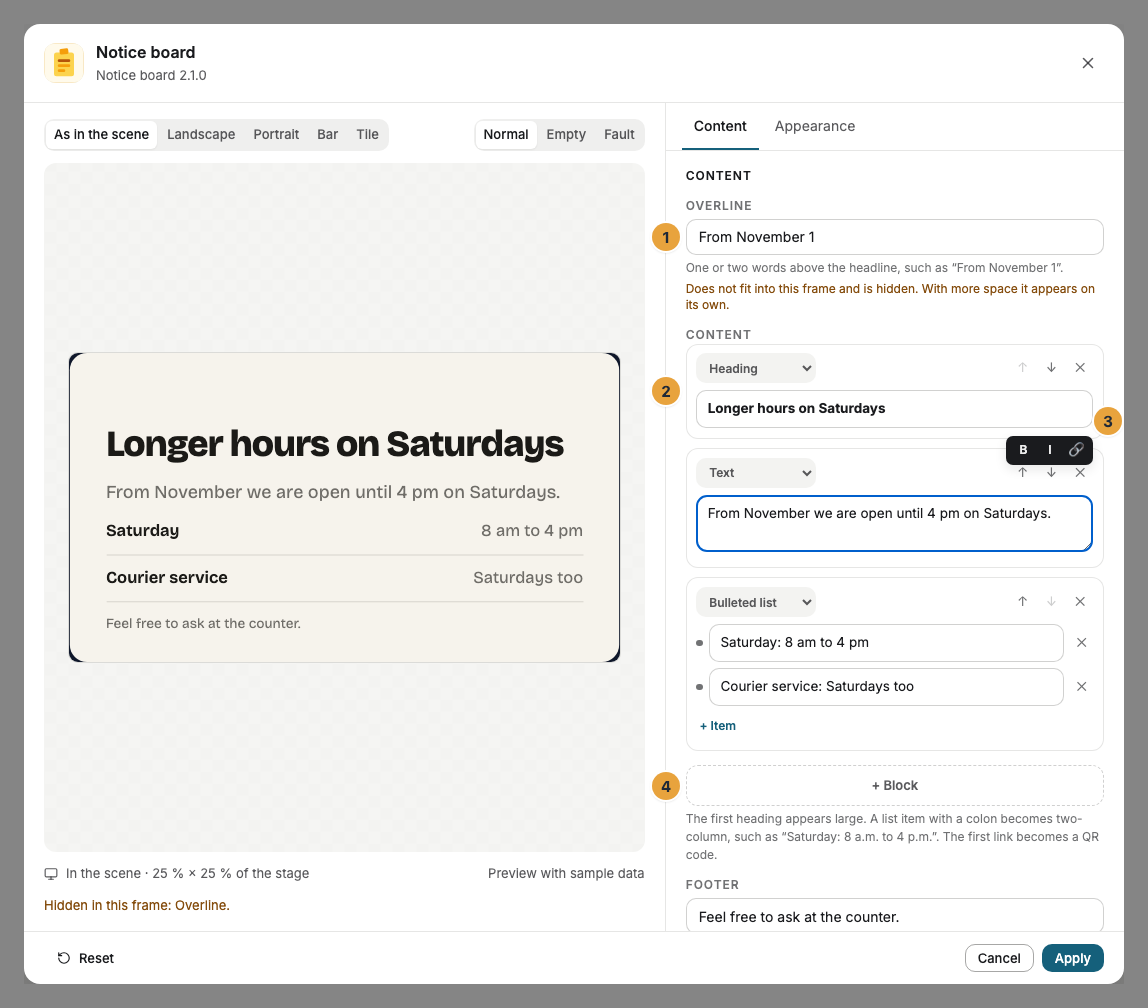
The Notice board follows a calm poster style: a strong headline in Bricolage Grotesque, plenty of space, and the text below. The first heading of the content appears large, and further headings appear as subheadings. A list item with a colon becomes a two-column row with a fine line: From “Saturday: 8 a.m. to 4 p.m.”, Saturday appears on the left and 8 a.m. to 4 p.m. on the right. The Notice board determines font, sizes, and spacing itself by its frame, and a long title gets a little smaller instead of wrapping.
Long texts turn pages. If a text doesn’t fit, it spreads across pages that change calmly every ten seconds. Small dots at the foot show which page is currently showing. All displays of a scene show the same page. In the bar, headline and text turn line by line.
Links become QR codes. Nobody taps a display, so the text of a link stays in the sentence, and the target of the first link appears as a QR code at the foot of the notice, in the bar on the right. Further links stay text.
Five templates insert the Notice board at a fitting size:
| Template | Size | Shows |
|---|---|---|
| Notice | 540 × 720 | overline and headline on top, the text below, a list at the end moves down, the footer at the foot |
| Hint | 640 × 360 | overline on top, headline and text at the bottom |
| Poster | 960 × 540 | everything centered, the headline very large, a short line below it |
| Tile | 360 × 360 | overline on top, headline and a sentence at the bottom |
| Bar | 1400 × 140 | overline, a fine line, one line, the footer on the right |
After that, the Notice board arranges itself to fit its frame. If the frame gets too small, first the footer drops out, then the QR code, then the overline. No font gets smaller than legible. The settings window names under the preview what drops out.
Two examples: A pharmacy hangs the Flu shots without an appointment poster in its shop window, with a link to registration that appears as a QR code. A medical practice shows a notice with its office hours as a two-column list on a portrait display in the waiting room.
Settings
Open the settings with the gear icon on the toolbar of the selected widget. They are on the tabs Content and Appearance. You do not write in a text field but in a list of blocks: Heading, Text, Bulleted list, Numbered list, Callout, and Divider. Each block can be moved or turned into another type. In the focused field, a small format bar appears with Bold, Italic, and Link. The toolbar also offers Template and Colors, plus Background and Alignment.
| Setting | Tab | Meaning | Default |
|---|---|---|---|
| Overline | Content | One or two words above the headline in capitals, at most 60 characters. Leave it empty to hide it. | empty |
| Content | Content | The block list, up to 5,000 characters. The first heading appears large, a list item with a colon becomes two-column, the first link becomes a QR code. | empty |
| Footer | Content | One line below the content, at most 80 characters, such as the sender or the as-of date. | empty |
| Colors and Font | Appearance | Style of the app, Brand colors, or Custom colors, plus the font. See Configure widgets. | Style of the app |
| Background | Appearance | Chalk, Night, Fir, Brick, Transparent, or Image. Also available on the toolbar above the widget. | Chalk |
| Image | Appearance | Only with Image: an image from the library. A dark veil keeps the text legible. | none |
| Alignment | Appearance | Left like a notice or Centered like a poster. Also available on the toolbar above the widget. | Left |
| Corners | Appearance | Rounded or Sharp. | Rounded |
Limits
- Text, nothing more. The Notice board knows no images in the text, no tables, and no code blocks. You place an image as a widget of its own beside it or as the background.
- Lengths: Content 5,000 characters, overline 60, footer 80. The form does not accept anything beyond that.
- One QR code per notice. Only the first link becomes the code. Its target must be a web address, and a link with any other target stays text without a code.
- Turning pages at a fixed pace. Each page stays for ten seconds. If the Notice board is shown for less time in a playlist, you see only the first pages.
- Timing: The Notice board shows the text that the published scene carries. A change reaches the display with the next publication.
- Offline: The app needs no connection to the outside. A background image comes from the device’s local storage like every image of the library.
If something goes wrong
| Symptom | Cause | Solution |
|---|---|---|
| The display stays empty, and the editor says No text yet. | Content, overline, and footer are empty. | Add a block. |
| The Notice board turns pages even though the text seems short. | The frame is too small for headline and text. | Drag the frame larger, shorten the text, or choose the Notice template. |
| The footer is missing on the display. | The frame is too short. The settings window names the omission under the preview. | Drag the frame taller. |
| A list line is not two-column. | Before the colon there is more than a short term, or a space is missing after it. | Write “Term: Value”, such as “Saturday: 8 a.m. to 4 p.m.”. |
| No QR code even though there is a link in the text. | The target is not a web address, or the frame is too small for a legible code. | Write the target with https:// and drag the frame larger. |
| With Image, the Notice board appears on a dark surface without an image. | No image is chosen yet, or it is no longer in the library. | Choose an image under Image. |
| A word appears with asterisks on the display. | The markup is incomplete, and a marker is missing on one side. | Select the passage and apply Bold or Italic in the format bar again. |
| The widget cannot be inserted. | The app is not installed, an update is waiting for your decision, or it shows Not in your package. | Check the status under Apps (When an app doesn’t work). |
Related
- Configure widgets: template, preview, and fields
- QR Code — a code with a heading, when the scan is the main point.
- Opening hours — hours that maintain themselves instead of typing them into the notice.
Was this helpful?