
Clock
Time and date in calm digits or as a clock face, in the time of the location.
From your organization the app reads: nothing. The app calls no outside service.
This app needs no separate consent.


- For
- anyone who wants the time and date in a scene
- Prerequisite
- the app installed, and permission to edit scenes
- Where in the portal
- Apps › Discover apps › Clock. The widget is in the scene editor under Time & countdown.
On this page
The Clock shows the current time and date next to your content, as large digits or as a clock face. It needs no data source and keeps running without a network.
What the app shows
The app comes with one widget: Clock. It shows the time in light digits with the date in smaller type below, or a simple clock face with fine tick marks and a warm second hand. The clock takes its time from our servers, not from the device, and shows the time zone of the display’s location. One scene is therefore enough for all branches, even in other zones. Time and date appear in the language of your organization.
Five templates insert the clock at a fitting size:
| Template | Size | Shows |
|---|---|---|
| Compact | 300 × 300 | the time large, weekday and day short below |
| With date | 600 × 300 | the time large, the date quietly below |
| Analog | 420 × 420 | the clock face with a second hand, the day below |
| Column | 340 × 640 | the time on one line, the date on two lines, for the edge |
| Bar | 1320 × 110 | time and date with the year on one line |
After that, the clock arranges itself to fit its frame. If you drag the frame smaller, the date gets shorter first (long, two lines, short) and drops out last. The time always stays whole: it gets smaller but is never cut off. Making the frame wider never removes anything. Under the preview, the settings window tells you what is switched on but has no room in the frame.
Two examples: A medical practice shows the clock in the With date template above the day’s notices in its waiting room. A bakery with branches in several cities puts the Bar along the bottom edge of its shared scene, and each branch sees its own time.
Settings
Open the settings with the gear icon on the toolbar above the widget. They are on the tabs Content, Appearance, and Data. The toolbar also offers Template and Colors, plus the Background.
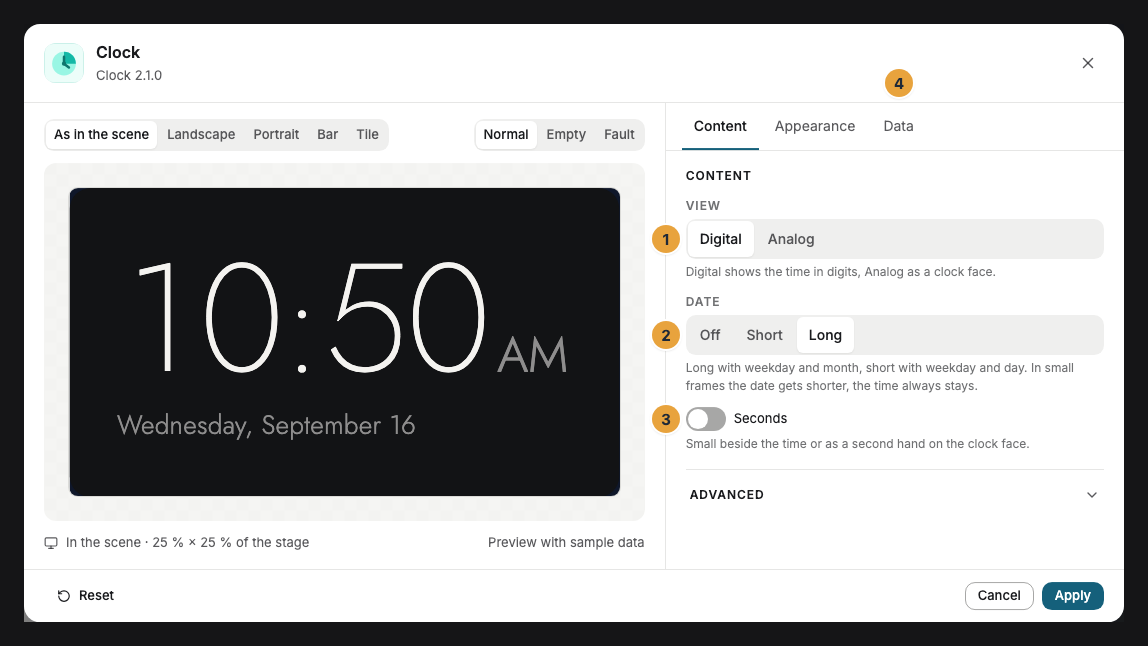
| Setting | Tab | Meaning | Default |
|---|---|---|---|
| View | Content | Digital (digits) or Analog (clock face). | Digital |
| Date | Content | Long (“Tuesday, October 20”), Short (“TUE 20”), or Off. In small frames it gets shorter by itself. | Long |
| Seconds | Content | Small beside the time or as a second hand on the clock face. | Off |
| Time zone | Data | Display location, Organization time zone, or Fixed time zone. | Display location |
| Fixed time zone | Data | Only with a fixed time zone: a search across all zones, in German or English, such as “Wien” or “New York”. | none |
| Colors and Font | Appearance | Style of the app, Brand colors, or Custom colors, plus the font. See Configure widgets. | Style of the app |
| Background | Appearance | Dark, Light, Glass (glassy over the scene), or Transparent. | Dark |
| Corners | Appearance | Rounded or Sharp. | Rounded |
| Hours | Content | Under Advanced: By language, 24 hours, or 12 hours (with AM or PM). | By language |
The clock chooses its sizes itself. This keeps it legible in every frame.
Limits
- Time and zone: The clock takes its time from our servers, so it is right even if the device’s own clock is wrong. If a display has no location, the time zone of your organization applies. An unknown fixed time zone quietly falls back to the location.
- Timing: Without seconds, the clock jumps exactly on the full minute, with seconds on every full second. Thumbnails and store images show a fixed moment.
- Offline: The clock needs no connection and keeps running without a network.
- No world time, no word display: For several places, use the World Clock. For the time as a sentence, use the Word Clock.
If something goes wrong
| Symptom | Cause | Solution |
|---|---|---|
| The clock shows the time of another zone. | The display has no location, or under Time zone the organization or a fixed zone is chosen. | Give the display a location (Create locations and assign displays to them) or set Time zone to Display location. |
| No date visible. | Date is set to Off, or the frame is too small. | Switch Date on or drag the frame larger. Under the preview, the window tells you when the date has no room. |
| The date is shorter than set. | The frame is too narrow for the long date. | Drag the frame wider. |
| The time in the thumbnail stands still. | Thumbnails are frozen. | Nothing to do, the clock runs on the display. |
| The widget cannot be inserted. | The app is not installed, an update is waiting for your decision, or it shows Not in your package. | Check the status under Apps (When an app doesn’t work). |
Related
- Configure widgets: template, preview, and fields
- Create locations and assign displays to them — the location sets the time zone of the clock.
- World Clock — several places side by side.
Was this helpful?