Create locations and assign displays to them
Your displays hang at several addresses, each with its own opening hours.
- For
- anyone who looks after displays at more than one address
- Prerequisite
- the Owner or Manager role. Assigning a display also needs the permission to edit displays.
- Where in the portal
- Settings › Organization › Locations · Displays › display › Settings
On this page
A location is a place where your displays hang, such as a branch, a practice, or a trade fair stand. It groups displays, carries the address and opening hours that all its displays can show, and lets you filter and group the list of displays by place.
Your organization already has its first location. Szenera creates it from your company details, with name, address, and time zone, and the first display you pair joins it on its own. You only need this page once you have a second place.
Steps
Create a location
- Open Settings through your user card at the bottom left, choose Locations under your organization, and click Create location.
- Enter a Name, such as "North branch", and check the Time zone. The time zone decides when program entries switch at this place. The address, Note, and Venue type are optional. You set the position on the map after creating the location, in the next section.
- Click Create. The portal confirms The location was created.
Enter the address either completely or not at all. The venue type matters for advertising and analytics, which group displays by it.
Set the position on the map
The position decides which place the weather and official warnings apply to. It sits on the Position card in the overview of the location, as a pin and not as numbers. You no longer type latitude and longitude anywhere.
With an address in Germany, Austria, or Switzerland, the location gets its position automatically: the center of its postal code, accurate to the town. That is enough for official warnings and the weather at the location. Set a more precise position on the map. It then stays in place even when the address changes. The postal codes come from GeoNames (geonames.org), license CC BY 4.0.
Below the map, the portal says where the position comes from: approximate, from the postal code, taken from a display at the location, or set by hand. In the list of locations, a position from the postal code carries the note Approximate position.
- Open the location. If it has no position yet, the card says No position yet and names the consequence: official warnings do not reach the location then.
- Click Set on the map. In the dialog, the pin stays in the middle and the map moves beneath it. Move the map until the pin stands at the right spot, or click on the place. On a phone it works the same way.
- Click Use this position. The portal confirms The position is saved.
If a display at the location has determined its position from the wireless networks, accurate to 1000 meters at most, the card also offers Take from a display. The dialog shows the fix on the map, you choose the display you mean if there are several, and Use this position saves it as the position. Without such a display, the button doesn't exist. A fix through the network address is too rough for this.
Enter the opening hours
Opening hours belong to the location, so one scene for all branches shows the right hours on each display.
- Choose the location in the list on the left and switch to the Opening hours tab. Click Enter hours if none are entered yet.
- Under Public holidays, choose the State. Szenera then counts its public holidays as closed days. For a German address, the portal suggests the state from the postal code.
- In the Weekly hours, set each day to Closed, Open, or 24 hours. An open day can have several time ranges, for example for a lunch break. Copy to all weekdays applies Monday's hours to Tuesday through Friday.
- Under Special dates, add days that differ, such as a company holiday or a Sunday opening, with Add special date.
- Click Save. Displays that show the opening hours update within seconds.
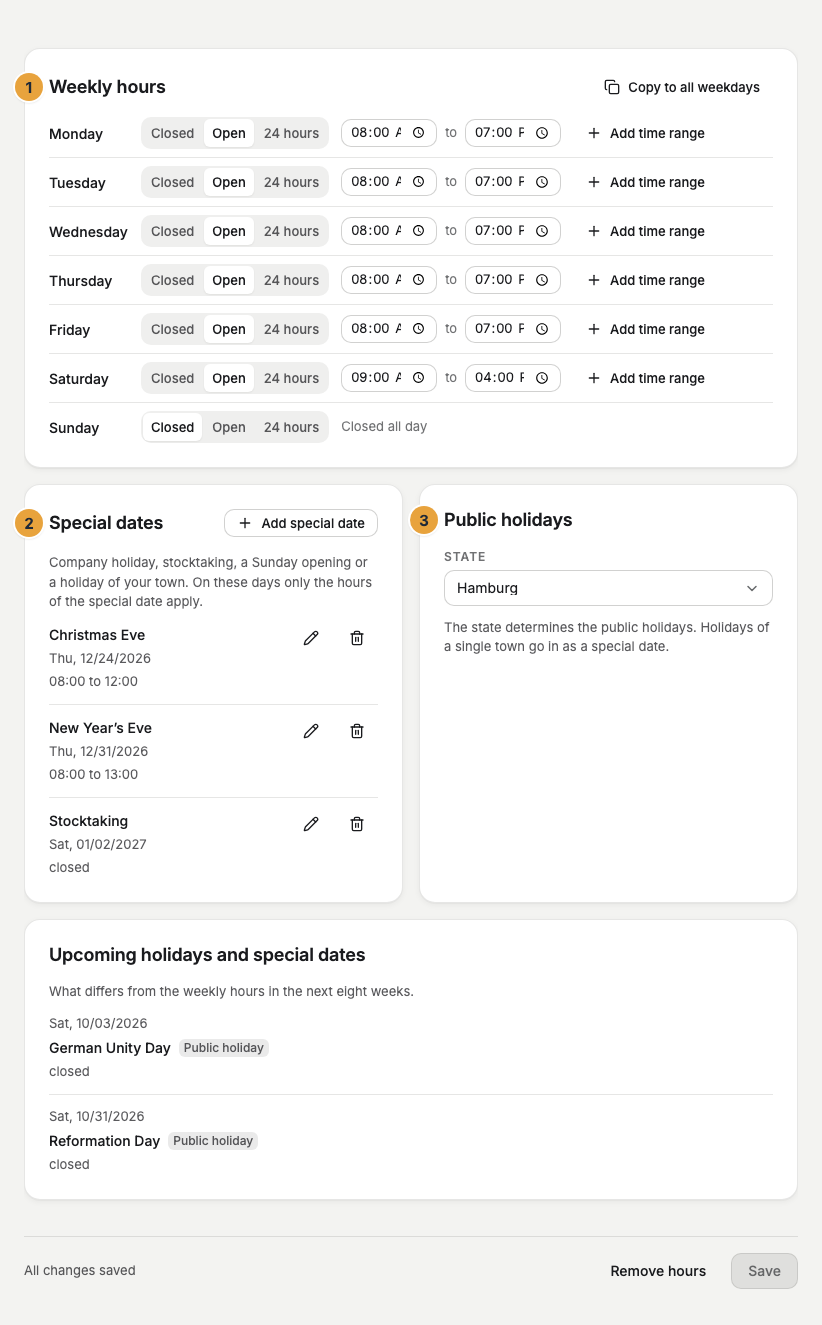
Szenera calculates only the public holidays that apply to the whole state. Enter local holidays as special dates. Analytics also uses the opening hours: outside them, a silent display doesn't count as a gap.
Assign displays
At the location, you move several displays at once:
- Open the location and switch to the Displays tab. The list shows which displays already hang there, with status and position fix.
- Click Assign displays. Displays without a location come first. A display that hangs at another place is moved.
- Tick the displays and click Assign 3 displays. The portal confirms 3 displays are assigned.
Release in the row of a display detaches it again. At a single display, open it, switch to the Settings tab, choose the place under Location in Master data, and click Save.
A display belongs to one location or none. Its program and seat stay as they are. Within seconds, it shows the opening hours and other location-based content of its new place.
Change or delete a location
Edit at the top of the location changes name, address, time zone, Note, and Venue type, and its displays stay assigned. You change the position on the map, as described above.
At the very bottom of the overview, the Delete location card names the consequences before you do anything. Delete location … only works once no display is assigned to the location anymore. Otherwise, the portal names the displays and asks you to reassign them first.
The card Where this location takes effect shows what reads the details of the location, such as the weather, the official warnings, and the opening hours on the display, and what is still missing for it, such as Position missing or Opening hours missing.
Check the result
Under Settings › Organization › Locations, the place appears with its address and the number of assigned displays. In the list of displays, Filter by location offers the new place. From two locations on, the list groups the displays by place.
If something goes wrong
| Symptom | Cause | Solution |
|---|---|---|
| “That name is taken. Two places with the same name could not be told apart in any picker.” | A location with this name already exists. | Choose a name that tells them apart, for example with the street. |
| The address can't be saved | Only some of the address fields are filled in. | Fill in all address fields, or clear them all. |
| Take from a display is missing | No display at the location has determined its position from the wireless networks, accurate to 1000 meters. | Set the position with Set on the map. |
| “Reassign or detach them first, then delete.” | Displays are still assigned to the location. | Choose another location or Without location for these displays, then delete. |
| A local public holiday is missing | Szenera only calculates holidays of the whole state. | Enter the day as a closed special date. |
| Someone else changed the location in the meantime | Another person saved it since you opened it. | Click Load current version and enter your change again. |
| The assignment could not be saved. | The assignment didn't go through. | Close the dialog, reload the page, and assign again. |
| Locations is missing in the settings | Your role can't read locations. | Ask an owner for the permission. |
Related
- Name and organize displays: names, tags, and the device position of a display.
- Monitor your displays: filter and group the list of displays by location.
- Why is a gap not a zero?: how opening hours affect analytics.
Was this helpful?