Set up a video wall
Several displays should show one large picture together.
- For
- anyone who wants several displays to show one picture together
- Prerequisite
- the Owner or Manager role. Each video wall is booked separately.
- Where in the portal
- Video walls
On this page
A video wall combines several displays into one large picture, such as two TVs side by side in a shop window or four in a square. You create it under Video walls, assign content to the whole wall at once, and can dissolve it again at any time.
How a video wall works
On its own, each display shows the whole scene. On a video wall, the scene is spread across the whole surface, and each display shows its part. The surface is a grid of up to 4 × 4 tiles, and each tile counts as 1920 × 1080 pixels. The displays don't need to be connected to the same device.

Keep three things in mind before you build:
- All displays switch content at the same time, but videos are not frame-synchronized across the seam. Video walls work best with scenes, images, and calm transitions.
- Videos on a video wall play in the browser, which needs more power. Avoid very large videos on big grids.
- Every device needs a correct clock. Clock out of sync on one display affects the whole wall.
Steps
Create the video wall
- Open Video walls. If it says The video wall is not enabled yet, click Enable video wall. If the booking is missing, the dialog offers to book it.
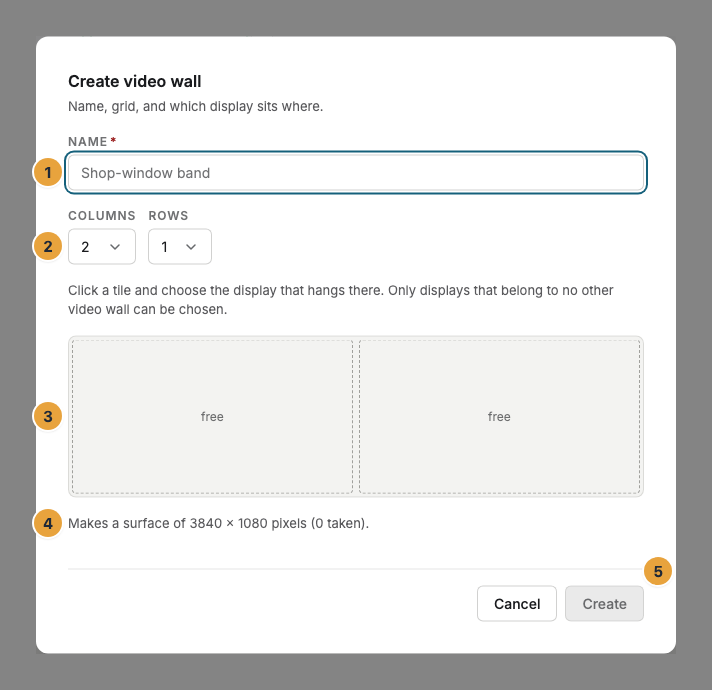
- Click Create video wall and enter a name.
- Set Columns and Rows, then click each tile and choose the display that hangs there. Tiles may stay empty.
- Click Create. The portal confirms Video wall created.
You can also select several displays under Displays and choose Combine into a video wall.
Assign content
- Open the video wall. The card What runs on this surface replaces the assignment of the single displays.
- Click Assign program and choose a program, scene, playlist, or file. It runs on all displays of the wall.
- If the displays still show different things, click Apply to the whole surface.
For very wide walls, design scenes in the Wide format, which the template gallery offers for aspect ratios from about 21:9.
Dissolve the video wall
Open the video wall, click Dissolve video wall, and confirm with Dissolve. The displays keep their seats and their last content, and each one shows the whole scene again.
Check the result
The video wall's page shows how the displays sit next to each other, and below it Displays of this video wall with each display's status and picture. All displays are showing means everything is fine. Otherwise, the line names the display that needs attention.
If something goes wrong
| Symptom | Cause | Solution |
|---|---|---|
| The video wall is not enabled yet | The video wall app isn't enabled. | Click Enable video wall. If you can't, ask someone who may manage apps. |
| This video wall still needs to be booked | There is no booking for this video wall. | Book it in the dialog. The booking appears under Settings › Organization › Billing. |
| A display is missing from the selection | It already belongs to another video wall. | Dissolve or change that video wall first. |
| A display shows Part of a video wall instead of its program | Content goes to the whole wall. | Assign the content to the video wall with Go to the video wall. |
| A video doesn't line up across the seam | Videos aren't frame-synchronized across displays. | Use scenes and images, or show the video on one display. |
Related
- Video wall: the app that enables video walls.
- How do you design content that people can read?: the Wide format.
- Packages, trial, and what you pay for: what a video wall costs.
Was this helpful?