Name and organize displays
You want to find displays again by name, tag, or position on the map.
- For
- anyone who looks after more than a handful of displays and wants to find them quickly
- Prerequisite
- the Owner or Manager role. Managing tags is a separate permission.
- Where in the portal
- Displays › display › Settings
On this page
Give each display a name you recognize, group displays with tags, and check where each one sits on the map. Everything happens on the display's Settings tab.
Steps
Name and describe the display
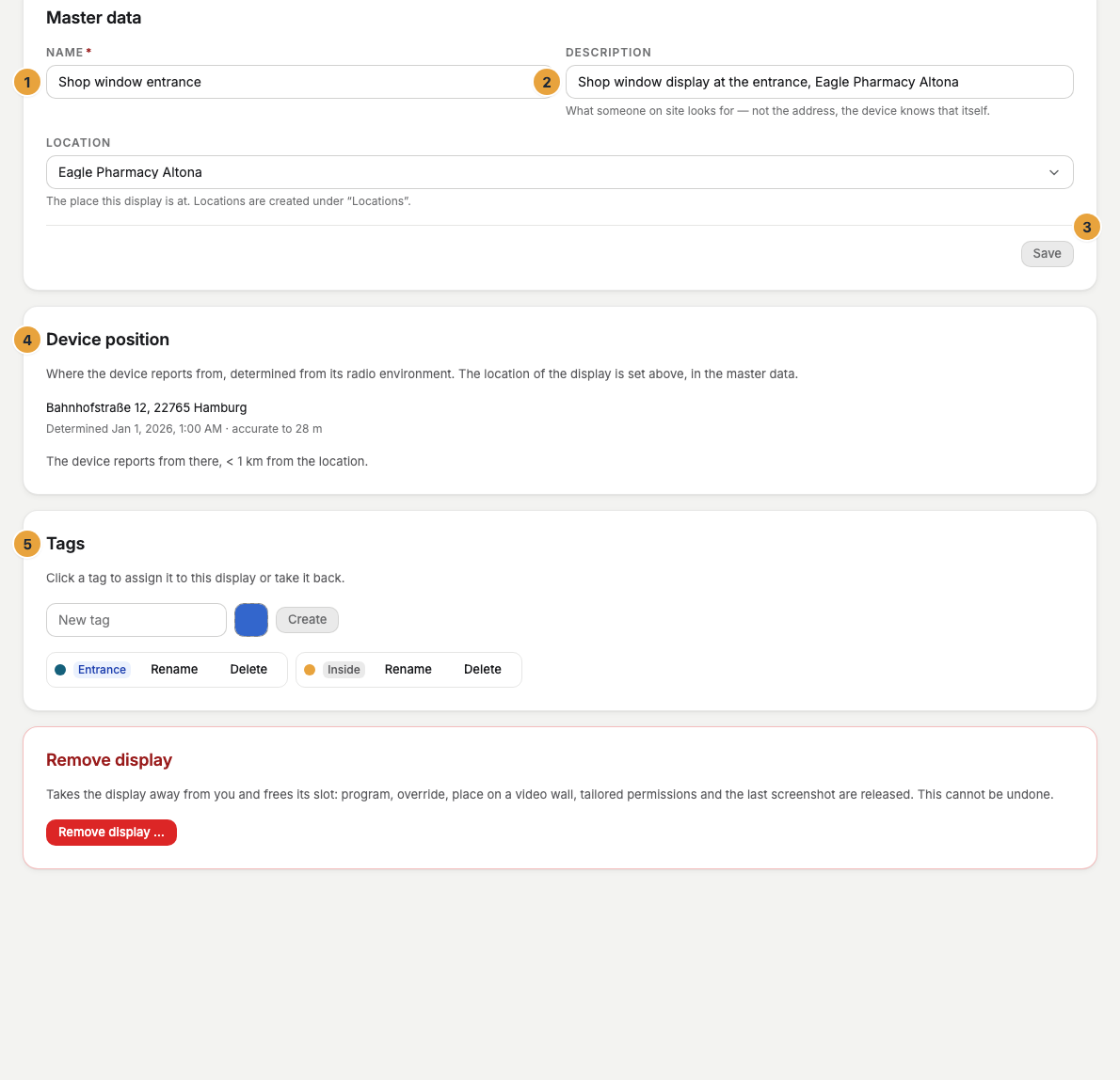
- Open the display and switch to the Settings tab.
- In Master data, enter a Name, such as "Window right". It appears in the list of displays and in every log entry.
- Under Description, note what someone on site needs to find the display, such as "under the awning".
- Under Location, choose the place where the display hangs, or leave Without location. You create places under Settings › Organization › Locations, see Create locations and assign displays to them.
- Click Save.
In the list of displays, Rename … in a display's menu is a faster way to change only the name.
Create and assign tags
Tags are colored labels that group displays across locations, such as "Shop window" or "Waiting room".
- On the Settings tab, go to Tags.
- Under New tag, enter a name, choose a Tag color, and click Create. The tag is then available for all displays.
- Click a tag to assign it to this display. Click it again to remove it.
To tag several displays at once, select them in the list of displays and choose Assign tag …. Rename and Delete change a tag for all displays.

Check the map position
The device determines its position from the surrounding radio networks, and the map view uses it. The Device position card shows it, for information only. You no longer enter coordinates at the display. The address and position of a place belong to its location.
- Go to the Device position card. It names the address, the time, and the accuracy.
- If the display hangs at a location with a position, the card compares the two. If they differ widely, it warns: The device reports from about … km away from the location.
- If the display has moved, choose its new place under Location in Master data. Otherwise it keeps showing the opening hours and weather of the old place.
An older correction by hand stays visible as Set by hand on …. Determine automatically again hands the position back to the device.
The map position is not the same as the place you choose in Master data. The device measures the position, while a place is something you create and can assign to several displays.
Check the result
The list of displays shows the new name, the Tag filter offers your new tag, and under View › Map, the display sits at its position.
If something goes wrong
| Symptom | Cause | Solution |
|---|---|---|
| The display was changed in the meantime — please reload. | Someone else just edited the same display. | Reload the page and enter your change again. |
| A deleted tag is gone everywhere | Delete removes the tag from all displays. | Create the tag again and assign it again. |
| The map shows no displays | No device in the selection knows its position yet. | Wait until the device has determined it. |
| The buttons are grayed out | Your role doesn't allow editing displays or managing tags. | Ask someone with the Owner role for the permission. |
Related
- Monitor your displays: filter and sort the list by tag and location.
- Create locations and assign displays to them: group displays by place, with opening hours.
- Roles and permissions: who may name and tag displays.
Was this helpful?