Assign a program to a display
You decide what a display shows.
- For
- anyone who decides what runs on a display
- Prerequisite
- the Owner or Manager role, and content you have already created
- Where in the portal
- Displays › display › Program
On this page
Every display shows exactly one thing you assign to it: usually a program with a weekly plan, or a single scene, playlist, or file that runs around the clock.
Steps
- Open Displays, choose the display, and switch to the Program tab.
- Click Assign program. If something is already assigned, click Change.
- In What should run on this device?, choose a tab and click the entry you want. Search helps if the list is long.
- The portal confirms with Program assigned.
| Tab | What the display does |
|---|---|
| Programs | Follows the weekly plan: program entries at their times, the base program the rest of the time. |
| Scenes | Shows one scene, all day. |
| Playlists | Plays the items of a playlist in a loop. |
| Media | Shows one image or video in an endless loop. |
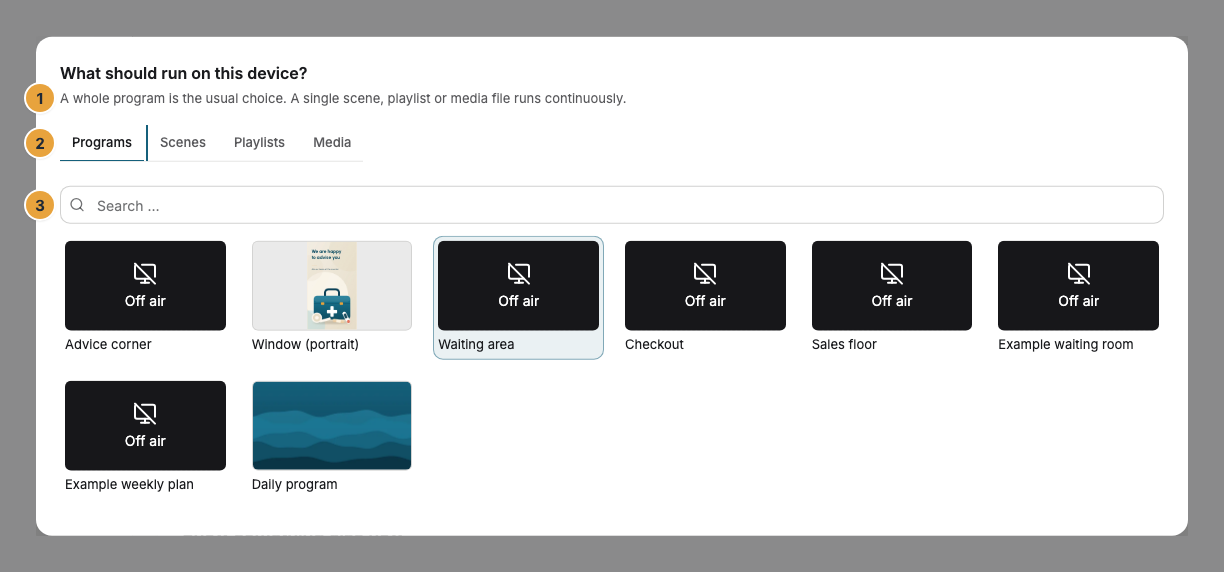
If two displays should show the same, give both the same program. The Scenes tab first shows only scenes that fit the format of this display. Show all formats adds the others, which then play with black bars.
Check the result
The Program card names what is assigned, and the timeline below it shows the resulting day. On the Overview tab, Now changes as soon as the device has loaded the new content, usually within seconds.
To go back to the placeholder, click Remove assignment and confirm.
If something goes wrong
| Symptom | Cause | Solution |
|---|---|---|
| The card says Part of a video wall | The video wall decides what this display shows. | Assign the content to the video wall with Go to the video wall. |
| A scene is missing from the list | It doesn't fit the format of this display. | Switch on Show all formats. The scene then plays with bars. |
| Not everything runs on this display | An app in the content doesn't support this kind of device. | Assign content without that app, or build a version of the scene without it. |
| The TV still shows the old content | The device hasn't loaded the change yet, or it is offline. | Wait a moment. On the Diagnostics tab, Reload content loads it right away. |
| The buttons are grayed out | Your role doesn't allow assigning content. | Ask someone with the Owner or Manager role. |
Related
- Create a program: build the weekly plan you assign here.
- Show something else now, such as an urgent notice: replace the program for a while.
- Set up a video wall: show one picture across several displays.
Was this helpful?