Create a program
A display should follow a weekly plan.
- For
- anyone who wants displays to follow a weekly plan
- Prerequisite
- the Owner or Manager role, and the content for normal hours: a published scene, a playlist, or a media file
- Where in the portal
- Programs › Create program
On this page
A program describes what runs when during the week. Create it, choose the base program that runs whenever nothing else is planned, and assign it to your displays.
Steps
Create the program
- Open Programs and click Create program. The editor opens right away with a program called New program.
- Click the name at the top and type one that says what the program is for, such as "Waiting room". It is saved when you leave the field.
Choose the base program
- In the Base program card on the right, click Change.
- Under What should normally run?, choose a scene, a playlist, or a media file. Choose Off air if the display should stay blank unless something is planned.
- The portal confirms with Base program changed.
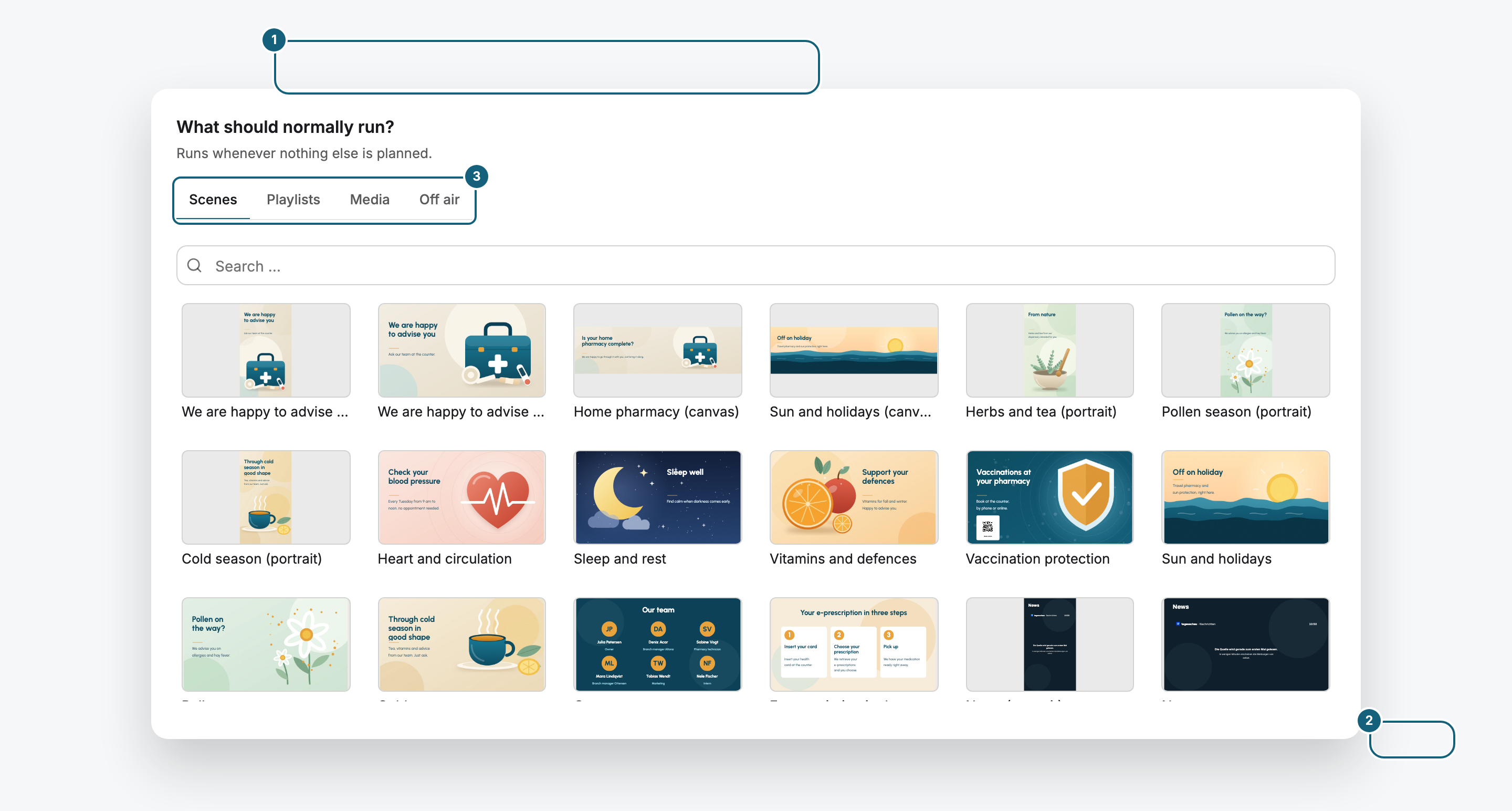
A new program starts with Off air as its base program. Until you change it, its displays stay blank whenever no program entry applies.
Plan exceptions
Content for certain times, such as a lunch menu at noon, goes into program entries. Drag across the weekly plan to create one, see Show content at specific times.
Assign the program
A program has no effect until a display runs it. Open the display, click Change program, and choose the program on the Programs tab. Details in Assign a program to a display.
How the editor is laid out
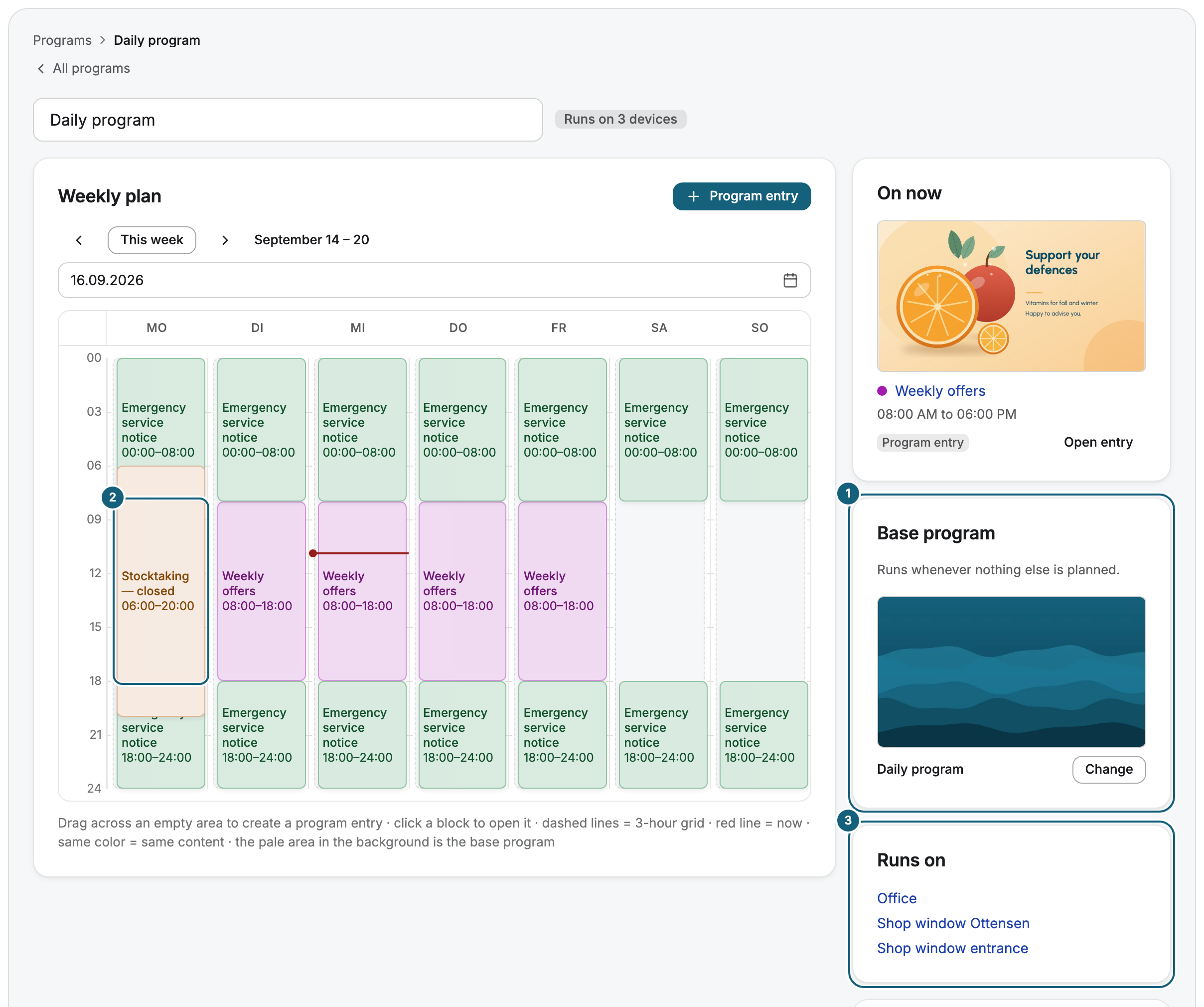
On the left, the Weekly plan shows the week across 24 hours. The pale area behind each day is the base program, and each colored block is a program entry. On the right are On now, Base program, Runs on with the displays that run the program, and the list of program entries.
Check the result
On now names the Base program and adds around the clock as long as there are no program entries. Once the program is assigned, Runs on lists the display and the badge next to the name says Runs on 1 device.
If something goes wrong
| Symptom | Cause | Solution |
|---|---|---|
| Create program is grayed out | Your role doesn't allow creating programs. | Ask someone with the Owner or Manager role. |
| The program could not be created. | Creating failed. | Reload the page and try again. |
| Saving failed after renaming | The new name didn't get through. | Click into the name and leave the field again. If it persists, reload the page. |
| The display stays blank | The base program is still Off air, or the program isn't assigned. | Choose a base program, then check Runs on. |
Related
Was this helpful?