Fill a playlist automatically from a folder or tags
A rotation should keep itself up to date as files are added.
- For
- anyone who wants a rotation that keeps itself up to date, for example weekly offers that a colleague uploads
- Prerequisite
- the Owner or Manager role, and media sorted into folders or tagged
- Where in the portal
- Playlists › Create playlist, or an open playlist › Where does the content come from?
On this page
An automatic playlist plays whatever is in a library folder or carries certain tags. New matching files join on their own and deleted ones drop out, so nobody has to maintain the playlist.
Folder or tags?
| Source | What it plays | Good for |
|---|---|---|
| Folder | Every file in one folder, with or without its subfolders | A team uploads into a shared folder, such as "Offers this week" |
| Tags | Every file that carries all the chosen tags, in any folder | One file belongs to several rotations, such as "summer" and "shop window" |
Steps
Create an automatic playlist
- Open Playlists and click Create playlist.
- Choose Folder or Tags.
- Enter a Playlist name and the Default duration per item (seconds). Images run this long, videos their natural length.
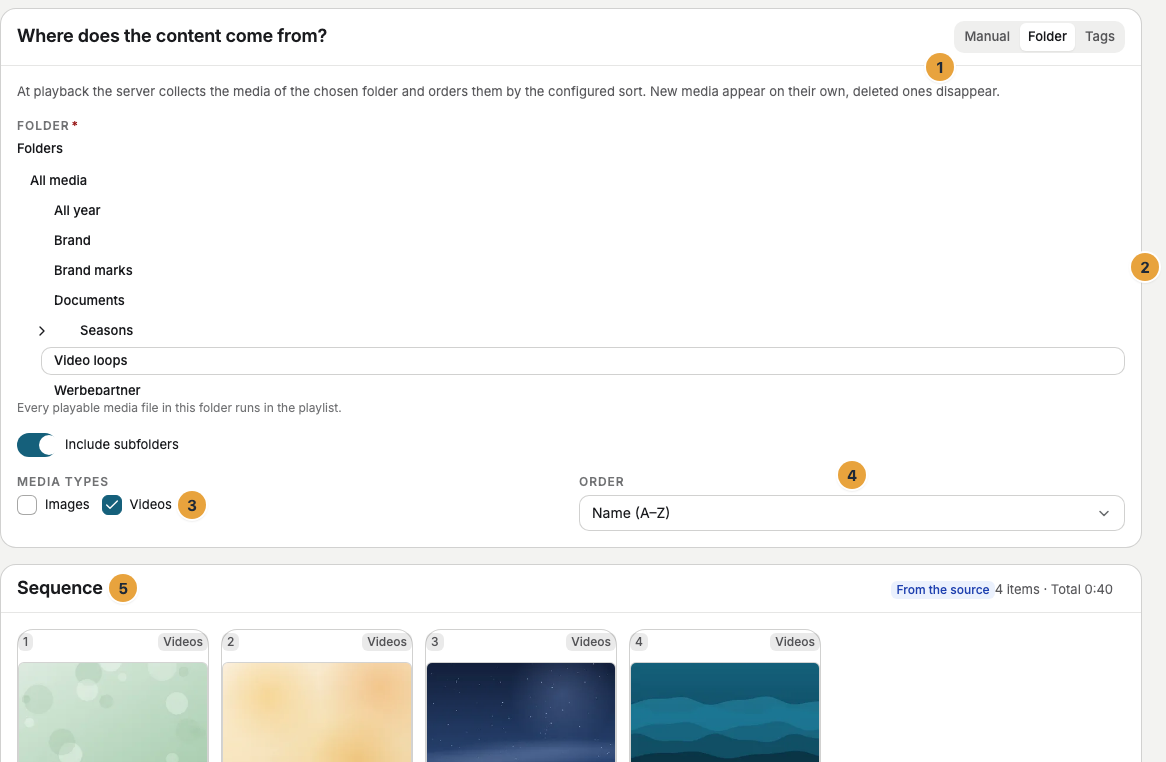
- For Folder, choose the folder and switch on Include subfolders if needed. For Tags, choose 1 to 10 tags. A file only plays if it carries all of them.
- Choose the Media types and the Order, such as Newest first.
- Click Create playlist. The playlist opens and lists the matching files under Sequence, marked From the source.
Change the selection
Open the playlist, change the folder, tags, media types, or order under Where does the content come from?, and click Save. The Sequence shows the matching files right away, so you can see whether the selection is what you want.
A playlist from OneDrive
Choose OneDrive when creating the playlist, then the account and the Cloud folder. Szenera copies the files into your library and keeps them in sync, so the playlist works like a folder playlist. Above the selection, Kept in sync from … shows whether the sync is Running or Paused. If The sync is paused, click Reconnect. More in Files from OneDrive.
Good to know
- An automatic playlist plays up to 200 files in the chosen order. If more match, Not the whole selection runs says how many are left out.
- You can't reorder the files or give them their own durations. For that, switch the playlist to Manual. Take over as a manual playlist turns the current files into an editable sequence, up to the first 100.
- Switching a manual playlist to Folder or Tags discards its sequence. The portal warns with The sequence will be discarded.
- A new file joins only once it has finished processing.
- An automatic playlist plays images and videos. Take scenes, documents, and app contents into a manual playlist.
Check the result
The playlist appears under Playlists with the Folder or Tags badge. A OneDrive playlist shows Folder. Add a file to the folder or tag it, and it appears in the Sequence once it has finished processing.
If something goes wrong
| Symptom | Cause | Solution |
|---|---|---|
| No playable media currently matches this selection. | The folder is empty, the tags are too strict, or a media type is switched off. | Widen the selection. The sequence shows the result right away. |
| A new file doesn't appear | It is still processing, lacks one of the tags, or sits in a subfolder that isn't included. | Wait for Ready, check its tags, or switch on Include subfolders. |
| The source is not complete yet — please check the selection. | The folder, tags, or media types are missing. | Fill in what is missing and save. |
| Not the whole selection runs | More than 200 files match. | Narrow the selection or split it across two playlists. |
| The selection could not be resolved. | The list of matching files couldn't be loaded. | Click Try again. |
Related
Was this helpful?