Files from OneDrive
Your files live in OneDrive, and you want them in Szenera without uploading them again.
- For
- organizations that keep their images and videos in OneDrive
- Prerequisite
- the OneDrive app is installed, and you may manage apps
- Where in the portal
- Library › Places · Apps › OneDrive › Connected accounts
On this page
If your images and videos already live in OneDrive, connect your Microsoft account once. Your OneDrive folders then appear in the Library under Places, and you can import single files or keep a whole folder in sync.
Steps
Connect your account
- Open Apps and then the page of the OneDrive app.
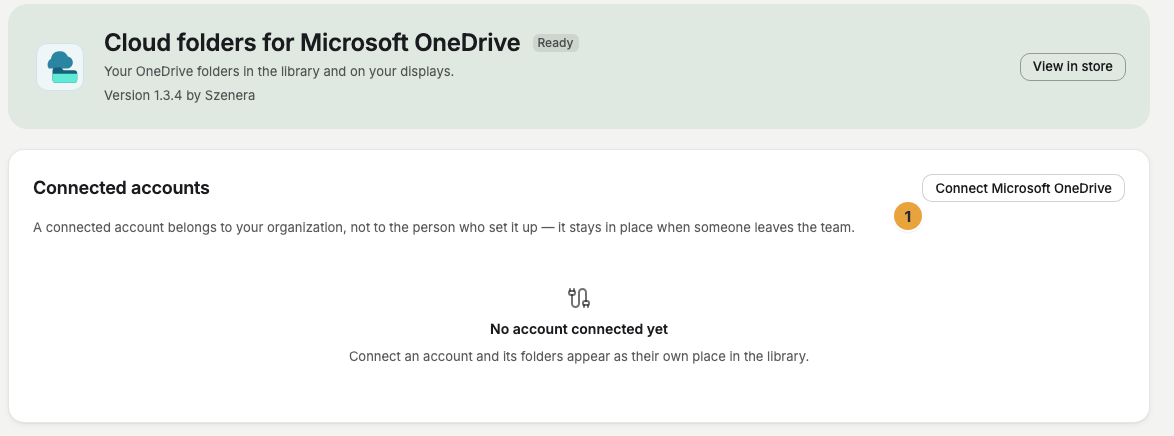
- Under Connected accounts, click the button to connect Microsoft OneDrive.
- Sign in with Microsoft and confirm the access. The account then shows Connected.
The connected account belongs to your organization, not to the person who connected it, so it stays when someone leaves your team.
Import single files
- Open the Library. Places appears in the sidebar, above the trash.
- Open a OneDrive folder.
- For a file, choose Import into library and pick the Target folder.
Keep a folder in sync
- Open the OneDrive folder and choose Keep folder in sync.
- The folder now shows Kept in sync and appears under Folders kept in sync. New and changed files arrive in your library on their own.
- Sync now starts a sync right away, and Stop ends it.
Check the result
Imported files appear as tiles in the target folder. Their details name where they came from. A synced folder shows when it last ran.
If something goes wrong
| Symptom | Cause | Solution |
|---|---|---|
| Places is missing in the Library | The OneDrive app isn't installed. | Install the app. Places then appears. |
| The connection no longer works | The access was withdrawn at Microsoft. | Click Reconnect. Files you already imported stay. |
| A synced folder shows Paused | The connection is interrupted. | Reconnect the account. The sync then resumes by itself. |
| A file was deleted in OneDrive | The imported copy in Szenera stays usable. | Nothing to do, unless you want to delete it in Szenera too. |
Related
Was this helpful?