Configure a scene: format, zones, transitions
You change the format, the zones, or the transitions of a scene.
- For
- anyone who designs scenes
- Prerequisite
- the Owner or Manager role and an open scene
- Where in the portal
- Scenes › open a scene › Zones and Settings
On this page
Besides its widgets, a scene has settings of its own: the format of the stage, the split into zones, what each zone plays, a background color, and how the scene fades in and out.
Steps
Change the format
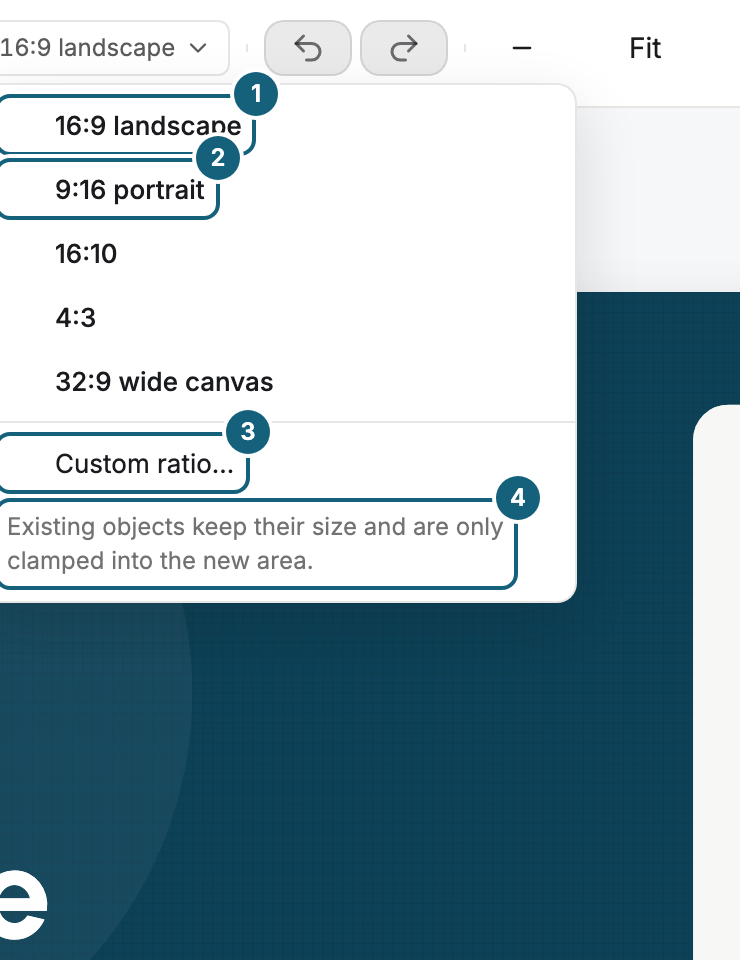
- In the header, open the Stage format menu.
- Choose a ratio such as 16:9 landscape or 9:16 portrait. Or enter Width and Height under Custom ratio… as a ratio, for example 21 and 9, and click Apply.
The scene knows only the ratio, not a resolution. Changing the format doesn't scale your widgets. They keep their size and are only clamped into the new area, so check each zone and widget afterwards.
Split the scene into zones
- In the bar, open Zones. Under Layout, 18 layouts range from Full screen through Main, side, ticker to Six fields. One click creates the zones. What the old zones played moves to the new ones in order, and free widgets stay where they are.
- Under In this scene, you see the zones with what they play. Under Placed freely, you see the widgets outside the zones. A click on a row selects the object on the stage.
- Drag the handle of a divider between two zones. All zones at the line change together, and a display shows the split in percent, for example 70 % to 30 %. No zone gets smaller than its minimum size.
- Select a zone on the stage. The toolbar above it offers Split to divide it side by side or one above the other, Main zone, and Remove zone. The gear icon opens the name, corners, inset, and appearance of the zone.
A zone isn't a free widget. You neither move it nor resize it by its handles, only through its dividers. A neighbor that shares a whole edge takes over the area of a removed zone. If a zone plays a single app widget, the toolbar also offers the Template and Colors of that widget.
Set what a zone plays
- Below the stage is the sequence strip of the selected zone, or of the main zone if none is selected. Its tabs switch between Own sequence, Playlist, and Single item.
- In an own sequence, each item is a card with a preview image, its type, and its duration. Leave the duration empty for the default: ten seconds for an image or widget, eight seconds per page of a document, and a video runs its length. The arrows change the order, and the cross takes an item out.
- Add opens the media. What you insert while a zone is selected goes into that zone. You can also drag an app from Apps onto a zone, see Place and arrange widgets on the stage.
- Under Playlist, choose a playlist of your organization. It runs in the zone as on a display of its own, and a row of small cards shows its entries. A scene or an ad break in the playlist doesn't play in a zone and carries the note “Does not play in an area”.
The main zone sets how long the scene runs in a playlist when it has no duration of its own. Its strip names the total length, with “at least” in front while the editor doesn't know the length of a video yet.
Set the background and transitions
- Under Settings › Scene, choose the Background color of the stage.
- Under Transitions, set Entry and Exit: the Type (None, Fade, or Slide), the Duration, and for Slide the Direction.
- Click Play transition to see the result on the stage.
Under View, Show grid shows a guide grid on the stage. The change between items of a playlist is set in the playlist, see Create a playlist.
Check the result
Preview shows the scene in motion in its format, including the transitions. The status line shows no issues and names the number of zones and free widgets.
If something goes wrong
| Symptom | Cause | Solution |
|---|---|---|
| After changing the format, a widget sits half outside | Widgets keep their size when the format changes. | Select the widget and move or resize it. |
| A divider can't be dragged any further | A zone at the line has reached its minimum size. | First move the line on the other side of that zone. |
| Split is grayed out | The zone is too small for two parts. | Enlarge the zone through its dividers, then split it. |
| The status line reports Zones do not fit together | Two zones are main zones, they overlap, or the playlist of a zone is missing. | Make only one zone the Main zone, choose the layout again, or choose another playlist. |
| The transition isn't visible | The Type is None, or the Duration is very short. | Set type and duration, then check with Play transition. |
Related
Was this helpful?