Create a playlist
Several scenes, media items, or app contents should take turns on a display.
- For
- anyone who wants several pieces of content to take turns on a display
- Prerequisite
- the Owner or Manager role, and published scenes, processed media, or app contents in your library
- Where in the portal
- Playlists › Create playlist
On this page
A playlist plays scenes, images, videos, and app contents one after another in a loop. Create it, put the items in the order you want, watch a test run, and save.
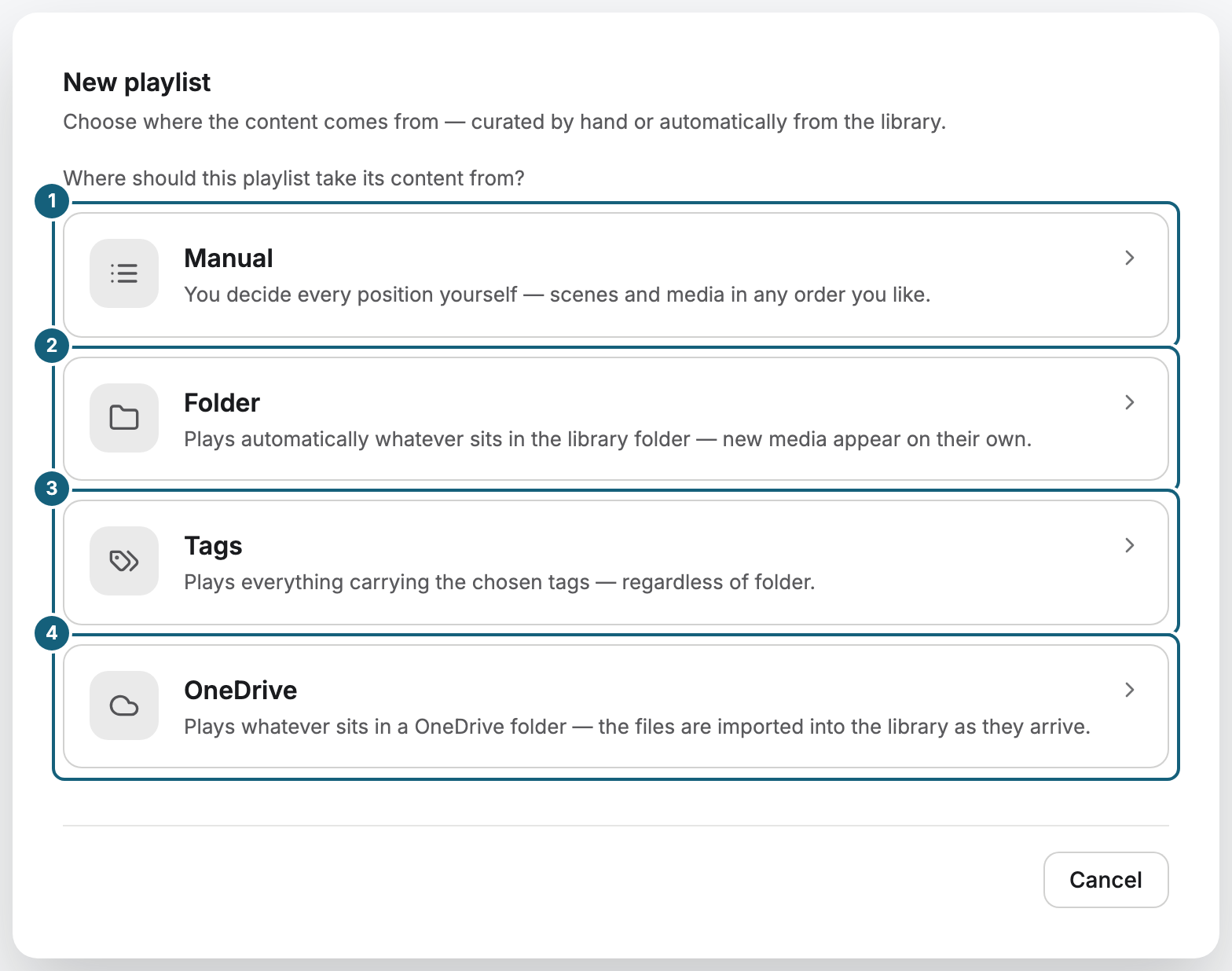
Choose the kind of playlist
| Kind | What it plays | Good for |
|---|---|---|
| Manual | The scenes, media, and app contents you pick, in your order, up to 100 | A handful of hand-picked items, such as a menu and two offers |
| Folder or Tags | Whatever is in a folder or carries certain tags | Content that others keep adding, such as weekly offers |
| OneDrive | Whatever is in a OneDrive folder | Teams that already keep their files in OneDrive |
This page covers the manual playlist. For the others, see Fill a playlist automatically from a folder or tags.
Steps
Create the playlist
- Open Playlists and click Create playlist.
- Choose Manual.
- Enter a Playlist name, such as "Lunch menu".
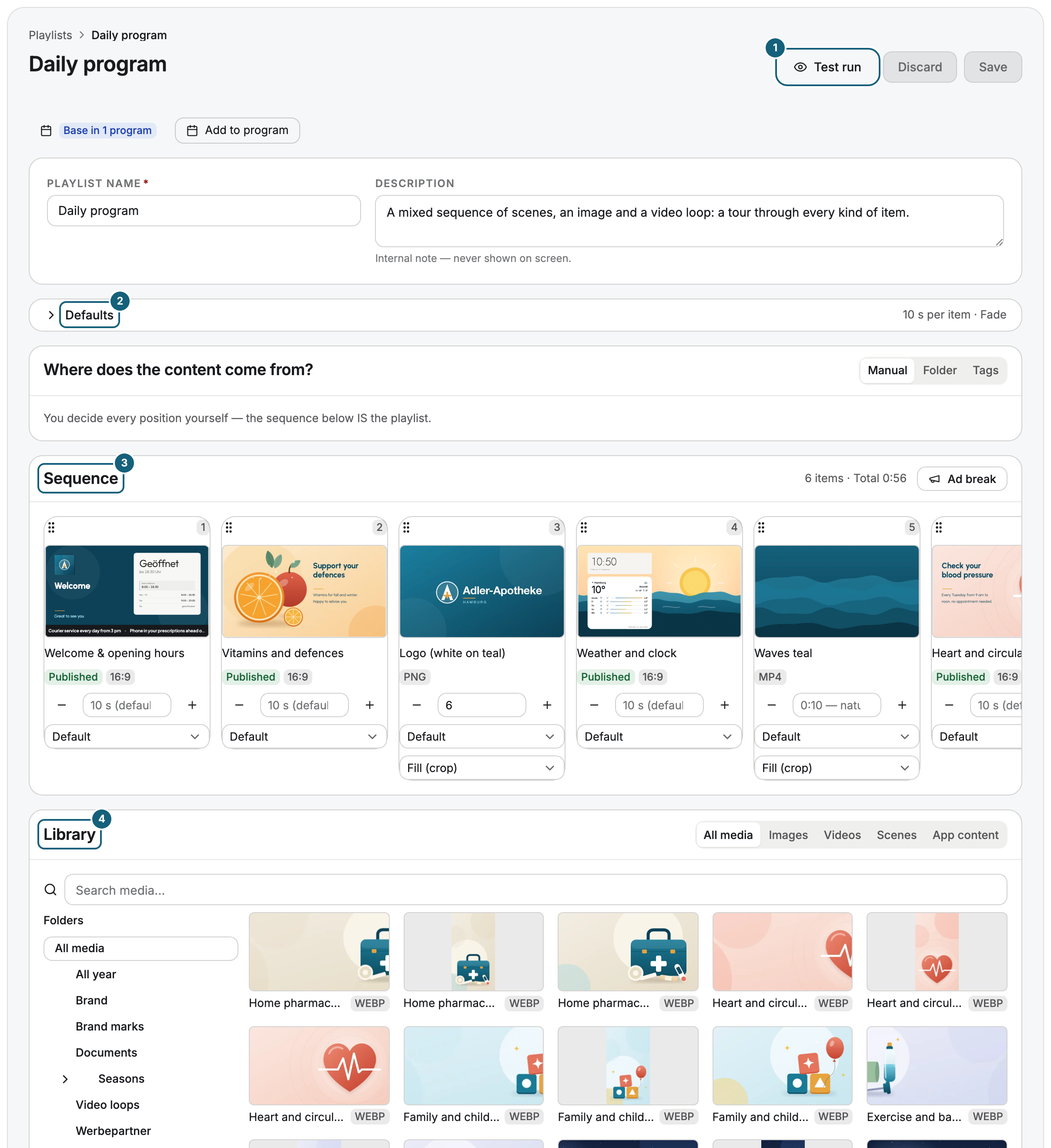
- Set the Default duration per item (seconds). Every image, scene, and app content without a duration of its own runs this long. Videos run their natural length.
- Under First item, pick a scene or click Pick media.
- Click Create playlist. The playlist opens.
Add and arrange items
- In the Library below the sequence, choose All media, Images, Videos, Scenes, or App content.
- Click an item to add it at the end, or drag it to a specific place. The library stays open, so you can add several in a row.
- Drag a card by its handle to change the order. The top of the Sequence shows the number of items and the total length of one loop.
Add app contents and PDFs
The App content tab shows every app content of your library as a tile with a live preview, such as the weather of a branch. A click adds it to the end of the sequence. If you change it in the library, the change applies in every playlist that holds it. The tab appears only with the permission List app contents. Without any app content yet, Create app content leads to the dialog for a new one, see Create, configure, and maintain app contents.
A PDF sits in the All media tab, not under Images or Videos. Word, PowerPoint, and Excel files become PDFs on upload and sit there too. A PDF runs as a series of its pages. Choose pages on its card opens a dialog where you deselect pages, such as a blank back page. For a document with more than 50 pages, the first 50 are available.
Set the duration and transition of each item
- Enter seconds in a card's duration field. If you leave it empty, the card shows the default, such as 10 s (default). A video with a duration of its own is cut off after that time, or holds its last frame if it ends sooner.
- For a PDF, the field applies to each page. Left empty, every page runs 8 seconds, not the default of the playlist.
- Choose a transition: Default, None, Fade, or Slide.
- For images and videos, choose Fill (crop) to fill the display or Fit (letterbox) to show the whole picture. A new PDF starts on Fit (letterbox), so that every page stays whole.
The default duration and the default transition are under Defaults at the top of the playlist. Videos from your library play without sound. For sound, use the YouTube or Live stream app.
Test and save
- Click Test run. The playlist plays full screen in a new window, with the real durations and transitions. Scenes and app contents run with their current data, as on the display, and a PDF runs page by page. Next and Previous jump to the next or previous item, and within a PDF to the next or previous page. Press Esc to end it.
- Click Save. Discard goes back to the last saved state.
Check the result
The playlist appears under Playlists with the Manual badge, the number of items, and the total length. It reaches a display only once you assign it, directly or inside a program. There, an app content plays full screen and a PDF plays page by page.
If something goes wrong
| Symptom | Cause | Solution |
|---|---|---|
| Create playlist is grayed out | Your role doesn't allow creating playlists. | Ask someone with the Owner or Manager role. |
| A file is missing from the Library | It hasn't finished processing. | Wait until the library shows it as Ready. |
| The App content tab is missing | Your role lacks the permission List app contents. | Ask an Owner to add it, see Roles and permissions. |
| A card says The app is not installed, so the content is skipped on the display | The app of this app content isn't installed. | Install the app again, or remove the card. |
| A PDF is locked, with Pages are still being prepared below it | The page images are created during upload and aren't ready yet. | Wait a moment. If it says Pages could not be prepared, see Manage media: details, usage, and deleting. |
| Mixed orientations in this sequence | The playlist mixes landscape and portrait. One of them runs with black bars. | Make two playlists, one for each orientation. |
| Never published — will be skipped on the display | The scene is still a draft. | Publish the scene. |
| A scene is blocked, not included in your package | The scene uses something your package doesn't include. | Choose another scene, or change your package. |
| Save failed | A field has an invalid value. | Correct the fields marked in red and save again. |
Related
Was this helpful?