Manage playlists
You want to rename, copy, or delete playlists, or see where one runs.
- For
- anyone who keeps the playlists in order
- Prerequisite
- the Owner or Manager role
- Where in the portal
- Playlists
On this page
Under Playlists you find, rename, duplicate, and delete playlists, and see in which programs a playlist runs. A playlist that is still in use can't be deleted.
Steps
Find a playlist
- Open Playlists. Under View, switch between Grid view and List view. The tile shows a live preview of the current item. If it is an app content, the tile shows its icon.
- Type in Search playlists, or filter by Source: All, Manual, Folder, or Tags.
- Sort with Sort, for example by Recently updated or Name A–Z.
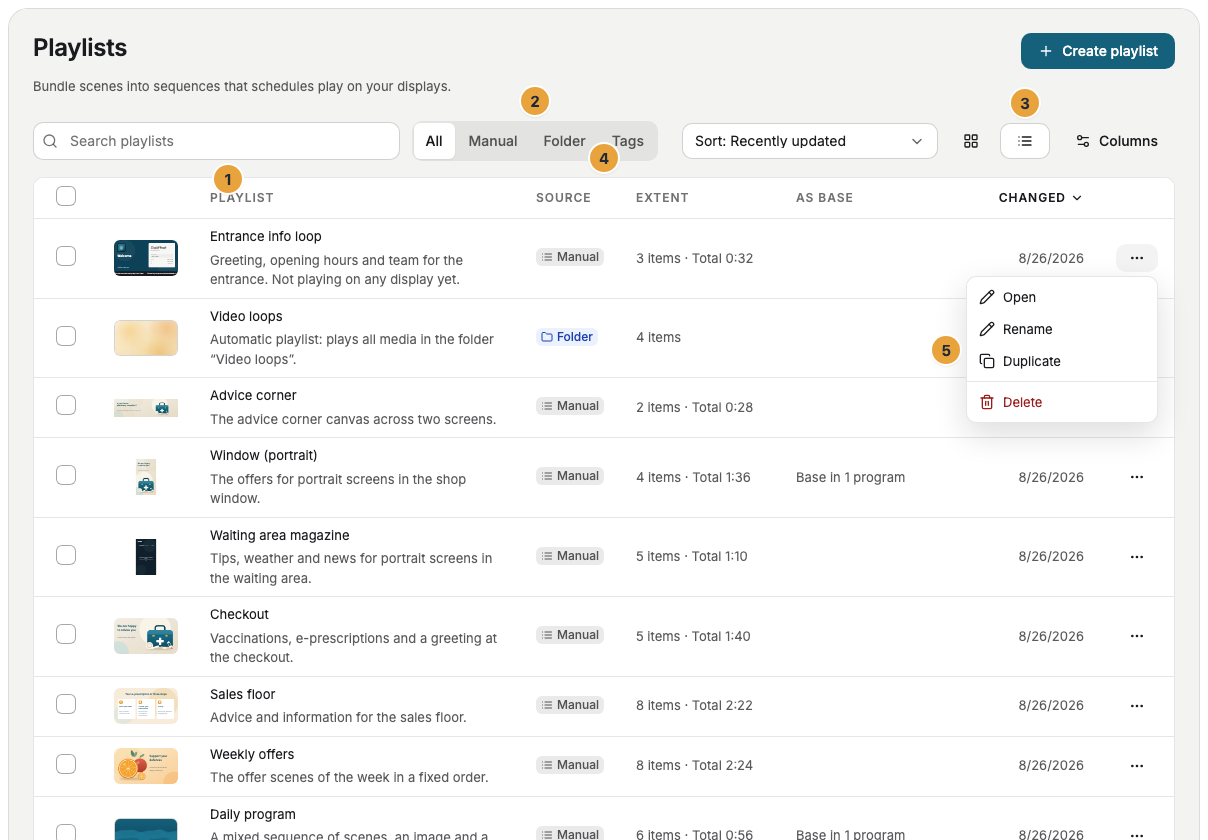
Rename or duplicate
- Open the menu of a playlist, or right-click it.
- Choose Rename, enter the new name, and confirm with Rename.
- Or choose Duplicate. The copy is called "Name (copy)" and is a good starting point for the next promotion.
See where a playlist runs
The As base column and the tile show, for example, base in 2 programs. In the open playlist, the same note opens Programs using this playlist as base, with links to the programs. Add to program next to it puts the playlist into a program as a program entry.
This number counts only the programs in which the playlist is the base program. It doesn't count program entries or displays that play the playlist directly. To see those, open the program or the display's Program tab.
Delete
- Choose Delete in the menu and confirm Delete playlist permanently? with Delete.
- To delete several at once, tick their boxes and click Delete selection.
A playlist that is still in use stays. That includes the base program or a program entry of a program, and a direct assignment to a display. Deleting a OneDrive playlist keeps the sync and the files already copied to the library.
Check the result
The list shows the new name, the copy, or no longer shows the deleted playlist. After deleting several, the message says how many were skipped, for example 4 deleted, 1 skipped (scheduled).
If something goes wrong
| Symptom | Cause | Solution |
|---|---|---|
| A playlist is skipped (scheduled) | A program or a display still uses it. | Open the programs under Programs using this playlist as base and choose another base program. Remove program entries in the program's weekly plan, and assign something else on the display. |
| Rename, Duplicate, or Delete is missing | Your role doesn't allow it. | Ask someone with the Owner or Manager role. |
| No playlists for this selection. | The search or the source filter rules out every playlist. | Clear the search and set Source to All. |
| Content from the source instead of a number | The list doesn't count the files of an automatic playlist. | Open the playlist. Its Sequence shows the number and the total length. |
Related
Was this helpful?