Show content at specific times
Something else should run at certain times, such as a lunch menu at noon.
- For
- anyone who plans exceptions to the normal program
- Prerequisite
- the Owner or Manager role, a program, and the content that should run
- Where in the portal
- Programs › program › Weekly plan
On this page
A program entry shows other content than the base program during a time window, such as a lunch menu on weekdays from 11:30 to 14:00 or a holiday notice on a single day. You create it in the weekly plan of a program.
Steps
Create a program entry
- Open the program and drag across the weekly plan from the start to the end of the time you want. You can also click Program entry above the weekly plan.
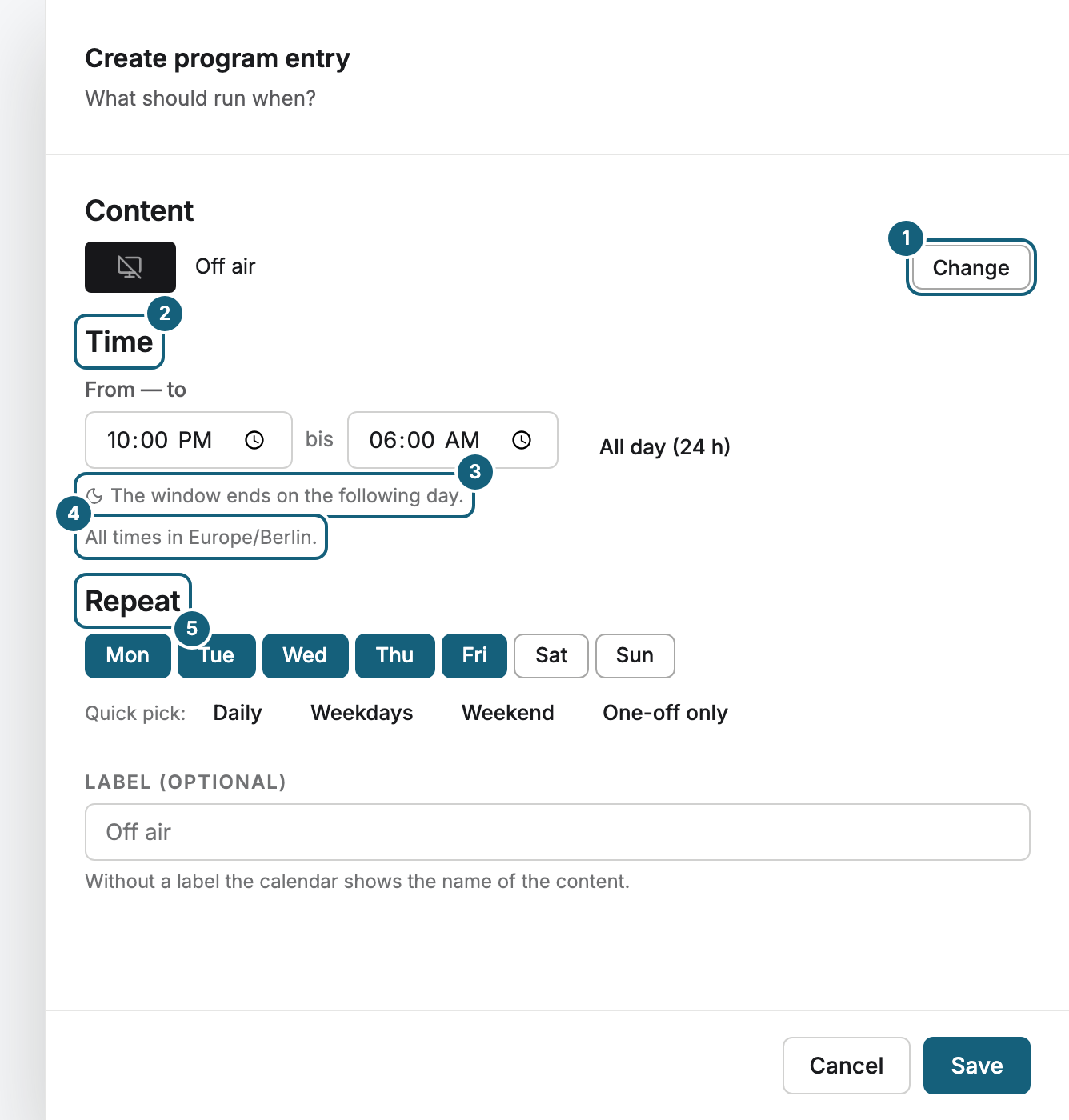
- In Create program entry, click Change under Content and choose a scene, a playlist, a media file, or Off air.
- Under Time, check From — to. Times snap to 15 minutes. All day (24 h) covers the whole day.
- Under Repeat, switch on the days, or use a Quick pick: Daily, Weekdays, Weekend, or One-off only with a Date of the appointment.
- If you like, enter a Label (optional). Without one, the weekly plan shows the name of the content.
- Click Save. The portal confirms with Program entry saved.
You can also start from the content: Schedule in the menu of a scene, or Add to program in a playlist. Choose a program, and the dialog opens with the content already selected.
Change, pause, or delete
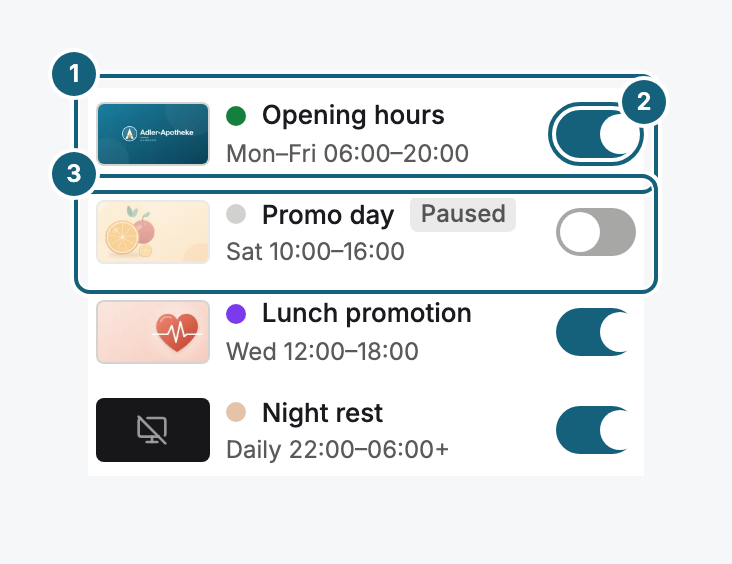
- To change an entry, click its block in the weekly plan or its row in the list.
- To skip an entry for a while without losing it, switch on Do not play for now, or use the switch at the end of its row. It then shows Paused and doesn't run.
- To delete an entry, open it, click Delete program entry, and confirm with Delete permanently.
Windows past midnight
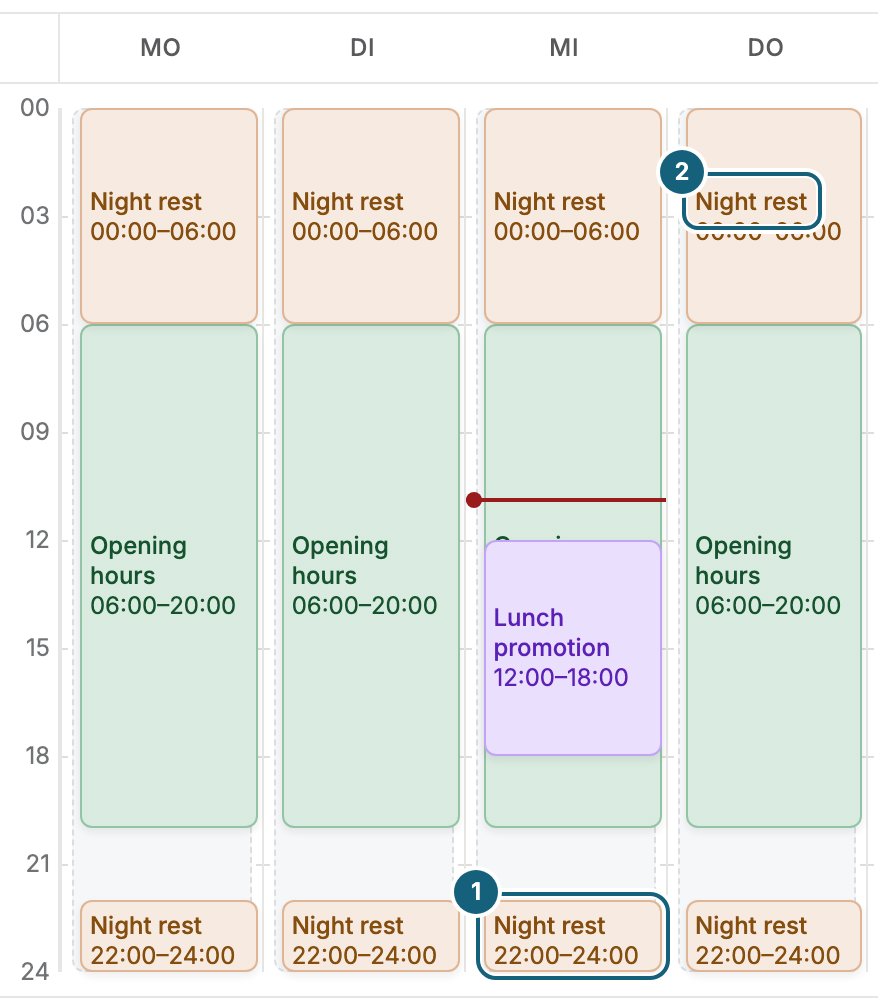
If the end is before the start, such as 22:00 to 06:00, the window runs into the next day, and the dialog says The window ends on the following day. The start day counts: "Friday, 22:00 to 06:00" runs from Friday night into Saturday morning. The weekly plan shows it in two pieces, one on each day.
Time zones
All times in a program use your organization's time zone. The dialog names it, for example All times in Europe/Berlin. It is set under Settings › Company details › Default time zone. A display in another time zone switches at the organization's time, not at its local time. Each display also needs a correct clock. If its clock is off, the portal reports Clock out of sync, and the display switches at the wrong moment.
Good to know
- Program entries may overlap. A one-off entry beats a recurring one, and a shorter window beats a longer one, see How does a display decide what to play?.
- A program holds up to 200 program entries.
- An entry with a monthly repeat or several windows shows This program entry has special times. You can safely change its content, label, and pause. Changing Time or Repeat replaces the special times.
- An entry takes effect only once the program is assigned to a display.
Check the result
The entry appears as a colored block in the weekly plan and as a row in the list. While it runs, On now names it, and Open entry jumps to it.
If something goes wrong
| Symptom | Cause | Solution |
|---|---|---|
| Please pick at least one weekday. | A weekly entry has no day. | Switch on at least one day, or choose One-off only. |
| Please pick a date. | One-off only has no date. | Set the Date of the appointment. |
| These details could not be saved. Please check the time and the repeat. | The time and repeat don't fit together. | Check both. For a whole day, use All day (24 h). |
| This program already has the maximum number of program entries. | The program has 200 entries. | Delete entries you no longer need, or split the program in two. |
| The entry doesn't show on the display | It is paused, another entry wins, an override is running, or the program isn't assigned. | See Content doesn't appear or is out of date. |
| The display switches an hour early or late | It is in another time zone, or its clock is off. | Plan in the organization's time zone, and check for Clock out of sync. |
Related
Was this helpful?