Content doesn't appear or is out of date
New content doesn't reach the display, or old content stays.
- For
- anyone who uploaded, built, or planned something and can't find it on the display
- Prerequisite
- access to the portal. To fix things, the Owner or Manager role.
- Where in the portal
- Displays › display › Program
On this page
Between a file and the picture on the display are four steps: the file is processed, the scene is published, it is assigned or planned, and the device loads it. If something doesn't appear, one of these steps is missing. The four checks below find it in a minute.
Four checks
- Is it published? A scene in Draft plays nowhere. After every change, publish again, see Save, publish, versions, and conflicts.
- Is it assigned, and does it apply now? Open the display's Program tab. The card at the top says what is assigned, and the timeline shows what runs at which time today.
- Is an override running? The Override is running card replaces everything else until it ends.
- Has the device loaded it? If the timeline shows the right content but the TV doesn't, send Reload content on the Diagnostics tab. A device that is offline keeps showing its last content.
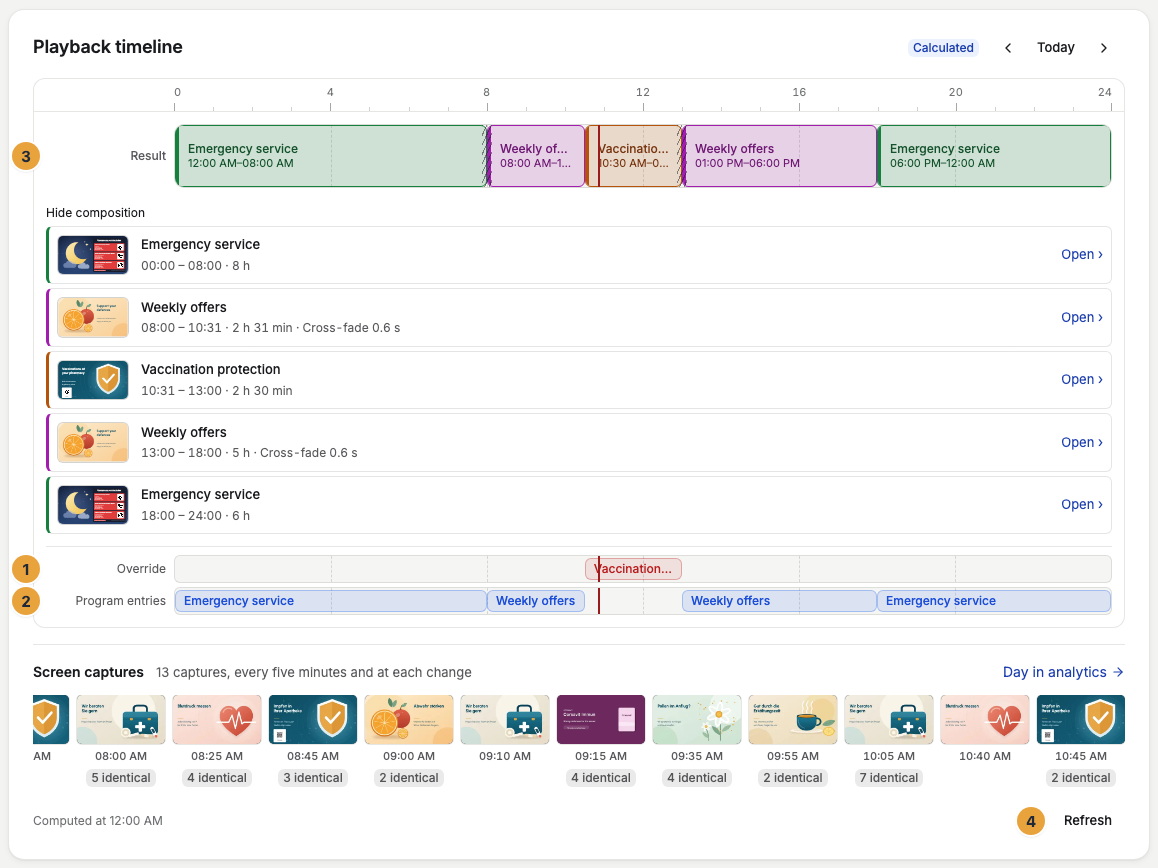
Show composition below the timeline shows which layer wins at each moment: an override above the program entries, and those above the base program.
The display shows something other than planned
| Symptom | Cause | Solution |
|---|---|---|
| Your logo as a placeholder | Nothing is assigned to the display. | Assign a program, scene, playlist, or file, see Assign a program to a display. |
| No active scene | The display has nothing it can play right now, for example because the planned scene was never published. | Check the Program tab and publish the scene. |
| Off air with a time | An off-air time is planned. | Change or pause the program entry, see Schedule off-air time. |
| Another program entry than expected | Two entries overlap, and the other one wins. | Shorten the window, or use a one-off entry, see How does a display decide what to play?. |
| A program entry doesn't run | It is Paused, its date is in the past, or its weekday isn't switched on. | Open the entry and check it, see Show content at specific times. |
| A scene in a playlist is skipped | The scene was never published. | Publish it. |
| A change is missing from the timeline | The timeline is cached for a moment. | Click Refresh below the timeline. |
A document or an app content doesn't play as expected
| Symptom | Cause | Solution |
|---|---|---|
| A PDF in a playlist shows fewer pages than expected | You chose pages, or the document has more than 50 pages. | Click Choose pages on the card of the PDF and select the pages. For more than 50 pages, split the document. |
| The card of a document says “Pages are still being prepared” or “Pages could not be prepared” | The document is still processing, or processing failed. | Wait, or read the sentence in the library, see When processing fails. |
| An app content carries “The app is not installed, so the content is skipped on the display” | The app was uninstalled. The library lists the content under Needs attention. | Install the app again. The content then plays on its own. |
| An app content carries “The app no longer offers this content, so it is skipped on the display” | The app no longer knows the widget. | Create a new app content from the current widgets of the app, see Create, configure, and maintain app contents. |
| A zone shows only part of its playlist | A zone plays only files and app contents. Scenes, ad blocks, and the pages of a document don't play there. The preview says “Does not play in an area”. | Put only files and app contents into the playlist of a zone. |
The times are wrong
| Symptom | Cause | Solution |
|---|---|---|
| The switch comes an hour or two early or late | Programs use the organization's time zone, not your own. | Check Settings › Company details › Default time zone. |
| A window past midnight runs on the wrong evening | The start day counts. "Friday, 22:00 to 06:00" runs from Friday night into Saturday. | Choose the day on which the window starts. |
| One display switches at a different time than the others | Its clock is wrong, and the portal shows Clock out of sync. | See A display shows Offline or Delayed. |
The file doesn't get into the library
| Symptom | Cause | Solution |
|---|---|---|
| The upload is rejected because of the file type | Accepted are JPEG, PNG, WebP, SVG, MP4, WebM, PDF, and Word, PowerPoint, and Excel files. | Convert the file, see File types, sizes, and storage. |
| A row in the upload dialog says “The file is too large. Documents can be at most 100 MB.” | The document is over 100 MB. | Make the file smaller and upload it again, see Upload media. |
| The upload is rejected although the type is allowed | Your storage is full. | Delete files you no longer need, or book another display, which adds storage. |
| The upload stops halfway | The browser tab was closed. | Keep the tab open until every upload shows Done. |
| A file shows Error | Processing failed. The sentence under Processing failed in the details says why and what to do. | Do what it says, see When processing fails. Process again appears only where a restart can help. |
| A file is missing when you choose content | It is still processing. A document shows Preparing pages or Page 3 of 12 prepared. | Wait until it shows Ready. |
| The last pages of a document are missing | At most 50 pages are prepared. The details say “First 50 of 150 pages”. | Save the pages you want as a separate document and upload it. |
The scene can't be published
| Symptom | Cause | Solution |
|---|---|---|
| Publishing blocked: unresolved integrity issues. | The scene uses something that no longer exists, such as a deleted file or a removed app. | Open Integrity issues, fix the blocking items, and publish again. |
| No content change — no new version was created | The draft is identical to the published version. | Nothing to do. The display already shows it. |
| A widget is missing or can't be placed | The app isn't installed, is Not in your package, or an update is waiting. | See When an app doesn’t work. |
| Content is gone after choosing a new layout | The new layout has fewer zones than the old one, so the remaining content found no place. | Undo, and choose a layout with more zones, see Configure a scene: format, zones, transitions. |
| The scene shows Blocked | It uses an app your package no longer includes. It drops out of programs and playlists. | Remove the app from the scene, or change your package. |
Related
Was this helpful?