Manage the library: find, check, delete
You want to find, rename, or delete files, see where an item is used, or a file shows Error .
- For
- anyone who keeps the library tidy
- Prerequisite
- the Owner or Manager role. App contents appear with the permission List app contents.
- Where in the portal
- Library
On this page
The Library holds everything your displays can show: files and configured apps. Find an item, see where it runs, rename it, and delete what you no longer need. Deleted files stay in the trash for a while, so you can bring them back.
Find files and app contents
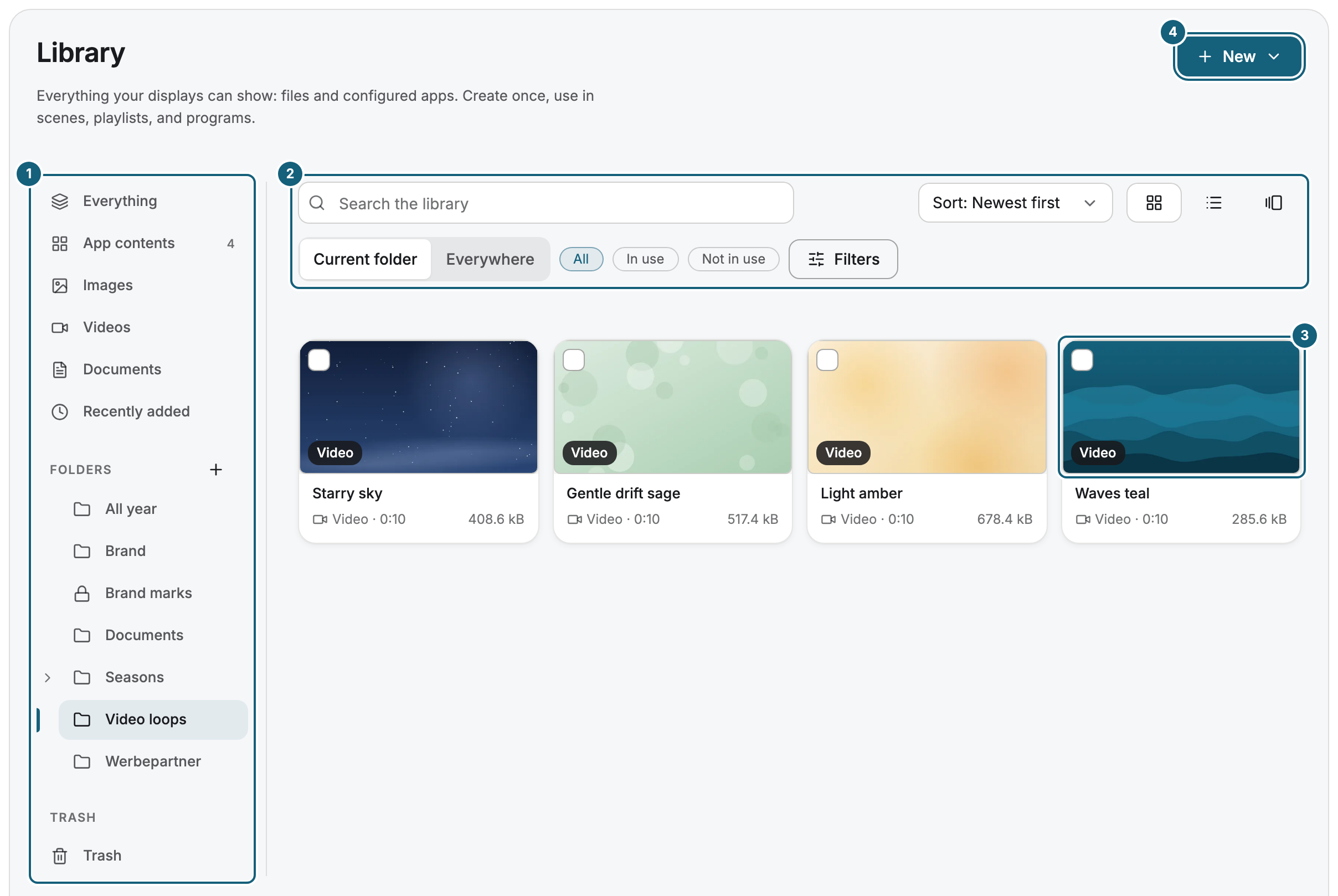
The sidebar decides what the grid shows.
| Entry | Shows |
|---|---|
| Everything | files and app contents, with the app contents first |
| App contents | your configured apps only, see Create, configure, and maintain app contents |
| Images, Videos, Documents | files of one kind. Documents includes PDF, Word, PowerPoint, and Excel files. |
| Recently added | the newest files |
| Needs attention | app contents that no longer work as they should. The entry appears only if there are any. |
| Trash | deleted files |
Folders, saved filters, and places sit in between, see Folders, tags, and saved filters. To add something, click New at the top right: Upload file, App content, Design a scene, or Playlist. Entries you have no permission for are missing.
Search the library searches names in the Current folder or Everywhere. The chips All, In use, and Not in use filter by use. Filters narrows the grid by format, tags, period, and size. Sort and View change the order and the layout: Tiles, List, or Gallery. App contents appear only in Tiles, and a format filter hides them.
Steps
Rename a file or add tags
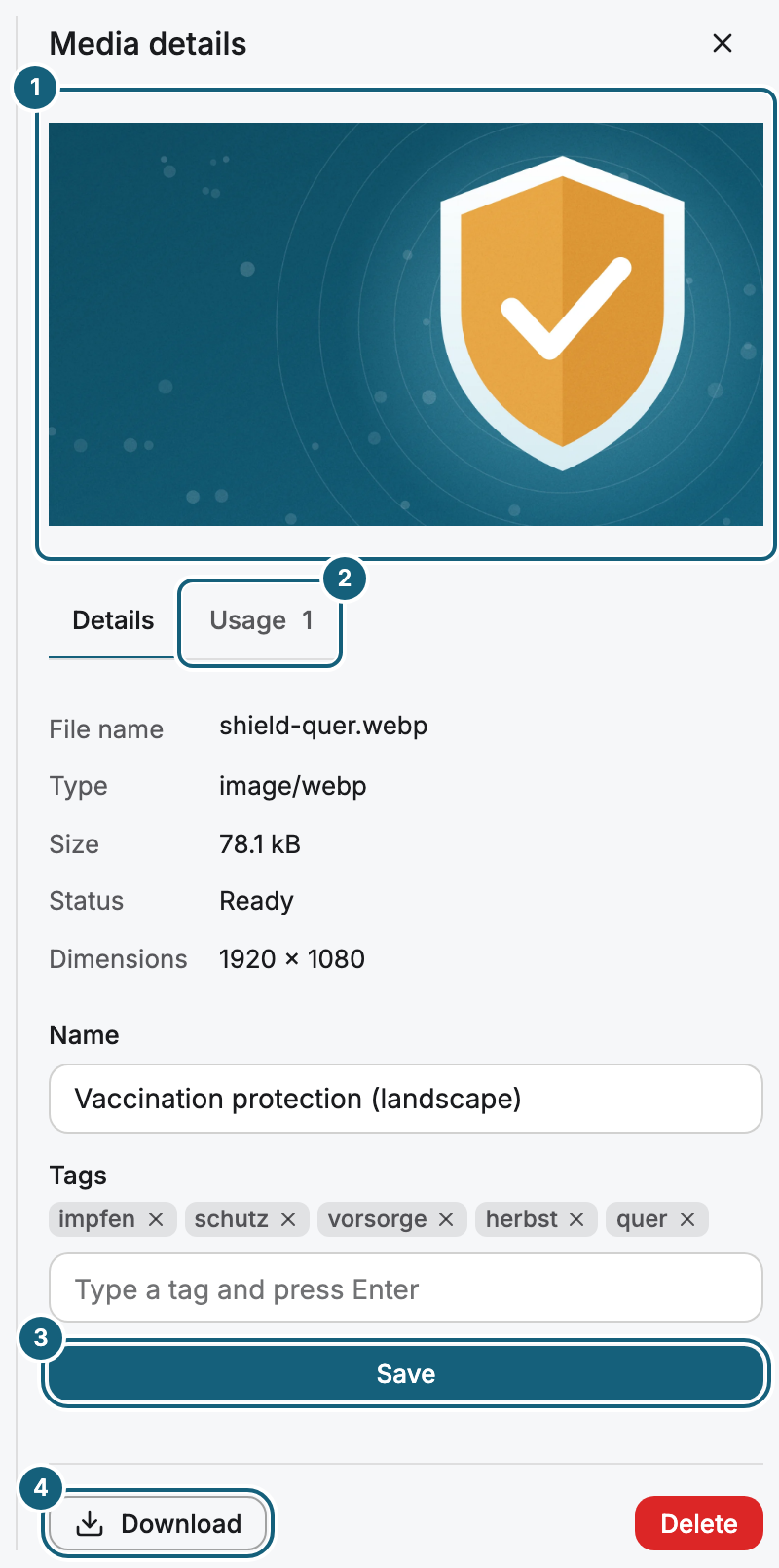
- Click the file. Media details opens on the right.
- Change the Name. Under Tags, type a tag and press Enter.
- Click Save.
Download saves the original file. Show media preview large opens the preview in full size.
Check where an item is used
For a file, switch to Usage in Media details. It lists every published scene and the brand settings that use the file. Not used anywhere. means you can delete it safely. The card of an app content names its uses instead, such as “in 3 scenes and 1 playlist”.
Delete and restore
- In Media details, click Delete and confirm with Delete. The file moves to the Trash.
- To bring it back, open Trash in the sidebar and click Restore.
Files stay in the trash for 30 days by default, and each one shows how many days are left. Then they are removed for good. Delete permanently removes a file right away and can't be undone. Files in the trash don't count against your storage.
An app content has no trash. Choose Delete in the menu of its card. It is gone for good.
Check the result
A renamed file shows its new name, and the portal confirms with Changes saved. A deleted file disappears from its folder and appears in the Trash. After Restore, it is back in its old folder.
When processing fails
A file in the state Error shows a sentence under Processing failed in its details. It names the cause and tells you what to do. Process again appears only where a restart can change the result.
| The sentence says | Process again |
|---|---|
| “The file is protected by a password. Save it without a password and upload it again.” | not offered |
| “The file is damaged or incomplete. Open it on your computer, save it again and upload it again.” | not offered |
| “The file is not a valid PDF. Export the document as a PDF again and upload it once more.” | not offered |
| “A page is too demanding to prepare. Export the PDF with smaller images or a lower resolution and upload it again.” | offered |
| “Preparing the file took too long. Restart processing in the library. If that does not help, split the document into smaller files.” | offered |
| “The file is too large. Documents can be at most 100 MB. Make the file smaller and upload it again.” | not offered |
| “The file could not be converted to a PDF. Save it as a PDF in your application and upload the PDF.” | offered |
| “Converting Office files is not available right now. Restart processing in the library later or upload the file as a PDF.” | offered |
| “Upload the file again or restart processing in the library.” | offered |
The portal sends the same sentence in the notification Media not processed, see Notifications.
If something goes wrong
| Symptom | Cause | Solution |
|---|---|---|
| Delete is grayed out or rejected | A file is used in a scene or the brand. An app content runs in a scene, a playlist, or a program. | Check where it is used, remove it there, then delete it. |
| The tile shows Preparing pages or Page 3 of 12 prepared | Not an error. The pages of a document are still being prepared. | Wait. The library updates itself. |
| A file is gone from the trash | Its time in the trash is over, or someone deleted it permanently. | Upload the file again. |
| A video shows a note instead of playing | The original uses a format the browser can't play, such as HEVC. | Wait until the portal has prepared a playable version. |
| An old download link doesn't work | Download links are only valid for about 15 minutes. | Click Download again. |
Related
Was this helpful?