Notifications: inbox and delivery channels
You get too many or too few emails from the portal and want to set per category when Szenera reaches you.
- For
- anyone with an account in the portal
- Prerequisite
- none
- Where in the portal
- Notifications in the sidebar and Settings › My account › Notifications
On this page
The Notifications entry in the sidebar collects your messages from the portal. For each area, you choose whether we also email you, right away or as a daily or weekly summary.
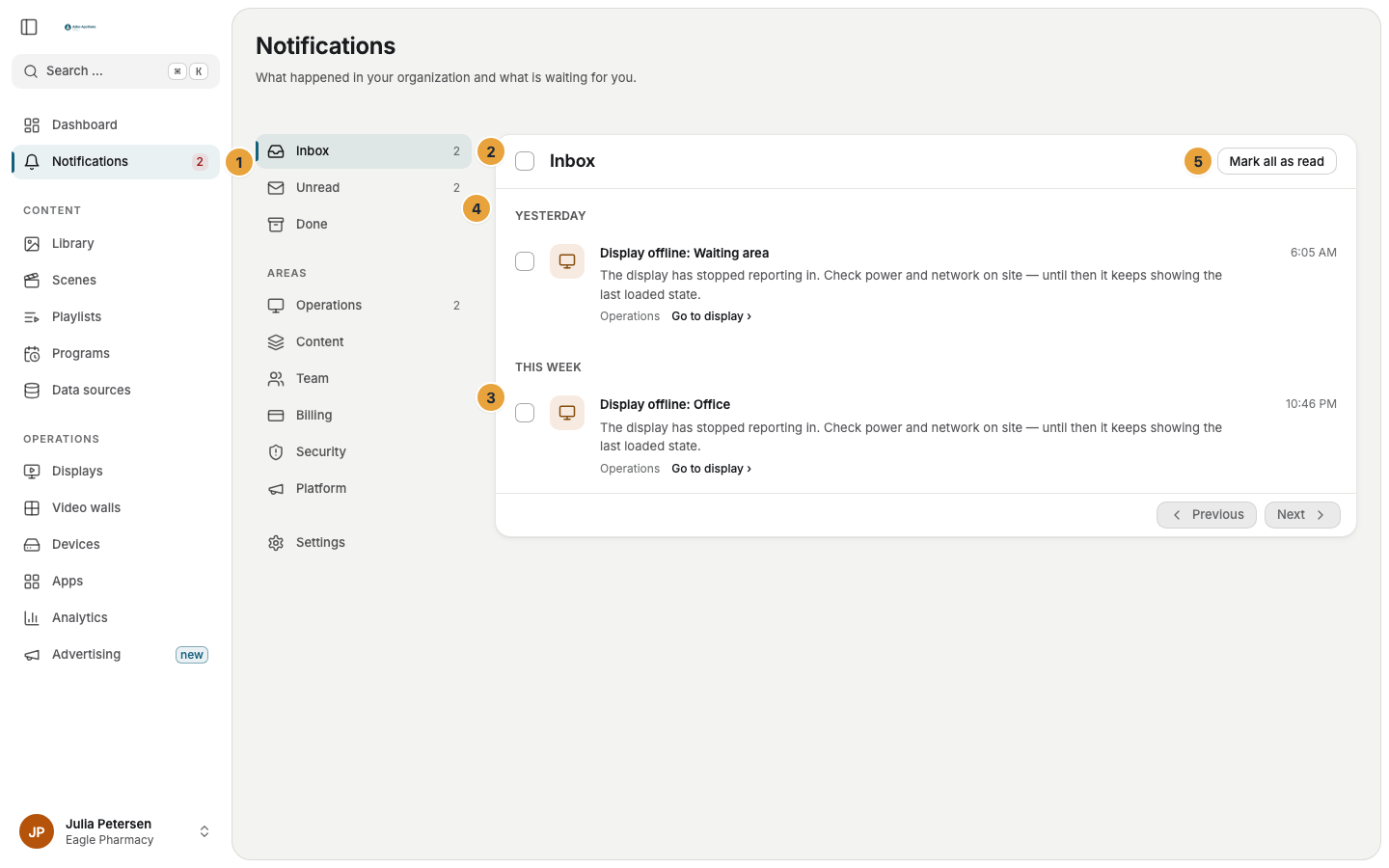
Every account has its own inbox. The Notifications entry carries a red counter with the number of unread messages. On a phone, it sits in the More drawer.
Steps
Read the inbox
- Click Notifications in the sidebar. The page shows all your messages.
- Choose a folder on the left (Inbox, Unread, or Done) or a single area under Areas. On a phone, folders and areas form a row you can swipe above the list.
- The list is grouped by Today, Yesterday, and This week. Everything older than a week appears under its calendar date. Load more fetches older ones.
- Click a row to jump to the relevant place. The target appears on the row, depending on the type Go to display, Go to invoice, or Go to scene. Opening counts as reading.
- If a message involves a task, its button sits right on the row. Examples are Accept and Decline for an app update or a join request, Install for a request for an app, and Check payment method for a payment problem.
- Tidy up with Mark as read, Mark all as read, or Done. Restore brings a finished message back, and Mute this kind hides a type in the portal.
When a new warning or error arrives, the portal also shows it briefly at the bottom right. Open on that pop-up leads to the message. While the Notifications page is open, the pop-up is skipped, because the message is already in the list.
Set delivery channels per area
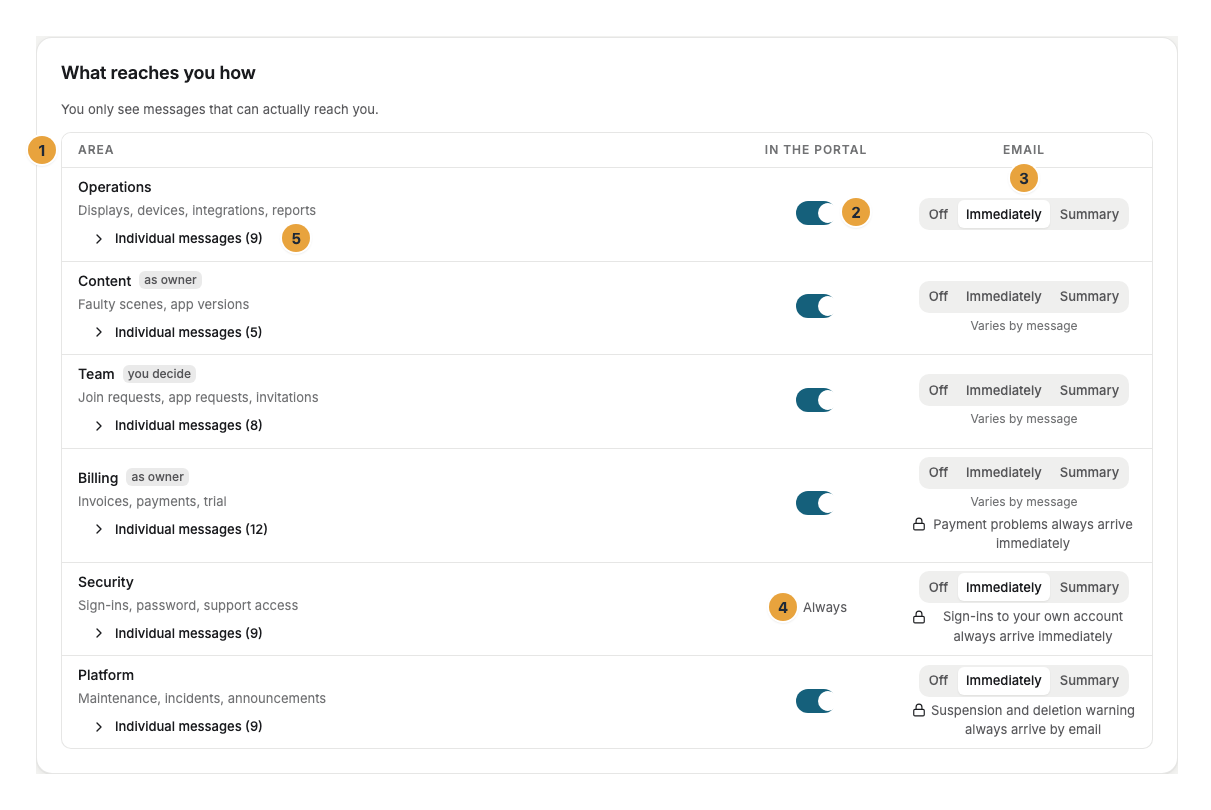
- Open Settings › My account › Notifications. The What reaches you how card has three columns: Area, In the portal, and Email.
- In the portal is a switch: Does the area appear under Notifications?
- Email is a selection: Off, Immediately, or Summary.
- If the types of an area are set differently, it shows Varies by message. Use Individual messages to expand the area and set each type on its own.
Every change is saved immediately, and there is no save button. If a row fails, “Not saved.” appears next to it and the old value returns.
Choose the email summary
The Email summary card offers Off, Daily, and Weekly. The daily summary arrives at 8:00 a.m., the weekly one on Mondays at 8:00 a.m., in your time zone. It bundles everything set to Summary, with a title and link per message, and it only arrives when there is something new. If it is set to Off, messages set to Summary reach you only in the portal.
Set quiet hours
Under Quiet hours, you hold back disruption emails from operations, such as “Display offline”, during a period on weekdays, and if you like all day at weekends too. Whatever is still open arrives afterwards. Security and payment are exempt.
Options
| Area | What it contains | Message types | Default |
|---|---|---|---|
| Operations | Displays, devices, integrations, and reports. | Display offline, Command failed, Re-registered device, Cloud connection broken, Webhook turned off, Report failed, View delivered, Activity log export ready, Media not processed | Portal and email immediately, except Command failed, Report failed, Activity log export ready, and Media not processed: portal only |
| Content | Faulty scenes and app versions. | Scene cannot be played, App update awaits a decision, App version retired, App switched to a new version, App data deletion scheduled | Portal and email immediately, except App switched to a new version: summary |
| Team | Invitations, join requests, app requests, and roles. | Invitation accepted, Invitation expired, New join request, Role changed, Request to install an app, Request to decide on an app update, App installed, App update declined | Portal, no email, except New join request and the two requests: immediately |
| Billing | Invoices, payments, and trial. | Invoice paid, New invoice, Payment failed, Payment past due, Account frozen, Account unlocked again, Trial ending, VAT ID rejected, More devices than booked displays, Special terms ending, Scheduled change postponed, Cancellation scheduled | Portal, no email, except Payment failed, Payment past due, Account frozen, Account unlocked again, and Trial ending: immediately |
| Security | Sign-ins, password, and support access. | Security alert (token theft), Support access to account, Password changed, Two-factor sign-in turned off, Two-factor sign-in reset by support, Single sign-on changed, New API key, Custom domain removed, Emergency sign-in used | Portal and email immediately |
| Platform | Maintenance, incidents, and announcements. | Organization suspended, Deletion announced, Organization unlocked again, Custom address verified, Scheduled maintenance, Maintenance canceled, Incident, Incident resolved, Message from us | Portal and email immediately, except Custom address verified: portal only |
Twelve types cannot be turned off in the portal and show Always instead of a control: all nine from Security as well as failed payment, overdue payment, and frozen account. For email, Always immediately applies to Security alert, Support access to account, Password changed, Two-factor sign-in turned off, Two-factor sign-in reset by support, Emergency sign-in used, Payment failed, Payment past due, and Account frozen, and to the messages about a suspended organization. Changes to company sign-in, API keys, and the custom address go out immediately but can still be turned off. The reason is stated on the row: “This message protects your account and therefore stays on.”
Two types are Email only: Organization suspended and Deletion announced, because with suspended access the inbox would not reach you. Types without an email version, conversely, show Portal only.
The email about a new join request always goes to Owners and Managers. The only thing you can control here is whether the message appears under Notifications.
The messages about a saved view, View delivered and Report failed, reach only the person who owns the view.
Media not processed names the media item in its title, such as “Media not processed: Menu.docx”. The text says what happened and carries the advice for the kind of error: “The media file could not be processed and is therefore missing from your scenes.” After that comes the same sentence as in the media details, for a password, for example, “The file is protected by a password. Save it without a password and upload it again.” All sentences are in When processing fails.
The requests to install an app or to decide on an app update reach only the Owners. They include the sentence the requesting person added, and they link to the app’s entry or to its Update tab.
Check the result
- The counter on the Notifications entry drops as soon as you mark messages as read.
- A changed row keeps your setting after the page is reloaded.
- The Email summary card shows the chosen frequency (Daily or Weekly) instead of Off.
If something goes wrong
| Symptom | Cause | Solution |
|---|---|---|
| “Not saved.” on a row | The change did not arrive. | Click Try again, otherwise reload the page. |
| Always appears instead of a control | This type is mandatory. | Nothing to do. The reason is stated on the row. |
| The summary cannot be chosen | The type has no row in the inbox from which a summary could be collected, or its email is mandatory. | Choose Immediately or Off. |
| Events should reach a system of your own | That is different from the inbox. | Set it up under Settings › For developers › Webhooks. |
Related
Was this helpful?