Manage members: change role, block, remove
A person changes duties or leaves the company, and their access should be adjusted, blocked, or deleted.
- For
- Owners who look after access
- Prerequisite
- the Owner role
- Where in the portal
- Settings › Organization › Team, then open an entry
On this page
When someone changes duties or leaves, adjust their access under Settings › Organization › Team: change the role, suspend the account for a while, or delete it for good.
Steps
Narrow down the list
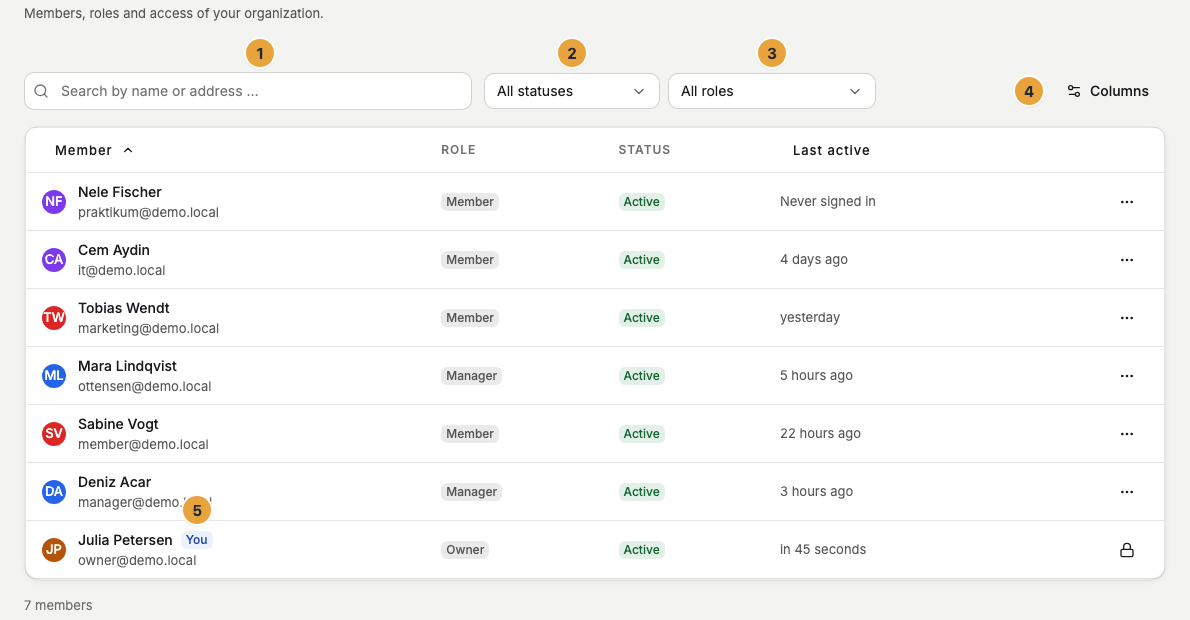
The table shows Member, Role, Status, and Last active in each row. With Columns, you show and hide columns, and Load more fetches further rows. Your own row shows the badge You. Three filters narrow the list: the field Search by name or address …, Filter status (All statuses, Invited, Active, Suspended …), and Filter by role (All roles). If nothing fits, it says No matches. The statuses that occur are Pending, Active, Suspended, and Deleted.
Change the display name
Open the entry. On the Profile card, adjust Display name and click Save profile. Profile saved appears.
Assign or change the role
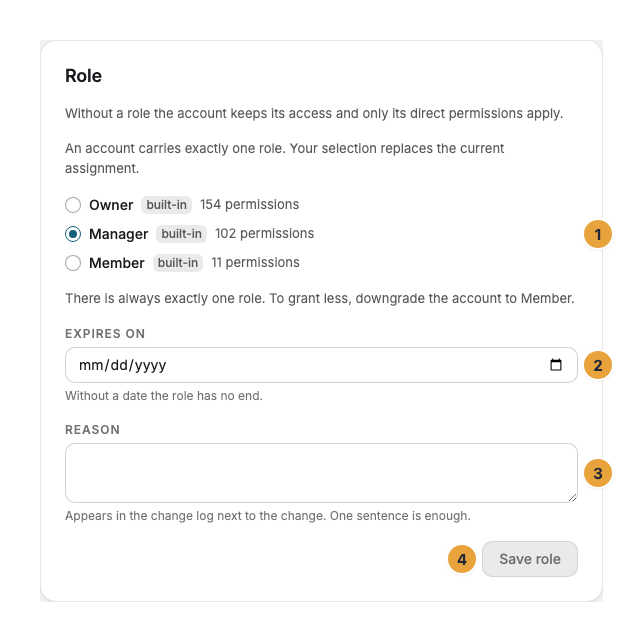
You get there through the row menu Change role … or the Role card on the entry’s page. Both show the same view. It begins with these sentences: “Without a role the account keeps its access and only its direct permissions apply.” and “An account carries exactly one role. Your selection replaces the current assignment.”
- Choose the role. Built-in roles show the badge built-in, with the number of their permissions next to it. The selection is exclusive.
- If needed, set Expires on. “Without a date the role has no end.” With the date, the role ends: The account falls back to Member and signs in again. The last Owner stays Owner, and their expiry date is dropped.
- If needed, enter a Reason: “Appears in the change log next to the change. One sentence is enough.”
- Click Save role. Role saved appears.
The portal does not offer some roles and gives the reason next to the option: your own role (“You cannot change your own role — an account could otherwise take away its own ability to act.”), a role above your own set (“Contains 2 permissions you do not hold yourself.”), the Owner role for non-Owners (“Only an owner can assign this role.”), and the last Owner (“This is the last owner of the organization. Appoint another owner first.”). There is no “no role” option: “There is always exactly one role. To grant less, downgrade the account to Member.”
Suspend, reactivate, delete
The Sign-in card shows Last sign-in, Two-factor (Enabled or Disabled), and Created, and the Direct permissions (grants) card shows the account’s direct permissions. The actions themselves are in the row menu and in the Actions menu of the detail page:
- Suspend … (in the row, the action is called Deactivate) asks Lock account?. A Reason is required. Confirm with Suspend. User suspended appears. The account can no longer sign in, and its active sessions end immediately. Its API keys and connected applications are on hold until the suspension is lifted.
- Reactivate restores the account (User reactivated).
- Delete …, then Delete permanently. The note says what happens: “GDPR deletion — the user will be pseudonymized.” Afterwards, Deletion initiated appears. This cannot be undone. The account’s API keys are revoked as a result.
- Remove in the row asks Remove member? and takes the account out of your list.
The portal guards against self-inflicted damage and gives the reason on the entry: “This is your own account. Locking, role changes and removal can only be done for you by someone else.”, “Owner accounts can only be managed by an owner.”, and “This is the last owner of the organization. Appoint another owner first.”
Check the result
- The changed role appears immediately in the Role column. An expiry date appears as until ….
- Your reason appears with the change in the Settings › Organization › Change log.
- A suspended account has the status Suspended and is signed out at its next click.
- A deleted account shows Deleted. Its details are pseudonymized.
If something goes wrong
| Symptom | Cause | Solution |
|---|---|---|
| “The role could not be set” | A permission is missing, or the role was deleted in the meantime | Reload the page and choose again. |
| Save role stays disabled | The selection still matches the current role | Choose a different role. |
| Suspend stays disabled | The reason is missing | Enter a reason. The field is required. |
| “Action failed” | A permission is missing, or the action does not fit the status | Check the status and choose the matching action. |
| The display name cannot be changed | You lack the permission Edit members | Ask a person with the Owner role. |
Related
Was this helpful?