Set up company sign-in (SSO)
Your team should sign in with the company account, and only with it if you like.
- For
- Owners who want their team to sign in with the company account
- Prerequisite
- the Owner role, a provider that supports OpenID Connect, and access to its administration and to your DNS records
- Where in the portal
- Settings › For developers › Company sign-in
On this page
With company sign-in, your team signs in to the portal with the company account they already use, such as Microsoft or Google Workspace. You set it up in three steps: connect the provider, prove your email domain, and, if you like, make the company account the only way in.
Steps
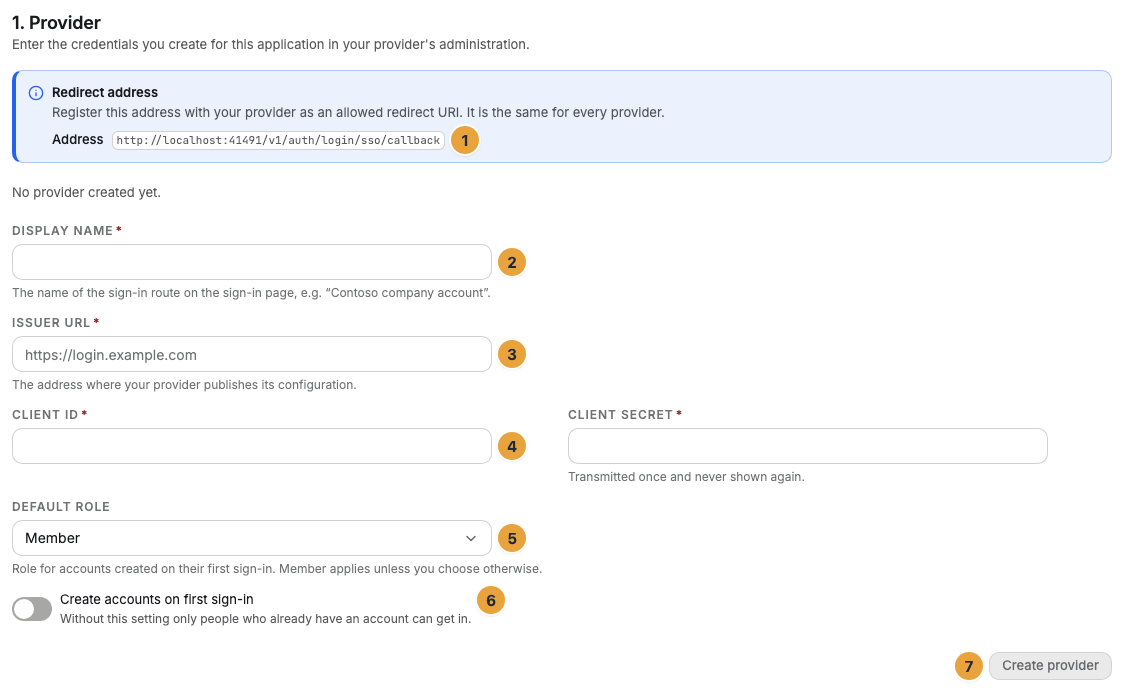
1. Connect the provider
- In the 1. Provider section, copy the Redirect address into your provider's administration.
- Enter a Display name, which appears on the sign-in page, such as "Contoso company account".
- Enter the Issuer URL, the Client ID, and the Client secret from your provider. The secret is never shown again after saving.
- Choose the Default role for accounts created at their first sign-in. Without a choice, Member applies.
- Switch on Create accounts on first sign-in if new people should get an account automatically. Otherwise, only people with an existing account get in.
- Click Create provider. The provider starts as a Draft.
2. Prove your domain
- In the 2. Domain section, enter your company's email domain without the @, and click Claim domain.
- Create the DNS record shown under Create the DNS record, with its Name, Type, and Value.
- Click Check now. Once it says Domain confirmed., set the provider to Active in the list.
3. Test, and enforce if you like
- In the 3. Enforcement section, click Start test sign-in and sign in through your provider.
- Within 15 minutes, switch on Enforce company sign-in.
- Choose up to two Break-glass accounts (at most 2), and confirm with Enable enforcement.
You can switch enforcement off again at any time.
What enforcement changes
Enforcement makes the company account the only way in, but only for addresses in your confirmed domains.
| Who | What changes |
|---|---|
| Addresses in your confirmed domains | No password, no sign-in link, and no password reset. Only company sign-in works. |
| Addresses outside these domains | Nothing. External people, such as a consultant, keep signing in as before. |
| People who are signed in | Their sessions continue until they expire. |

The company account replaces the password, not the second factor: if someone set up two-factor sign-in, it still applies. The break-glass accounts may still sign in with a password, as a way in if your provider fails. Each one needs two-factor sign-in, and every use appears in the change log.
Check the result
The provider is Active, the domain is Confirmed, and the sign-in page shows Sign in with company account for addresses in your domain.
If something goes wrong
| Symptom | Cause | Solution |
|---|---|---|
| The provider details are incomplete or the issuer cannot be reached. | The issuer URL is wrong, or the provider doesn't answer. | Check the issuer URL and create the provider again. |
| The record was not found yet … | The DNS record is missing, wrong, or not visible everywhere yet. | Compare name and value, wait a few minutes, and check again. |
| This domain already belongs to another organization. | A domain can belong to only one organization. | Contact us. |
| Enforce company sign-in is grayed out | The test sign-in is missing or more than 15 minutes old. | Start the test sign-in again and switch on enforcement right after. |
| An account can't be selected as a break-glass account | It has no second factor. | Set up two-factor sign-in for this account, see Set up two-factor sign-in. |
New accounts can also come straight from your employee directory, see Accounts from your employee directory (SCIM).
Related
Was this helpful?