Master data of the organization
You want to change the name of your organization, the legal name, the billing address, or the default time zone.
- For
- Owners who set up the organization. Others can view the page.
- Prerequisite
- the Owner role
- Where in the portal
- Settings › Organization › Company details
On this page
The master data name your organization and set its default language and time zone. Programs switch in this time zone, and your invoices use the legal name and address you enter here.
Steps
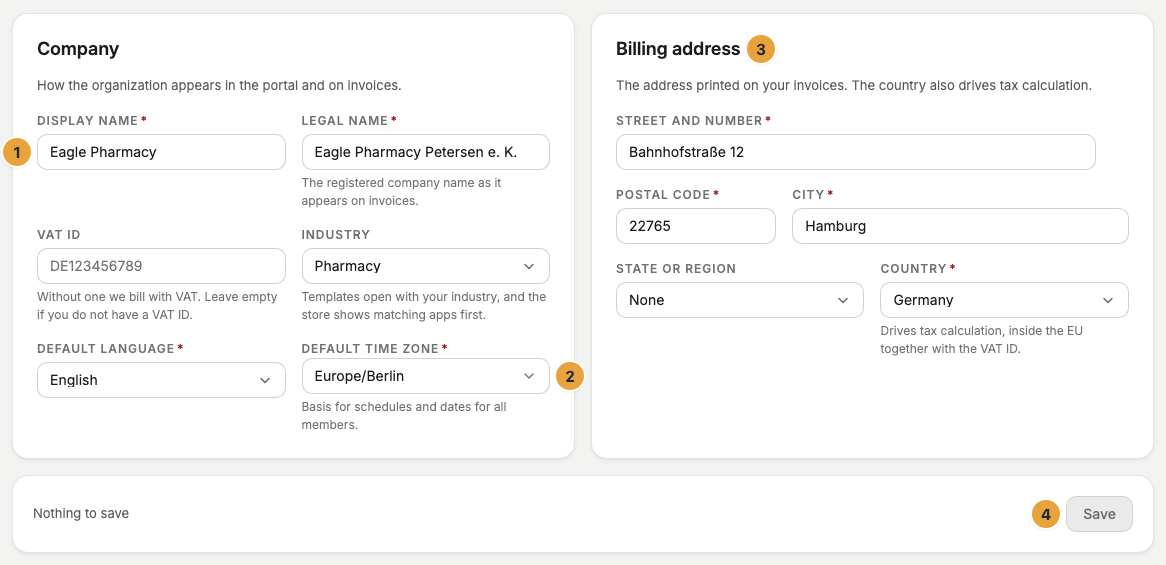
- Open Settings and choose Company details under your organization (“Company name, address and tax number”).
- Under Display name, enter the name of your organization. That is what it is called at the top of the sidebar as long as no logo is stored, and that is how it appears in the team.
- Choose the Default language. It applies to all members who have not chosen a display language of their own.
- Choose the Default time zone. To do so, type a place such as “Berlin” into Search time zone … and accept the match. The hint line says why it matters: “Basis for schedules and dates for all members.”
- Under Industry, choose the industry of your organization or Not specified. The hint line says what it does: “Templates open with your industry, and the store shows matching apps first.” With an industry, you also see the collections that apply to it in the store.
- The Legal name field takes the company name as it appears in the commercial register and on invoices.
- Enter the VAT ID if your organization has one: “Without one we bill with VAT. Leave empty if you do not have a VAT ID.”
- Fill in the Billing address card: Street and number, Postal code, City, State or region (a selection that appears only for Germany, None is allowed), and Country. The hint for it says: “Drives tax calculation, inside the EU together with the VAT ID.”
- Click Save. The message Saved appears.
The Short name is not part of the form, because it cannot be edited. Anyone who may only read the master data sees it in the list of details. The page header says when the details were last changed. Last changed … by our team means that platform operations made the change for you.
Options
What the short name is
The short name is a short identifier made of lowercase letters, digits, and hyphens. It is created from the name of the organization when you set the organization up, is unique across the platform, and cannot be changed in the portal. You do not need it to sign in, because signing in starts with your email address. You encounter it in two places: Under Settings › Organization › Danger zone, you type it exactly to confirm deleting the organization, and the display command Identify shows it on the display.
Master data and your own profile
Master data is the information for the whole organization and takes effect for all members. Your own name, your sign-in address, and your personal time zone, by contrast, are under Settings › My account › Profile and need no special permission. A member who chooses “Vienna” there sees appointments in Vienna time, while the schedules of the organization keep running in the default time zone.
Check the result
- The display name appears at the top of the sidebar unless a logo is stored.
- On the Dashboard, the setup step Complete the organization profile counts as done. Its reason: “Address and legal name appear on every invoice.”
- The legal name, the VAT ID, and the billing address appear on the next invoice. The tax depends on the country.
- With an industry, the apps of that industry appear first in the recommended order of the store.
- Under Scenes › Templates, your industry comes first and is preselected, see Create a scene.
If something goes wrong
| Symptom | Cause | Solution |
|---|---|---|
| Read-only. appears above the fields, and there is no Save button | “You can view these details. Changing them is reserved for owner and administrator accounts.” | Ask an Owner to make the change, see Roles and permissions. |
| “No billing details are stored for this organization yet.” | The page is read-only, and an Owner has not yet filled in the billing address. | Ask an Owner to carry out steps 6 through 9. |
| The invoice shows VAT although your organization is based in the EU | The VAT ID is missing or not yet confirmed. | Enter the number and note the verification status under Invoice profile, VAT ID, and tax. |
| Save stays disabled | You have not changed anything yet. | Change a field. Only then does the button become active. |
| Saving failed | The change did not arrive. | Reload the page and save again. |
Related
Was this helpful?