Create a scene: blank or from a template
You want to start a new scene, blank or from a template.
- For
- anyone who designs content for displays
- Prerequisite
- the Owner or Manager role, and a tablet or computer. Templates need the Pro package or higher.
- Where in the portal
- Scenes › Create scene or Templates
On this page
A scene is a designed layout for your displays, built from widgets such as text, images, a clock, or the weather. Start on a blank stage or from a ready-made template, then design it in the editor.
How scenes work
A scene has an aspect ratio but no resolution. Each display shows it as sharp as its device and package allow. Zones divide the stage into areas such as a main area, a sidebar, and a ticker. Each zone plays a single item, its own sequence, or a playlist.
The main zone decides how long the scene runs. Free widgets sit next to the zones, for example a logo above the main area. While you work, the scene is a Draft that no display shows. Only when you publish does it become a version that goes out to the displays, and you keep working on the draft without changing what is on screen.
Steps
Start from a template
- Open Scenes and then Templates. The gallery opens with the industry from your master data, shown first in the bar of industries. Without an industry, it opens with All industries.
- Choose another industry or All industries if you want to see more templates. Templates that suit every industry appear under each one.
- Search with What do you want to show?, or narrow down with All purposes and the Format. Without a search or purpose, each purpose has a row, and Show all shows all templates of that purpose.
- On the tile of a template, click Use.
- In Scene from template, adjust the Scene name and click Create scene.
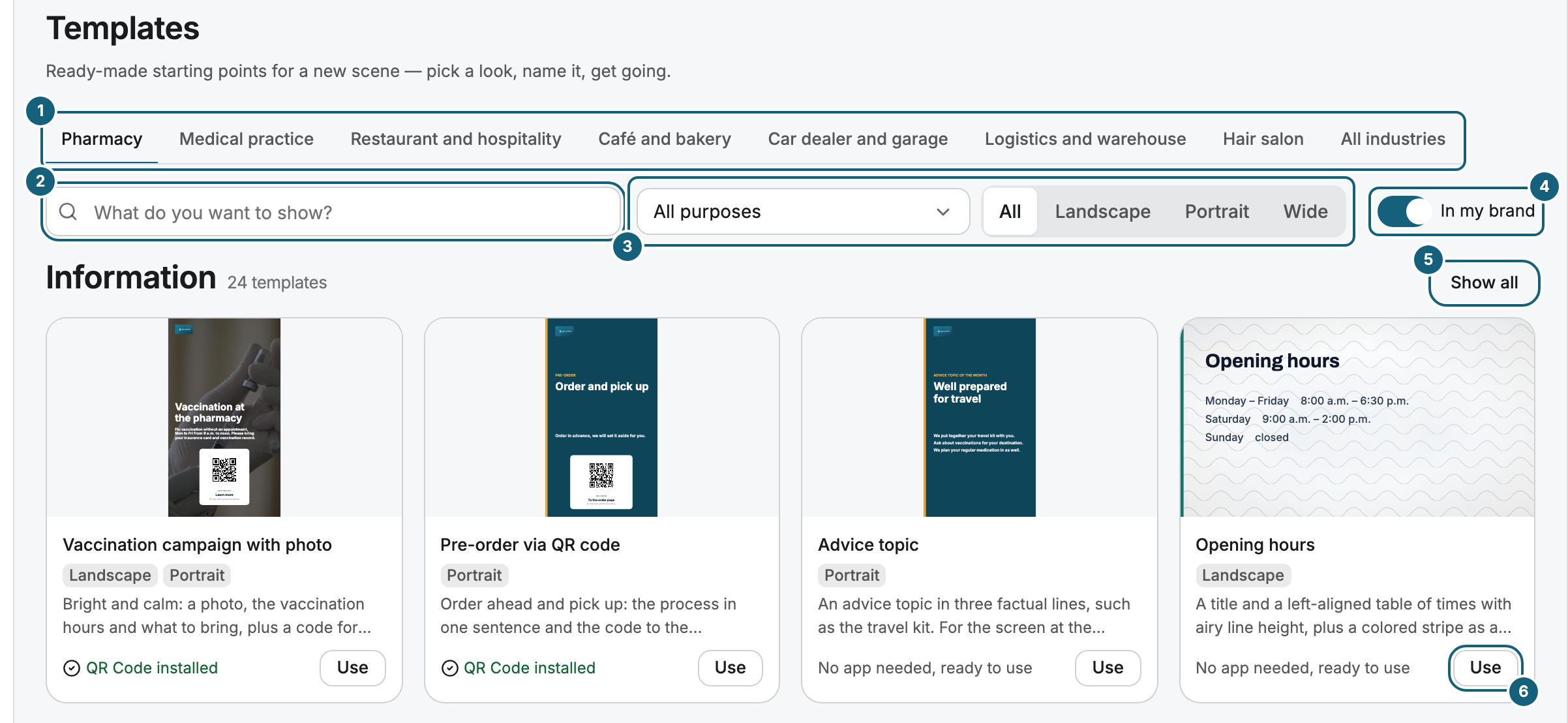
A template becomes your own scene. Its images are copied into your library, and later changes to the template don't affect your scene. Below the description, you see whether a template needs an app: No app needed, ready to use, the name of the installed app, or Needs an app from the store. You can use a template without its app, but it only plays once the app is installed.
In my brand shows the previews in the colors and fonts and with the logo of your brand. That is also how the template arrives in your scene: texts, shapes, and images refer to your brand, and if you change the brand later, the displays show the scene in the new one.
Start on a blank stage
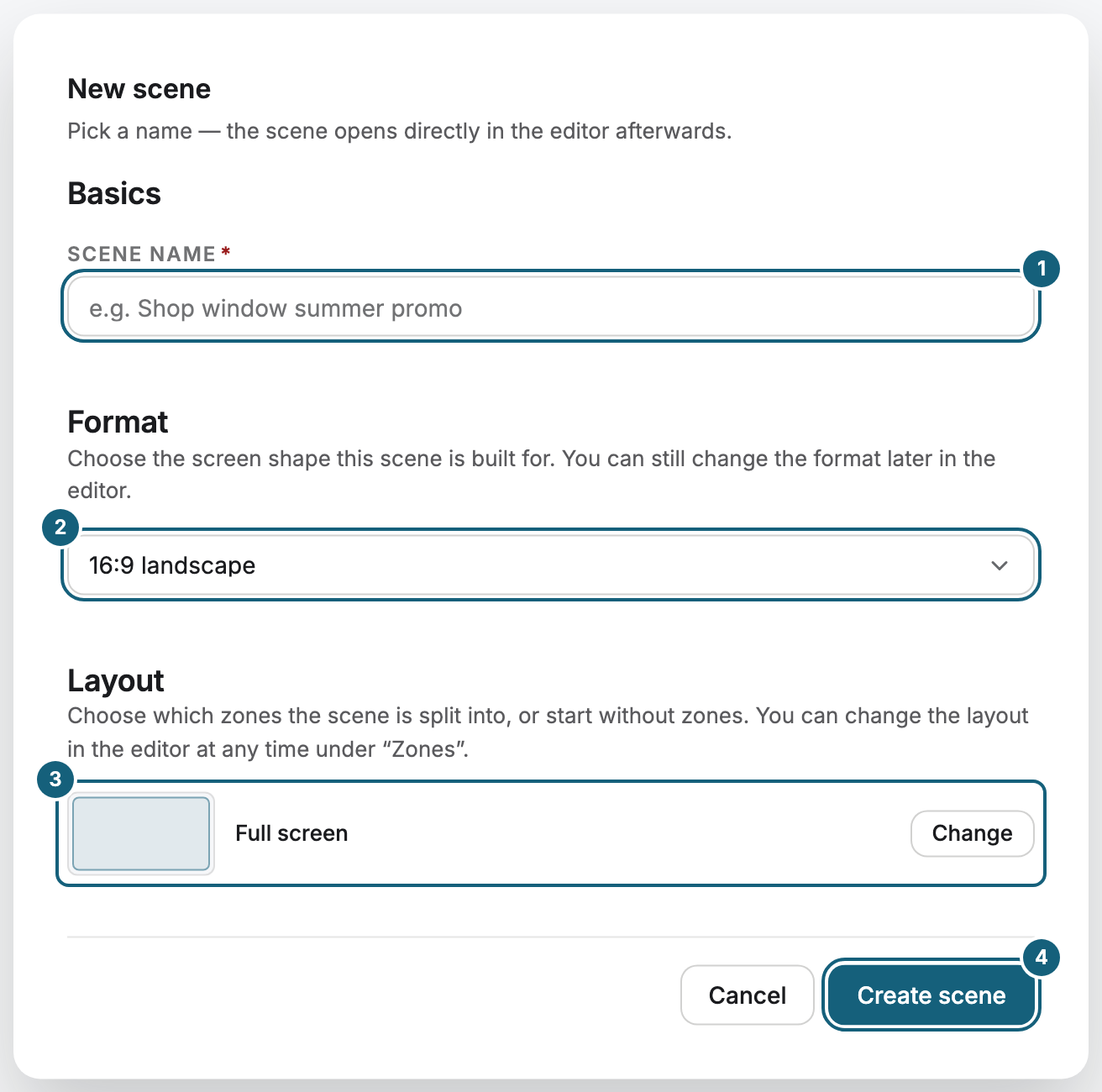
- Open Scenes and click Create scene.
- Under Basics, enter a Scene name, such as "Shop window summer offer".
- Under Format, choose the Aspect ratio of your display, such as 16:9 landscape or 9:16 portrait. Custom ratio … takes any other ratio, for example 21 to 9.
- Under Layout, Full screen is selected at first. Click Change and choose the zones the scene is divided into, such as Main, side, ticker, or No zones for an empty scene. A click selects the layout and collapses the choice again.
- Click Create scene.
Check the result
The scene opens in the editor with the status Draft. Under Scenes, it appears in the list. You can change the format and the zones later in the editor, see Configure a scene: format, zones, transitions.
If something goes wrong
| Symptom | Cause | Solution |
|---|---|---|
| Create scene is grayed out | Your role doesn't allow creating scenes. | Ask someone with the Owner or Manager role. |
| Use is grayed out, with Using templates is part of the Pro package. above it | Your package doesn't include templates. You can still view all of them. | Start on a blank stage, or change to the Pro package. |
| No template matches this selection. | The search or filters rule out every template. | Clear the filters, especially the format, or choose All industries. |
| The editor doesn't open on a phone | The editor needs at least a tablet. | Open the scene on a tablet or computer. |
Related
Was this helpful?