Place and arrange widgets on the stage
You add text, images, and widgets and arrange them.
- For
- anyone who designs a scene
- Prerequisite
- the Owner or Manager role. App widgets need the installed app, and media must be Ready in the library.
- Where in the portal
- Scenes › open a scene
On this page
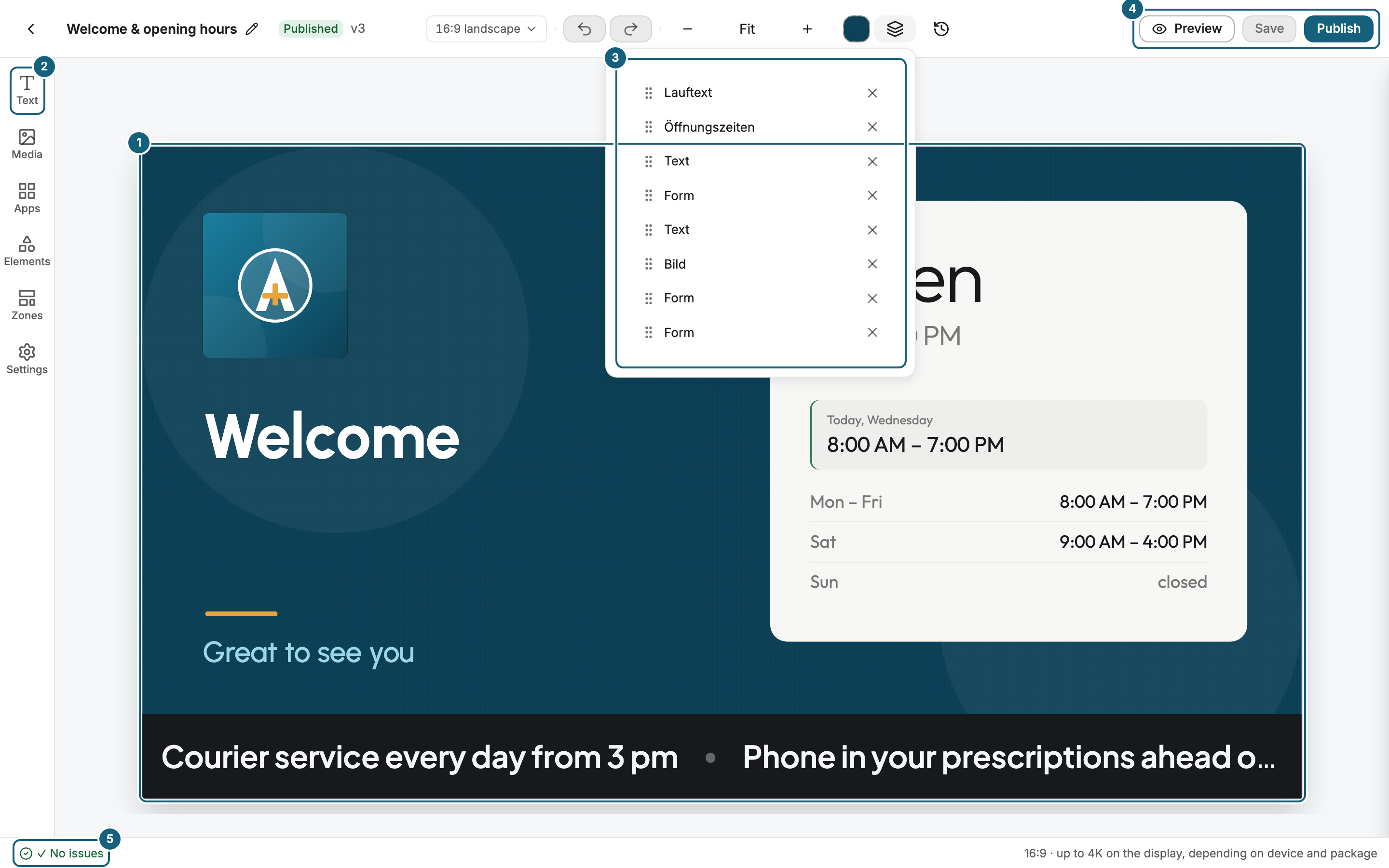
The scene editor shows your scene on a stage in the middle. Add text, images, videos, and app widgets from the bar on the left, then move, resize, and stack them until the scene looks right.
The editor at a glance
| Area | What it holds |
|---|---|
| Stage | A live preview of the scene in its real format. You place and move widgets here and drag the dividers between zones. Below it, the sequence strip shows what the selected zone plays. |
| Insert and settings bar | Text, Media, Apps, Elements, Zones, and Settings. |
| Layers | All widgets in their stacking order. Drag an entry to reorder it, or remove it. |
| Toolbar on a widget | For an app widget, the Template and Colors. For every widget, the gear icon Settings, Replace, Duplicate, Position, and Delete. |
| Header | Preview, Save, and Publish, plus Versions, the Stage format, zoom, Undo, and Redo. |
| Status line | Below the stage: whether the scene has issues, how many zones and free widgets it has, and its ratio. |
Steps
Add a widget
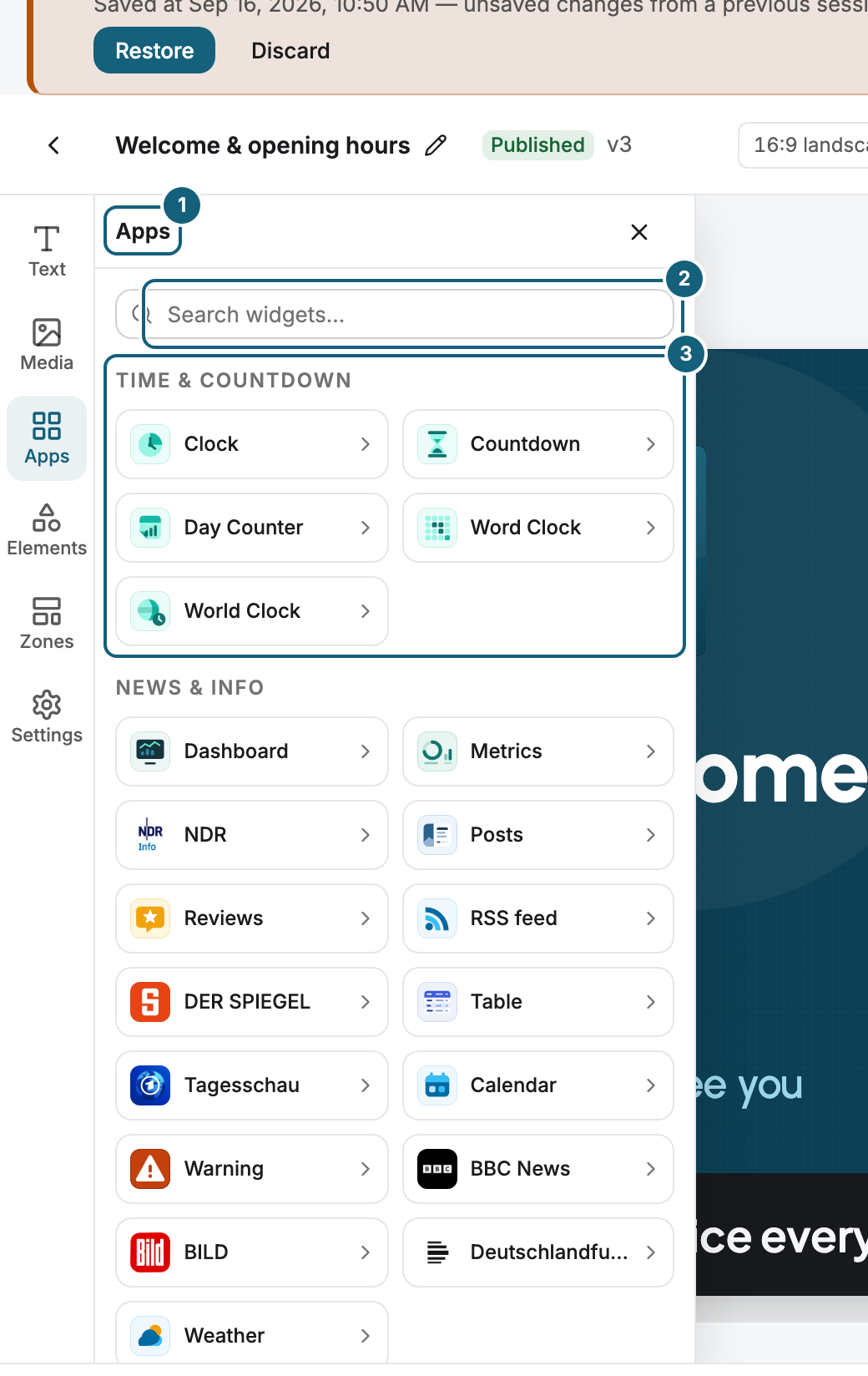
- In the bar, open Text, Media, Apps, or Elements for Shapes and Graphics.
- Drag the widget onto the stage. For an app widget, a click on its tile works too, and for text there is Add text box.
- The new widget is selected. The gear icon on it opens its settings, see Configure widgets: template, preview, and fields.
For images and videos, click Choose from library. A document (PDF, Word, PowerPoint, or Excel) becomes a Document widget, see Place a document (PDF) in a scene. Replace swaps the content of a widget and keeps its position and size.
Drop a widget into a zone
- Drag an app widget over a zone. The editor shows where it can land.
- Drop it in the middle to replace what the zone plays. Drop it on an edge to split the zone, and the new part plays the app.
- With a zone selected, an image, video, or document goes into that zone, at the end of its own sequence. Text and shapes always stay free.
Without a fitting zone, a new widget lands in the middle of the stage.
Move, resize, and align
- Drag a widget to move it. Drag a handle of its frame to resize it. Hold Shift to keep the aspect ratio.
- Widgets snap to a grid, to the edges and center of the stage, and to other widgets.
- For exact values, click Position on the toolbar and enter Width, Height, X, and Y. Align to page places the widget left, center, right, top, middle, or bottom.
You don't move or resize a zone this way. A zone changes through its dividers, see Configure a scene: format, zones, transitions.
Copy and stack
- Hold Shift or Ctrl and click to select several widgets.
- Copy, Paste, and Duplicate create copies slightly offset from the original.
- When widgets overlap, the order in Layers decides what is on top. Drag an entry, or use Bring forward, Send backward, Bring to front, or Send to back under Position › Arrange.
Format text
Select a text box and type on the stage. Text styles offers Heading, Subheading, and Body text. The toolbar above the text sets the font, size, weight, colors, alignment, and line spacing.
Keyboard shortcuts
These work on the stage, not while you type in a field.
| Key | Effect |
|---|---|
| Arrow keys | Move the selection by 1 pixel |
| Shift + arrow key | Move the selection by 8 pixels |
| Del or Backspace | Delete the selection |
| Ctrl/Cmd + Z, Ctrl/Cmd + Shift + Z | Undo, redo |
| Ctrl/Cmd + C, V, D | Copy, paste, duplicate |
| Ctrl/Cmd + S | Save |
Check the result
The widget appears in Layers at the expected place. The editor shows Unsaved changes and, after saving, All changes saved. To see the scene as the display will show it, click Preview.
If something goes wrong
| Symptom | Cause | Solution |
|---|---|---|
| An app's widget is missing under Apps | The app isn't installed, needs your consent to new permissions, or isn't included in your package. | Install or enable the app, then reopen the editor. |
| A zone can't be moved | Zones change only through their dividers. | Drag the divider, see Configure a scene: format, zones, transitions. |
| An image is missing under Choose from library | It hasn't finished processing. | Wait until it shows Ready in the library. |
| A widget is hidden behind another | The stacking order. | Click Bring forward, or drag it up in Layers. |
Related
Was this helpful?