Upload media
You want to add images, videos, or documents: PDF, Word, PowerPoint, or Excel.
- For
- anyone who provides content for the displays
- Prerequisite
- the Owner or Manager role. Without the permission, Upload file is missing from the menu New.
- Where in the portal
- Library › New › Upload file
On this page
Upload images, videos, and documents (PDF, Word, PowerPoint, Excel) to the Library. Once they show Done, they are ready for scenes, playlists, or a display.
Steps
- Open the Library and choose the folder on the left where the files should go.
- Click New and choose Upload file.
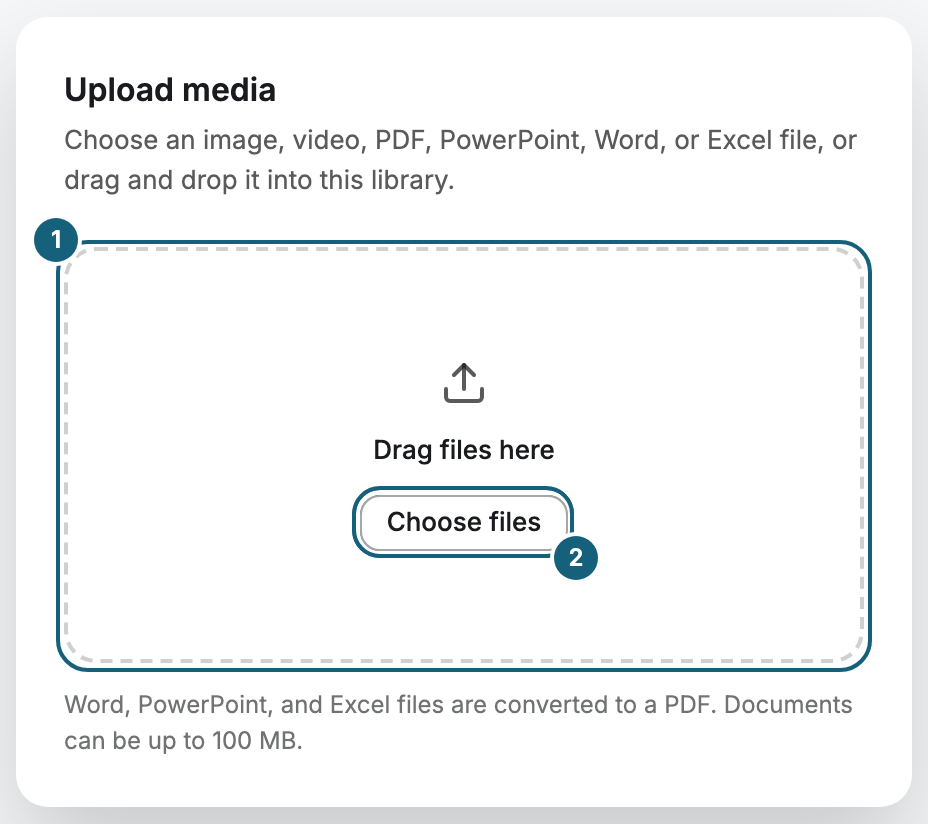
- Drag the files onto Drag files here, or click Choose files.
- Wait until every file shows Done.
You can keep working in other areas while files upload. The Uploads indicator in the sidebar above your user card shows the progress. On a phone, it sits in the header bar at the top. Large files are uploaded in parts, so a short network dropout doesn't start the upload over. If you upload the same file again, the portal recognizes it and skips the transfer.
Word, PowerPoint, and Excel
The dialog says what happens to these files: “Word, PowerPoint, and Excel files are converted to a PDF. Documents can be up to 100 MB.” Your original stays in the library. After the conversion, the document works like any PDF, see Place a document (PDF) in a scene. The portal prepares up to 50 pages. For a longer document, the details name the number, such as “First 50 of 150 pages”.
The check runs in your browser before anything is sent. A document over 100 MB shows Failed with the reason “The file is too large. Documents can be at most 100 MB.” Images and videos have no such limit. The file endings are in File types, sizes, and storage.
Check the result
The new tiles appear in the folder. After Done, the file is transferred, but the preview is created in the background. In Media details, the Status changes from Uploading through Processing to Ready. For a document, Processing is replaced by the progress: first Preparing pages, then Page 3 of 12 prepared. The library checks on its own, so you don't need to reload. Once the Status is Ready, the tile shows its preview image.
If something goes wrong
| Symptom | Cause | Solution |
|---|---|---|
| The message names a file type that isn't allowed | The format isn't supported, for example GIF. | Convert the file to a supported format, see File types, sizes, and storage. |
| The upload is rejected although the format is allowed | Your organization's storage is full. | Delete media you no longer need, or book another display. |
| The transfer stops suddenly | The browser tab was closed during the transfer. | Upload again and keep the tab open until everything shows Done. |
| A row in the dialog shows Failed with “The file is too large. Documents can be at most 100 MB.” | The document is over 100 MB. | Make the file smaller, for example by saving a PDF with smaller images, and upload it again. |
| A tile has no preview image | The file is still being processed. | Wait until the status is Ready. |
| A tile shows Error | Preparing the file failed. | Read the sentence in the details and do what it says, see When processing fails. |
| Upload file is missing or locked in the menu New | You lack the permission, or you are in the protected folder Brand marks, which is only managed on the Brand page. | Ask for the permission, or choose another folder. |
Related
Was this helpful?