Manage scenes: rename, archive, schedule
You want to tidy up your scenes or put one into a program.
- For
- anyone who looks after the scenes of an organization
- Prerequisite
- the Owner or Manager role
- Where in the portal
- Scenes
On this page
Keep your scenes in order: find them with search and filters, rename or duplicate them, archive what you don't need right now, and put a finished scene straight into a program.
Steps
Find a scene
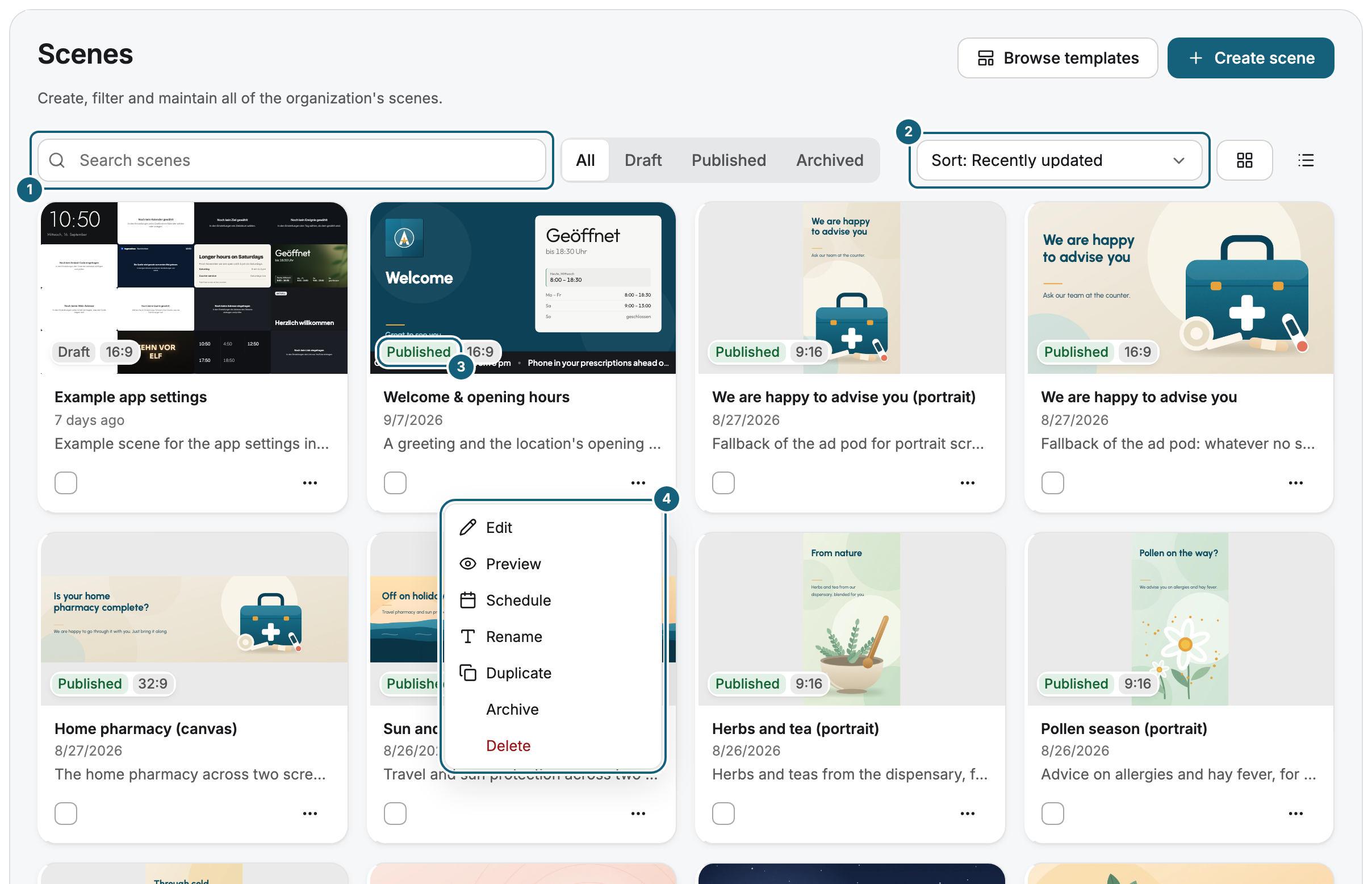
- Open Scenes. Search scenes filters by name.
- Use the Status filter for Draft, Published, or Archived scenes.
- Sort orders the list, and View switches between Grid view and List view.
Change a scene
Open the menu on a scene. It offers Preview, Edit, Schedule, Rename, Duplicate, Archive, and Delete.
- Duplicate creates a copy, for example as the starting point for a seasonal version.
- Archive puts a scene aside without deleting it. You find it again under the Archived filter and bring it back with Restore.
- Delete removes a scene for good after you confirm.
To archive or restore several scenes at once, select them and choose Archive selection or Restore selection.
Schedule a scene
Choose Schedule in a scene's menu and pick the program. The portal opens a new program entry with this scene, see Show content at specific times. A scene that isn't published yet can be scheduled, but displays show it only after you publish it.
Check the result
The list shows the scene with its new name or status. An archived scene appears only under the Archived filter.
If something goes wrong
| Symptom | Cause | Solution |
|---|---|---|
| A scene shows Blocked | It uses an app that your package no longer includes, so it doesn't play. | Click View package to change the package, or Remove app from scene and publish again. |
| A scheduled scene doesn't appear on the displays | It is still a draft. | Publish it, see Save, publish, versions, and conflicts. |
| A menu entry is missing | Your role doesn't allow this action. | Ask someone with the Owner role. |
Related
Was this helpful?