Save, publish, versions, and conflicts
Your scene is ready for the displays, or a change doesn't appear.
- For
- anyone who finishes a scene and gets it onto the displays
- Prerequisite
- the Owner or Manager role
- Where in the portal
- Scenes › open a scene › Save and Publish
On this page
Saving keeps your work as a draft that no display shows. Publishing turns the draft into a new version that goes out to every display that plays the scene. Earlier versions stay available, so you can compare them or go back.
Steps
Save
Click Save, or press Ctrl/Cmd + S. With Auto-save switched on under Settings, the editor also saves on its own a few seconds after your last change. The status line shows Unsaved changes, Saving…, and All changes saved.
If you leave the page with unsaved changes, the editor asks whether you want to leave. If the browser closed before you saved, the editor offers Local draft found the next time you open the scene, with Restore or Discard.
Publish
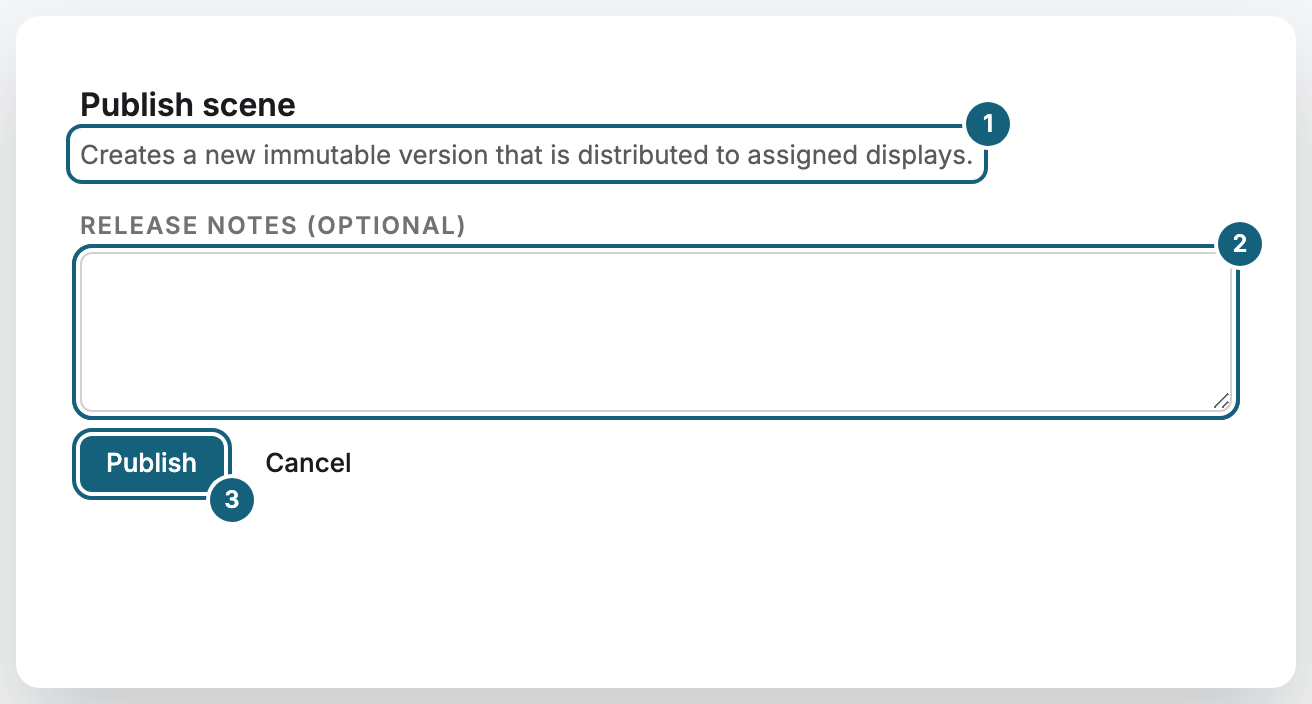
- Click Publish.
- Under Release notes (optional), note briefly what changed.
- Click Publish in the dialog. Unsaved changes are saved first.
Fix issues that block publishing
The panel Integrity issues below the stage lists what is wrong with the scene, such as Media item deleted, App uninstalled, App content missing, or Zones do not fit together. Blocking issues prevent publishing until you fix them, while Warning and Info are only notes. After fixing, click Re-check.
Compare versions or go back
Open Versions in the header. Version history lists every published version with its number, date, and release notes.
- Click Compare on two versions to see what changed between them.
- Open preview shows how a version looked.
- Revert to this version replaces your draft with that version. The displays only get it when you publish again.
Resolve a save conflict
If someone else saved the same scene while you worked on it, Save conflict opens and lists the differences. Adopt server state discards your changes, Force my changes overwrites theirs, and Cancel leaves everything as it is.
Check the result
The header shows Published and the new version number. In Version history, the new version is marked Active. The displays that play the scene show the new version within seconds.
If something goes wrong
| Symptom | Cause | Solution |
|---|---|---|
| Publishing blocked: unresolved integrity issues. | At least one blocking issue is open. | Fix the issues, click Re-check, and publish again. |
| No content change — no new version was created | The draft is the same as the last version. | Change something first, then publish. |
| Conflict — scene was changed externally in the status line | Someone else saved the scene. | Decide in the Save conflict dialog. |
| The display still shows the old version | The changes were saved but not published. | Click Publish. |
| Save or Publish is grayed out | Your role doesn't allow it. | Ask someone with the Owner or Manager role. |
Related
Was this helpful?