Brand: logo, colors, and fonts
The portal should show your logo and your colors instead of the Szenera default, and your apps should stand in your brand colors and fonts.
- For
- Owners who set up the look of the organization. Everyone else can view the page.
- Prerequisite
- the Owner role, a package with your own brand, and your logo as an SVG or PNG file with a transparent background
- Where in the portal
- Settings › Organization › Brand (“Logo, colors and fonts of your organization. Apps adopt them with one click if you wish.”)
On this page
Give your organization one look. Choose your logos, four colors, and two fonts once, and the portal and your apps use them, on the displays too.
Steps
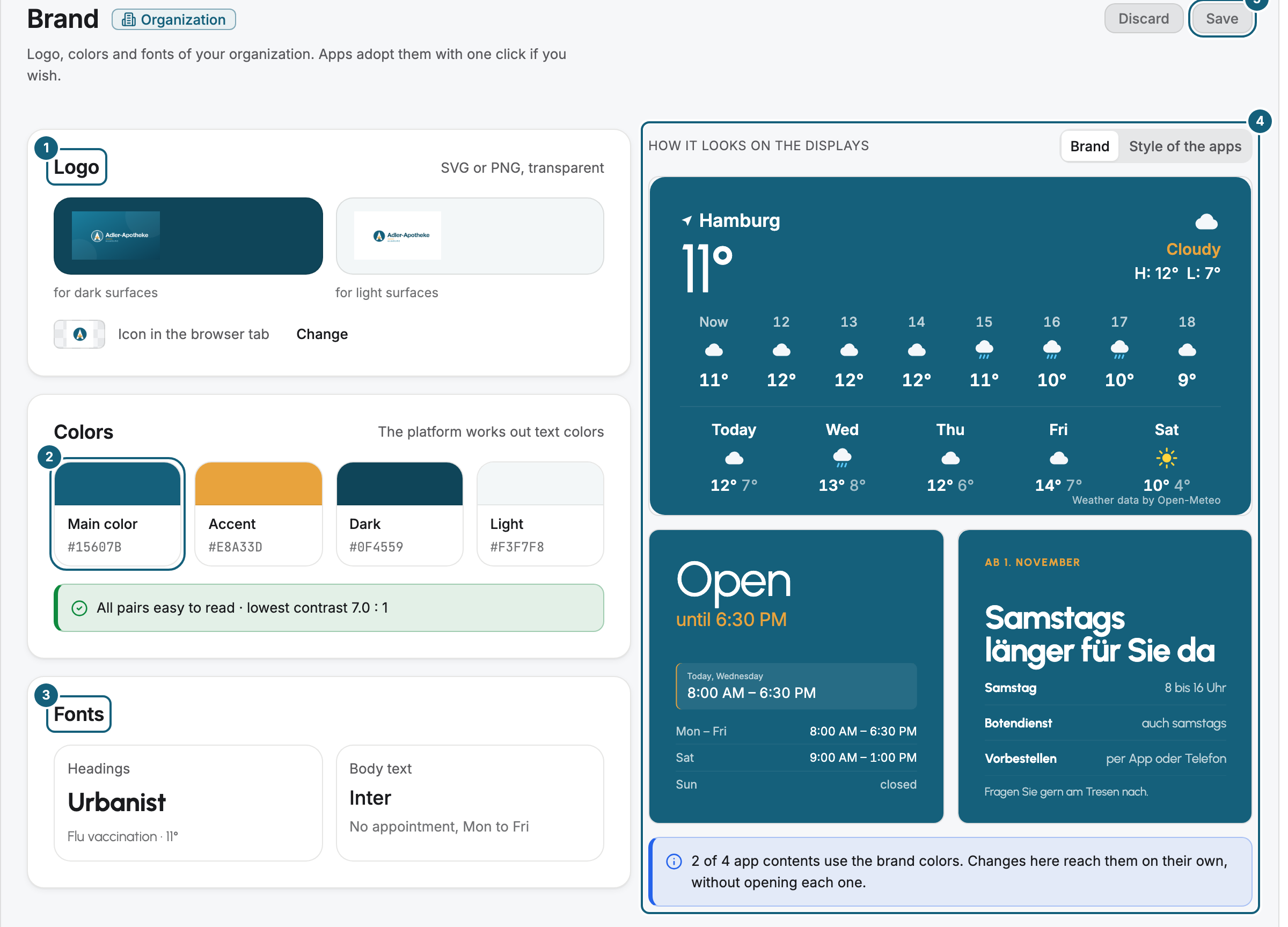
- Open Settings › Organization › Brand. On the left are the cards Logo (1), Colors (2), and Fonts (3), on the right the preview How it looks on the displays (4). The header holds Discard and Save (5).
- In the Logo card (1), click the field for dark surfaces and the field for light surfaces. Each opens the images of the protected folder Brand assets. Choose an image, or upload a new one with Upload image. No image undoes the choice.
- Next to Icon in the browser tab, click Choose (later Change) and pick a clearly recognizable mark. It appears tiny in the tab.
- Once a logo is in place, the page reads its colors and suggests them under Colors found in the logo:. Apply puts them into the draft. Nothing is saved yet.
- In the Colors card (2), set the four roles Main color, Accent, Dark, and Light. A click on a card opens the color picker. Dark and Light are the backgrounds your apps stand on. Until you choose them, the page derives them from the main color, and Derive from the main color in the picker restores that.
- Read the line below the colors. It checks every pair that your brand forms on a surface. You don't choose text colors, because the platform works them out.
- In the Fonts card (3), choose one font for Headings and one for Body text. Font of the app at the top means that each app uses its own font.
- Check the preview on the right (4). It shows up to three of your installed apps in the colors and fonts of the draft. The Preview switch toggles between Brand and Style of the apps.
- Click Save (5). The message Brand saved. appears. Discard restores the saved state.
Until you change something, Discard and Save stay locked.
How the colors are checked
The page checks seven pairs, four with text and three with highlights:
| Pair | Kind |
|---|---|
| Text on main color, Text on accent, Text on dark, Text on light | Text, needs a contrast of 4.5 : 1 |
| Accent on main color, Accent on dark, Main color on light | Highlight, needs 3 : 1 |
The line below the colors tells you where things stand:
- Green: All pairs easy to read with the lowest contrast, such as “7.2 : 1”.
- Yellow: Readable, but weak and the pairs with their contrast. The display softens the color for text and marks there. It is saved anyway, so a light accent is allowed.
- Red: Not readable and the pairs. A color that cannot carry its text blocks Save. Choose the color lighter or darker.
Options
Brand colors in apps
An app doesn't adopt your brand on its own. On the widget, choose Brand colors under Colors on the Appearance tab, see Configure widgets: template, preview, and fields. The widget then takes the main color, accent, backgrounds, and fonts from this page, as roles and not as shades.
After you save, your displays pick up the new brand on their own. You don't have to publish scenes again. Below the preview, a sentence tells how many app contents use the brand colors, see Create, configure, and maintain app contents.
News apps
In news apps such as Tagesschau, NDR, DER SPIEGEL, BILD, Deutschlandfunk, and BBC News, one surface on the Appearance tab is named after the source. It keeps the dark shade of the source in every color choice, because the house color of the source should stay recognizable. For a news app entirely in your colors, choose another surface.
Where the images are
What you choose and upload here sits in the protected folder Brand assets of your library: visible and usable in scenes, but maintained only from this page. An image you use counts as in use and can't be deleted. An image chosen as a logo or icon also can't be removed: choose another one first.
If the package does not include your own brand
Then the area shows a lock (“From” and the name of the package). What is already stored stays and keeps working. Only the way to something new is locked. View packages takes you to billing.
Check the result
- At the top of the sidebar is your Logo. Without a logo, the display name appears there as text.
- In the browser tab, your icon appears instead of the default icon.
- The Main color tints buttons, the focus ring, and the active sidebar entry.
- The preview and every widget in brand colors show the same colors and fonts.
- A display without an assignment shows the placeholder of your organization.
- On the Dashboard, the setup step Upload brand assets counts as done.
None of these settings takes effect on the sign-in page: Looking up the brand beforehand would reveal to every visitor which organization is behind an address.
If something goes wrong
| Symptom | Cause | Solution |
|---|---|---|
| Not readable: … appears in red below the colors, and Save is locked | A color doesn't carry its text color, and the contrast is below 4.5 : 1. | Choose the named color lighter or darker. |
| Readable, but weak: … | An accent or the main color looks too pale as a mark on a surface. | It is saved anyway. If the highlight should have full effect, choose a stronger color. |
| The brand could not be saved. | The platform rejected the draft or could not be reached. | Check the colors and click Save again. |
| The image could not be removed. If it is chosen as a logo or favicon, choose another one first. | The image is in use. | Choose another image, save, then remove. |
| The image could not be uploaded. | The file was rejected, or the transfer broke off. | Choose an SVG or PNG file with a transparent background and upload it again, see File types, sizes, and storage. |
| The logo doesn't appear although it sits in the field | Chosen but not saved. | Click Save. |
| Read-only. appears above the cards | “You can view the brand. Changing it is reserved for owner and administrator accounts.” | Ask an Owner, see Roles and permissions. |
| No app for the preview yet appears instead of the preview | None of the apps of the preview is installed. | Install Weather, Opening hours, or Notice board. |
Related
Was this helpful?