Read and export the change log
Something changed and you are looking for who did it and when — or someone asks for an export for the audit.
- For
- Owners and Managers who want to trace a change
- Prerequisite
- the Owner or Manager role
- Where in the portal
- Settings › Organization › Change log (“Who changed what and when — traceable, filterable and exportable.”)
On this page
The change log records who changed what and when. Filter it by event, person, period, or severity to find what you’re looking for, and download it as a file if you need to.
Steps
Find an event
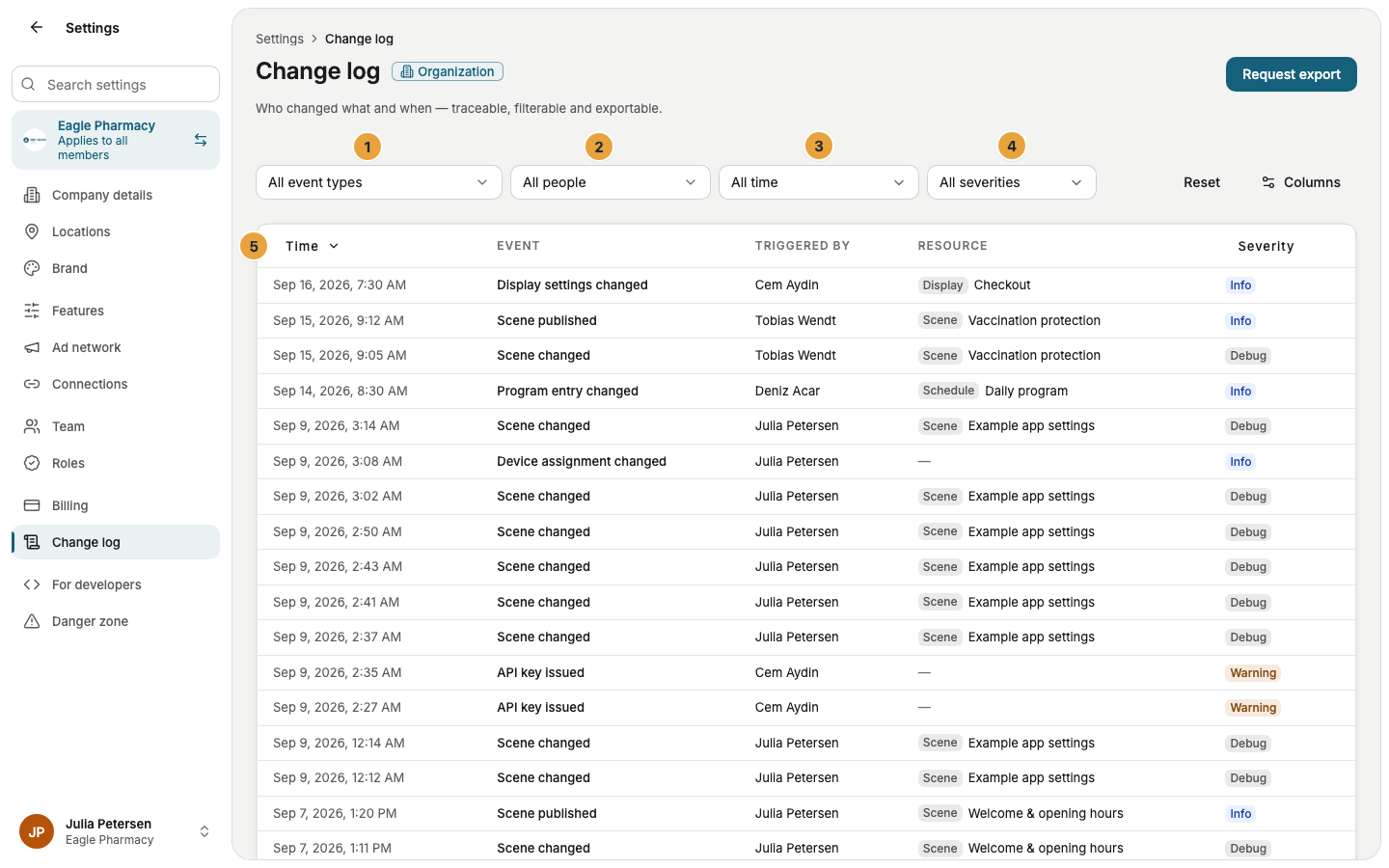
- Open Settings › Organization › Change log. The list shows Time, Event, Triggered by, and Resource, with the newest entries first.
- Narrow down via Event type. Without a choice, it says All event types, and an area can be chosen as a whole.
- Narrow down to one account via Person (otherwise All people).
- Choose the Period: All time, Last 24 hours, Last 7 days, Last 30 days, Last 90 days, or Custom with the fields From and To.
- If needed, choose the Severity: Debug, Info, Warning, or Error.
- Click Load more for further entries. Reset clears all filters.
Even silent events appear in the log, such as the deletion of a role and every use of an emergency account.
Open an entry
- Click a row. The page Change log entry shows Event type, Timestamp, Triggered by, Kind, Resource, and, if stored, the Reason, which is the sentence someone enters when changing a role.
- Under Technical details are Trace id, Correlation id, and Source domain. With them, you assign an event to a process.
- Payload shows the changed fields with old and new values. If you lack the permission, it says: “The payload of this entry is reserved for owners. It contains changed values and may carry personal data.”
Request an export
- Open the Exports section and click Request export.
- In the dialog, choose the Format: CSV, JSON, or PDF.
- Turn on Apply current filter if only your selection should go into the file. Without a filter, the dialog warns: “No filter is set — the export covers the entire visible period.”
- Confirm with Start export. The export runs in the background. The status goes from Pending through Processing to Completed.
- Then click Download. Delete removes a file before it expires.
Options
Who triggered the event
Not every entry comes from a person. The Kind names the trigger: User, Operator, API key, Device, Display, Impersonation, Anonymous, or System. For an impersonation, it also says by whom. If the account is deleted, it says Pseudonymized, and the entry is kept. In some entries you may see OWNER, MANAGER, and MEMBER, which is what the built-in roles are called in the log.
Retention periods
Below the list is the rule: “Entries stay visible for 2 years and are deleted permanently after 7. Exports remain available for 7 days.” Each export names its own end with Available until.
Check the result
- The list shows exactly the events your filters describe.
- The opened entry names time, person, and resource, and with the permission also the changed values.
- The export is Completed, names its row count, and can be downloaded.
If something goes wrong
| Symptom | Cause | Solution |
|---|---|---|
| You see only your own events | Your account has View own activity, not View audit log. | Ask an Owner for the broader permission, see Roles and permissions. |
| The payload of this entry is reserved for owners. | The changed values may carry personal data. | Ask an Owner to open the entry. |
| No entries for this filter. | The combination of period and event type matches nothing. | Widen the period or click Reset. |
| Row limit of … reached | “The run hit the upper limit — there are further matches that are not in the file.” | Narrow the period and request again. |
| The export is Failed | The run did not get through. | Request again, if necessary with a narrower period. |
| The download could not be started. | The file has expired or cannot be reached. | Check whether Available until has passed, and request the export again. |
Related
Was this helpful?