Check what a display is showing now and will show today
Someone asks what is running on a display, or what ran earlier.
- For
- anyone who needs to answer a question about a display without going there
- Prerequisite
- an account in your organization. Reading is enough.
- Where in the portal
- Displays › display › Overview and Program
On this page
You can see from anywhere what a display shows right now, where that content comes from, what follows later today, and what the display actually showed, with a picture every five minutes.
Steps
What is running right now
- Open Displays and choose the display. It opens on the Overview tab.
- The Now card names the scene or playlist that is playing, and whether it comes from a program or was assigned directly. It also shows how long it runs and what comes Up next.
- Above it, the latest picture from the device shows what the TV really displays. The device takes a picture every five minutes and after every change.
If nothing is assigned, the card says so, and the display shows your placeholder.
What the day brings
- Switch to the Program tab and scroll to the Playback timeline.
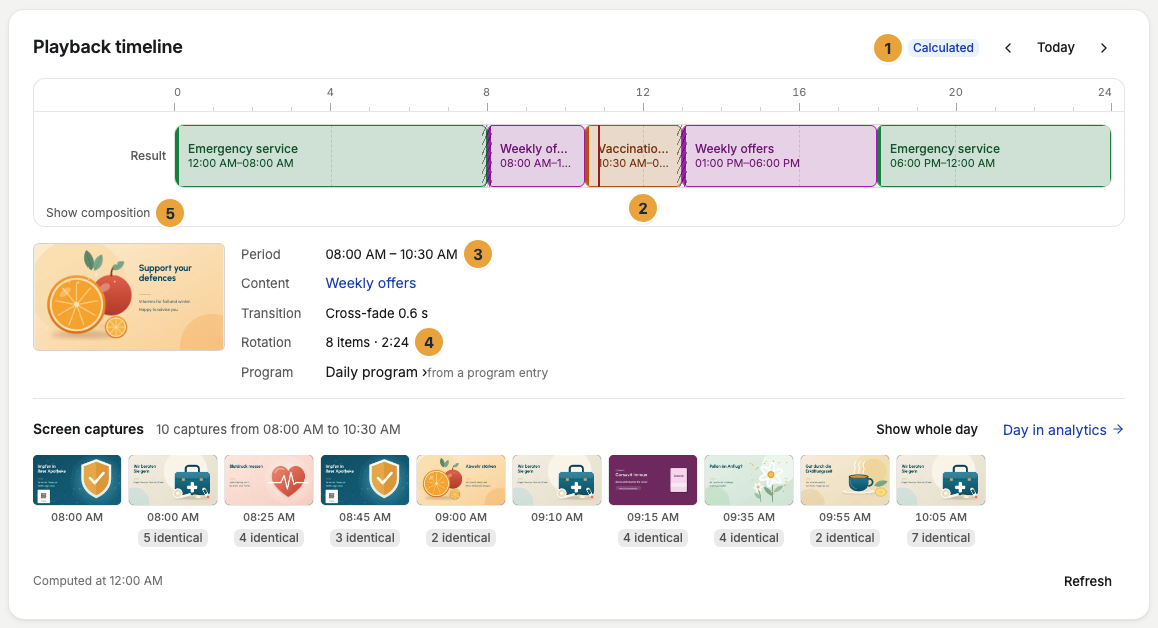
- The bar shows the day in sections: Playing, Off air, and Nothing scheduled. Click a section to see its time, content, and the program entry it comes from.
- Use Next day and the button for the previous day to page through the days.
What the display actually showed
Below the timeline, Screen captures shows the pictures of the day. The timeline says what was planned, the captures show what was visible. Click a section of the timeline to see only its captures, and Show whole day to see all of them again. Day in analytics opens the same day with all plays, see Check a display’s day.
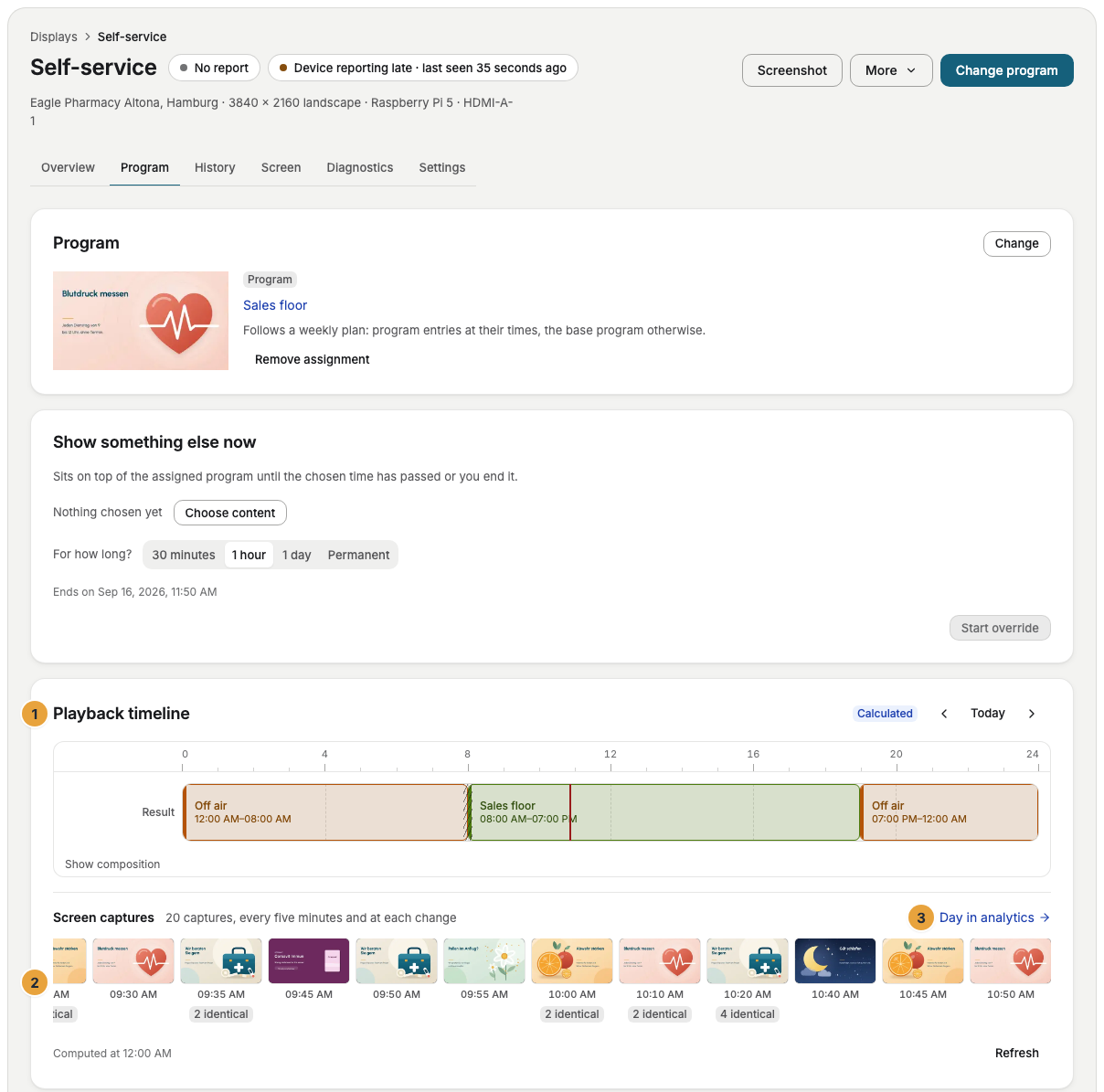
How long captures are kept and how far back the timeline goes depends on your package. The line below the captures tells you. Videos that the device plays with hardware decoding don't appear in the captures.
Check the result
The section that the timeline shows for the current time matches the Now card, and the latest picture confirms it.
If something goes wrong
| Symptom | Cause | Solution |
|---|---|---|
| Nothing is resolved for this day. | Nothing is planned for this day. | Check the assignment on the Program tab. |
| The button for the previous day is grayed out | Playback history starts with Pro, or your package doesn't go back further. | See your package under Settings › Organization › Billing. |
| A change is missing from the timeline | The calculation is a few minutes old. | Click Refresh below the timeline. |
| The picture from the device is old | The device hasn't reported since, often because it is offline. | Check its status. On the Diagnostics tab, Screenshot requests a new picture. |
| “There is no capture for this day.” | The day is older than your package keeps captures, or the display sent none. | Choose a more recent day. |
Related
- Check a display’s day: plan, plays, and captures of one day together.
- Remote maintenance: send commands to a display: reload content and take a fresh screenshot.
- Read the weekly plan: why a program entry applies at a certain time.
Was this helpful?