Monitor your displays
You want to know what a status, a visibility, or a warning band means.
- For
- anyone who keeps an eye on displays
- Prerequisite
- an account in your organization. Commands and tags need the Owner or Manager role, removing needs the Owner role.
- Where in the portal
- Displays
On this page
The Displays page shows every display with its status and a picture of what it is playing. Open a display to see whether it shows content, what is wrong, and what you can do about it.
The list of displays
Use Search displays …, the Status and Tag filters, and Filter by location to narrow the list. Sort orders it, and View switches between Cards, List, and Map. The list updates itself, so you don't need to reload the page.

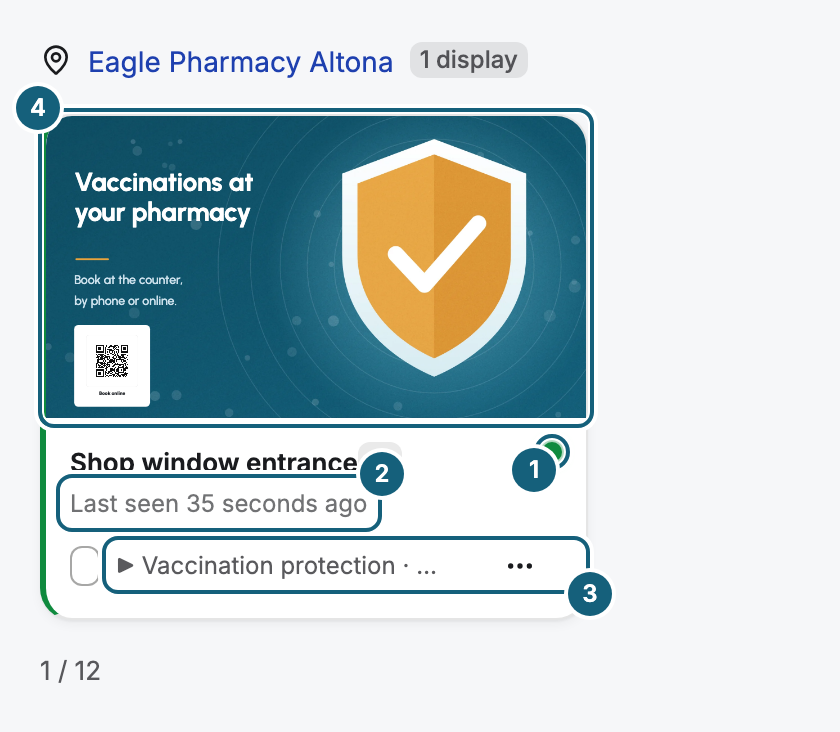
Each card shows a preview of what the display plays, its name and status, when it last reported, and the running content. Instead of content, it may say:
| Text | Meaning |
|---|---|
| Off air | A planned blank period is running. |
| Nothing scheduled | Nothing is assigned, so the display shows your placeholder. |
| Device not playing | The display is suspended or frozen, see the status table below. |
| Not connected yet | A web display was created, but no browser has opened its address yet. |
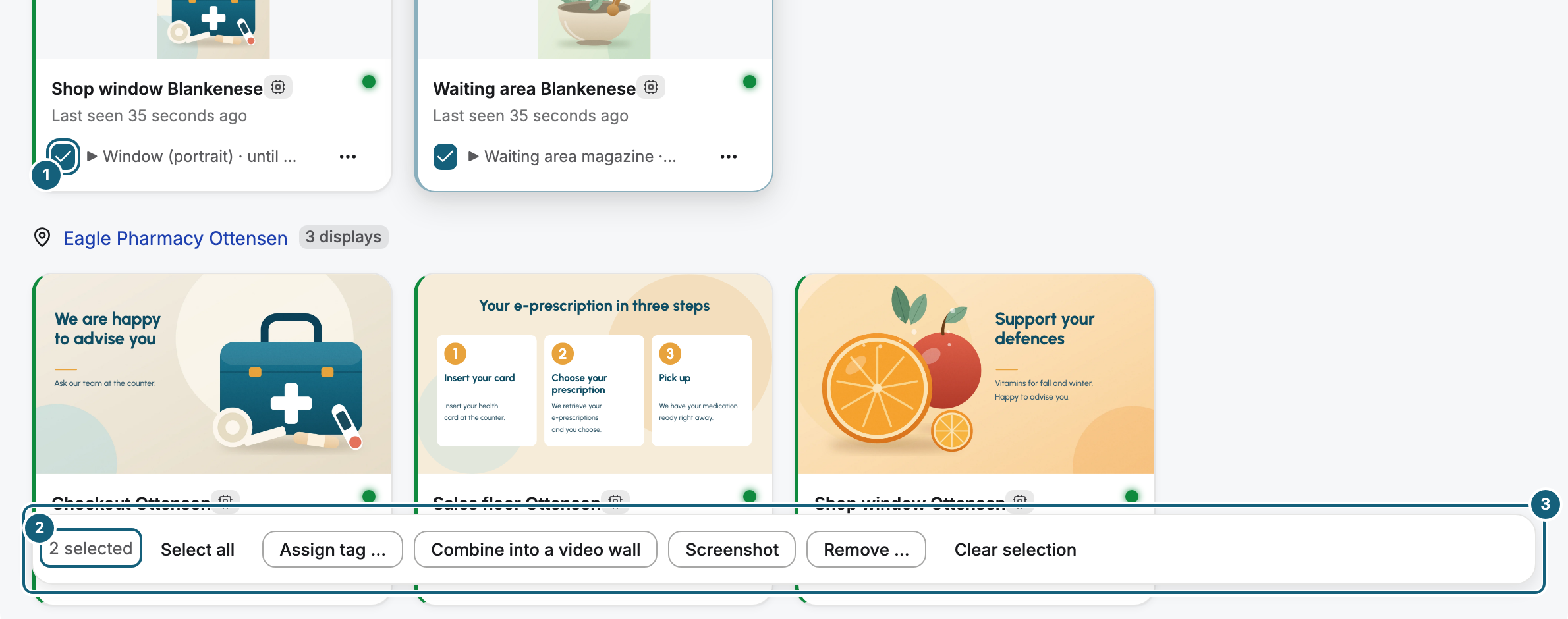
Select several displays with their checkboxes to assign a tag, take screenshots, combine them into a video wall, or remove them.
Status: does the display report in?
Each device reports every 30 seconds. The status only says how long ago that was, not whether a picture is visible.
| Status | Meaning |
|---|---|
| Online | The last report is less than a minute old. |
| Delayed | The last report is one to five minutes old, often because of a short network dropout. |
| Offline | No report for more than five minutes, for example because the device is switched off or has no network. |
| Not connected | A web display was created, but no browser has opened its address yet. |
| Suspended | Your organization is suspended, so the display doesn't play. |
| Frozen | More displays are paired than booked. This display plays again once a seat is free. |
An offline display keeps playing the content it loaded last. Only the status and the time of the last report show that it hasn't reported since.
Visibility: does the display show a picture?
| Visibility | Meaning | What to do |
|---|---|---|
| Showing content | The display plays your content. | Nothing. |
| Starting up | The display software is starting. | Wait about a minute. |
| Showing a fault | The display can't reach its content and shows an error page. | Check the device's network. |
| Showing nothing | The display is black, for example because the TV is on standby. | The warning band names the cause. |
| No cable | No TV is detected at this connector. | Check the cable and the input on the TV. |
| No report | The device hasn't reported anything about this display yet. | Wait for the next report. |
Warning bands
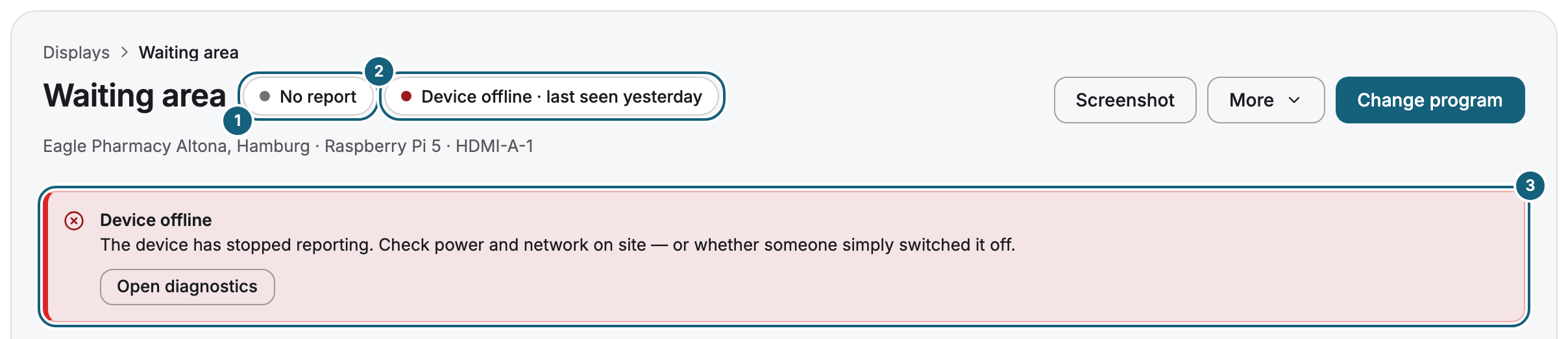
If something is wrong, a band at the top of the display page names the likely cause and the next step.
| Warning band | Likely cause | What to do |
|---|---|---|
| Device offline | The device doesn't report anymore. | Check power and network on site. |
| Device reporting irregularly | Unstable Wi-Fi at the location. | Check the Wi-Fi, or use a network cable. |
| Weak Wi-Fi signal | The router is too far away. | Move the router closer or add a repeater. |
| Power supply throttling | The power supply is too weak or the cable too long. | Use the power supply that came with the player. |
| Storage low | Little free space on the device. | Remove content you no longer show. |
| Clock out of sync | The device can't set its clock. | Allow time synchronization (NTP) in your network. |
| Display output hung | The display software stopped delivering pictures. | Restart the device. |
| This display shows no picture | The TV is on standby, or the display software isn't running. | Switch the TV on in the Screen tab, or restart the device. |
| Screen did not switch off | The TV or monitor does not accept switching off over the cable. | Switch it off on the device, or withdraw the command with Turn on in the Screen tab. |
The display page
Click a display to open its page. At the top right, Change program opens the assignment, and More holds Identify, Reload content, and Restart ….
| Tab | What you find there |
|---|---|
| Overview | The latest picture, what is playing Now, the state of picture, connection, and software, and recent events. |
| Settings | Name, description, location, map position, tags, and Remove display. For a web display, also its address. |
| Screen | The connected TV, switching it on and off, what it can do, and the picture settings. |
| Program | What is assigned, the override, the timeline of the day, and the screenshots. |
| History | The connection over the last 7 or 30 days, with every interruption. |
| Diagnostics | Commands to the display and its device, and the commands sent so far. |
Related
Was this helpful?