Remove a display
You take down a TV or need its seat for another display.
- For
- anyone who takes down or replaces a TV, or needs a seat for a new display
- Prerequisite
- the Owner role
- Where in the portal
- Displays › display › Settings › Remove display
On this page
Removing a display takes it out of your list and frees its seat. The device behind it stays. Only when you remove the last display of a device do you decide in the same dialog what happens to the device.
Steps
- Open Displays, choose the display, and switch to the Settings tab.
- In the Remove display card, click Remove display ….
- If this is the only display of its device, choose under What should happen to the device? what comes next, see the table below.
- Confirm with Remove display. The portal confirms Display removed.
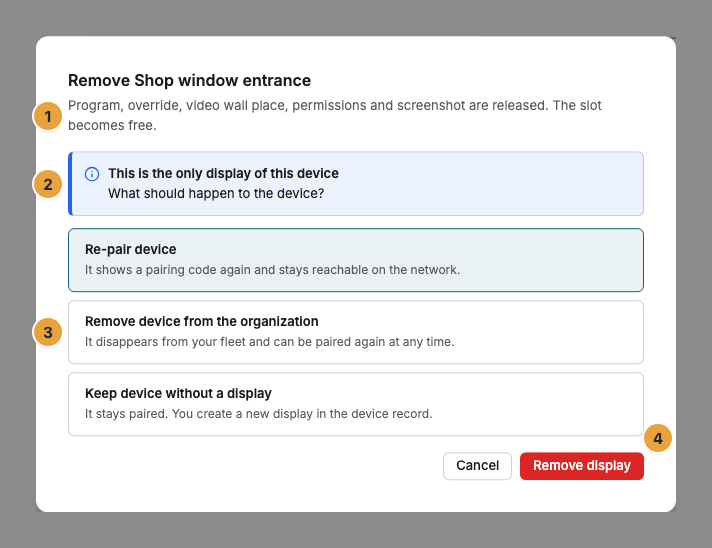
To remove several displays at once, select them in the list of displays and choose Remove …. For a web display, Delete web display on its Settings tab does the same and also ends the browser's access.
The last display of a device
| Choice | What happens to the device | Use it when |
|---|---|---|
| Re-pair device | It shows a pairing code again and stays on the network. | The TV should show something again later, in your organization or another one. |
| Remove device from the organization | It disappears from your list of devices and can be paired again at any time. | The device is returned, sold, or disposed of. |
| Keep device without a display | It stays paired, and you create a new display for it on the device's Overview tab. | You want a different display on the same device right away. Only available with several displays per device, from the Pro package. |
The device picks up the choice the next time it reports, or when it is switched on again. What happens on the device is described in Re-pair, reset, remove, or report a device as lost.
Check the result
The display is gone from your list, and its seat is free. The change log records Display removed. After Re-pair device, the TV shows a pairing code again.
If you want to book fewer displays, remove the extra ones first. A reduction takes effect at the end of the current billing period. If more displays are then paired than booked, you have seven days to remove some or book more. After that, the portal freezes the extra displays, starting with the most recently paired.
If something goes wrong
| Symptom | Cause | Solution |
|---|---|---|
| Remove display … is grayed out | Only the Owner role may remove displays. | Ask someone with the Owner role. |
| Keep device without a display is grayed out | Your package allows only one display per device. | Choose Re-pair device. |
| After Re-pair device, the TV still shows the old content | The device hasn't picked up the change yet. | Check power and network. The change waits until the device reports. |
Related
- Re-pair, reset, remove, or report a device as lost: actions for the whole device.
- Packages, trial, and what you pay for: seats and limits.
- Pair a display: bring a TV back into your list.
Was this helpful?