Re-pair, reset, remove, or report a device as lost
A device leaves your organization, moves, or was stolen.
- For
- anyone who hands over, moves, or loses a device
- Prerequisite
- the Owner role
- Where in the portal
- Devices › device › Lifecycle
On this page
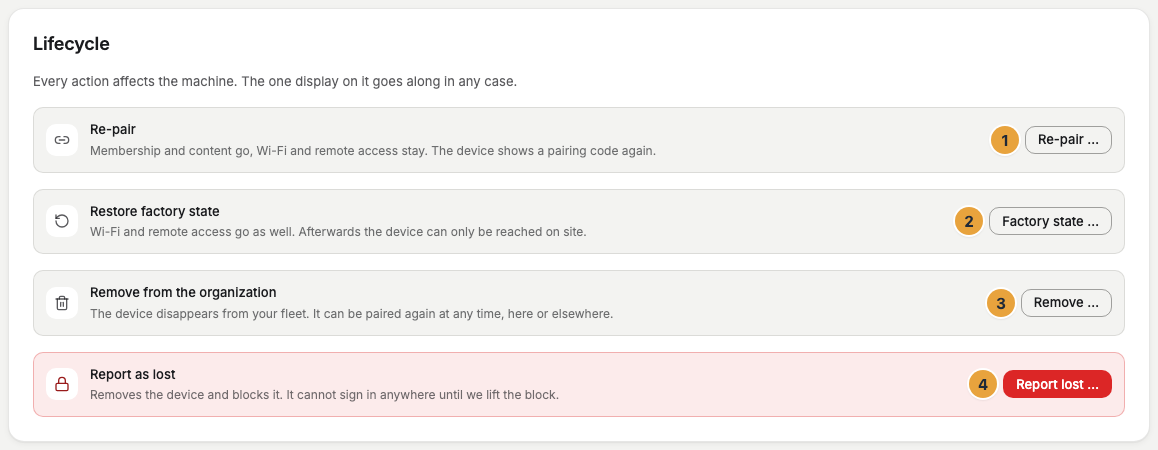
The Lifecycle tab of a device holds four actions that take the device out of your organization. Choose by what should happen next: pair it again, move it to another place, give it back, or block it after a theft.
Which action to choose
| Action | Use it when | Afterwards, the device shows | Someone needs to be on site |
|---|---|---|---|
| Re-pair | You want to pair it again right away, in your organization or another one. | a pairing code | no |
| Restore factory state | The device moves to a place with a different Wi-Fi, or goes in for repair. | the setup card | yes |
| Remove from the organization | You return, sell, or dispose of the device. | a pairing code | no |
| Report as lost | The device was lost or stolen. | that it is blocked | no |
All four remove the device's displays and free their seats. The actions can only be started in the portal, never on the device, so nobody can take a device out of your organization at the shop window. For a web display, only Re-pair and Remove from the organization are available.
Steps
- Open Devices, choose the device, and switch to the Lifecycle tab.
- Click the button of the action: Re-pair …, Factory state …, Remove …, or Report lost ….
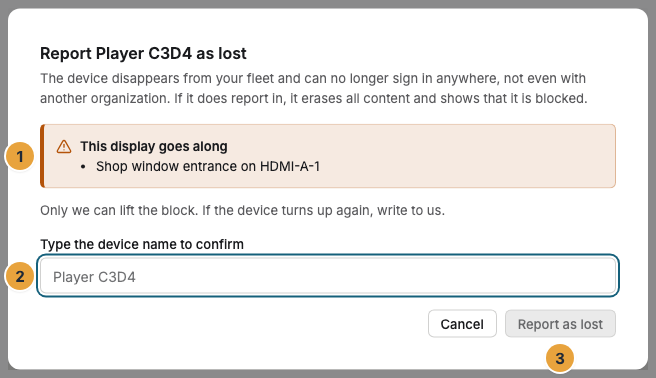
- The dialog lists the displays that go along. For Restore factory state and Report as lost, type the name of the device to confirm.
- Confirm with the button that names the action.
Check the result
The device picks up the action the next time it reports, or when it next starts. It then erases its content and shows a pairing code, or the setup card after a factory reset. Its name goes back to the factory name, such as Player 7AA9. The change log records Device released.
If a device reports in with a new identity
A device that was reset or reinstalled on site reports in with a new identity. This doesn't give it access to your content. Until you decide, the display shows Wartet auf Bestätigung im Portal (waiting for confirmation in the portal), and the Owners of your organization receive a notification. At the top of the device page, choose one of these:
- Accept, keep displays: the device continues with its displays, content, and name.
- Accept and re-pair: the device is released and shows a pairing code.
- Block: the device is removed and blocked, as with Report as lost.
After a theft
A device reported as lost is blocked everywhere and can't sign in with any organization. If it reports in, it erases its content and shows that it is blocked. Only we can lift the block. If the device turns up again, contact support.
If something goes wrong
| Symptom | Cause | Solution |
|---|---|---|
| The display keeps showing content | The device hasn't picked up the action yet. | Wait. The action arrives with the next report, at the latest when the device starts again. |
| After Restore factory state, the device can't be reached | That's expected: Wi-Fi and remote access are erased. | Set it up again on site with the setup card, see Connect to the network. |
| This device has already been paired. when pairing | The device still belongs to an organization. | Start Re-pair … there first, then pair it again. |
| The buttons on the Lifecycle tab are grayed out | Your role doesn't allow these actions. | Ask someone with the Owner role. |
| After Accept, keep displays, the notice comes back | Devices with an older system report a new identity at every start. | Choose Accept and re-pair and pair the device again. |
Related
- Remove a display: remove a single display and keep the device.
- The pairing screen and other messages on the display: what the device shows afterwards.
- Support: where to turn and what to send: replacement devices, returns, and lifting a block.
Was this helpful?