Web display: a display in the browser
You want to use a computer, tablet, or smart TV you already have.
- For
- anyone who wants to use hardware they already have, or try Szenera
- Prerequisite
- the Owner or Manager role and a free seat
- Where in the portal
- Displays › Pair display › Web browser
On this page
A computer, tablet, or smart TV with a current browser can be a display. You don't need to buy anything: open the display address in the browser and pair it like a player.
What you need
- A device with a current Chrome or Edge browser and internet access.
- The browser in full screen, with the display's tab in the foreground.
Steps
On a device with a keyboard
- In the portal, open Displays, click Pair display, and choose Web browser.
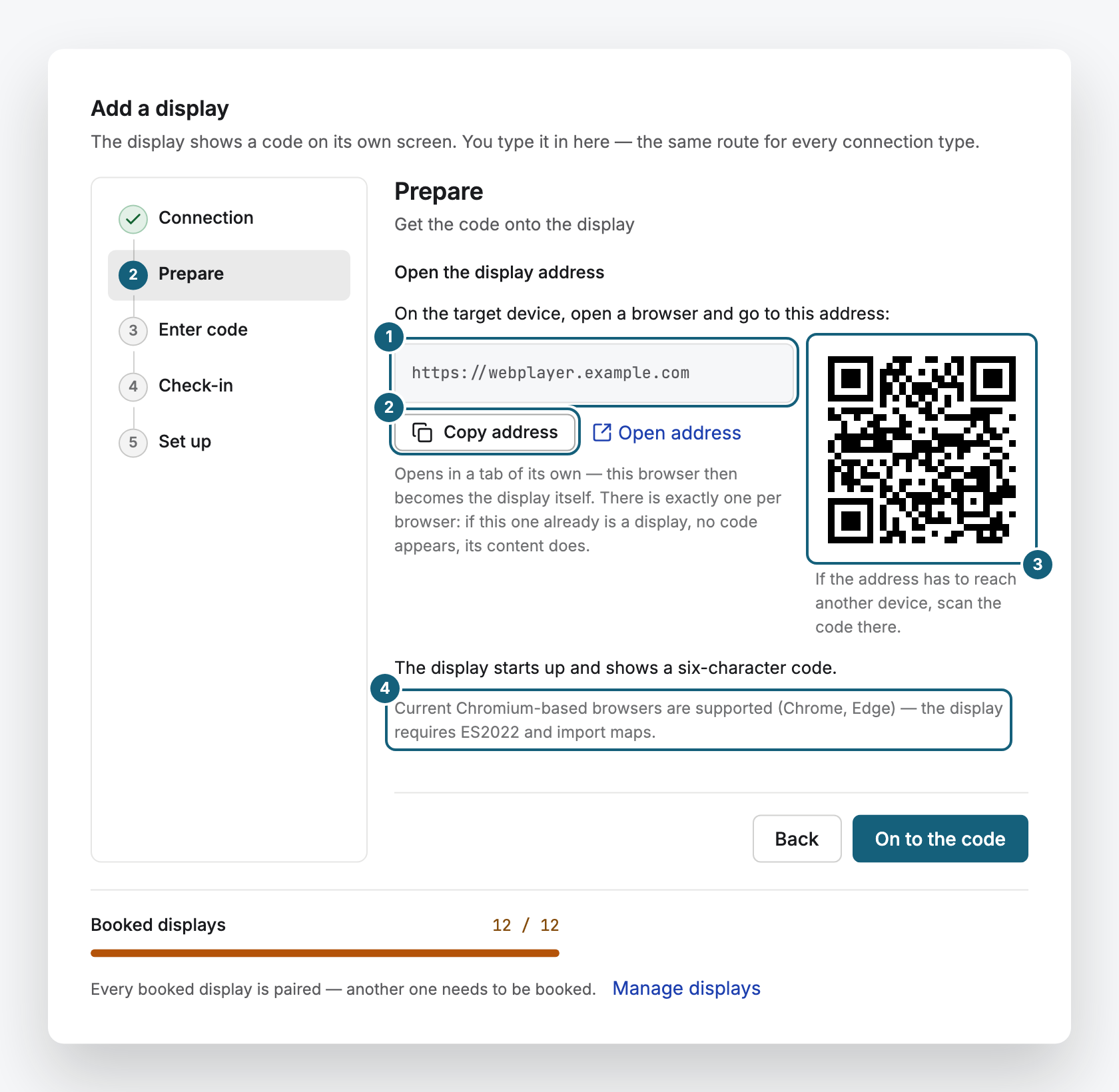
- In the Prepare step, copy the address with Copy address, or scan the QR code with the target device.
- Open the address on the target device. It shows a six-character code.
- Enter the code in the Enter code step and click Pair. Then give the display a name and content, or click Set up later.
On a TV you can't type on
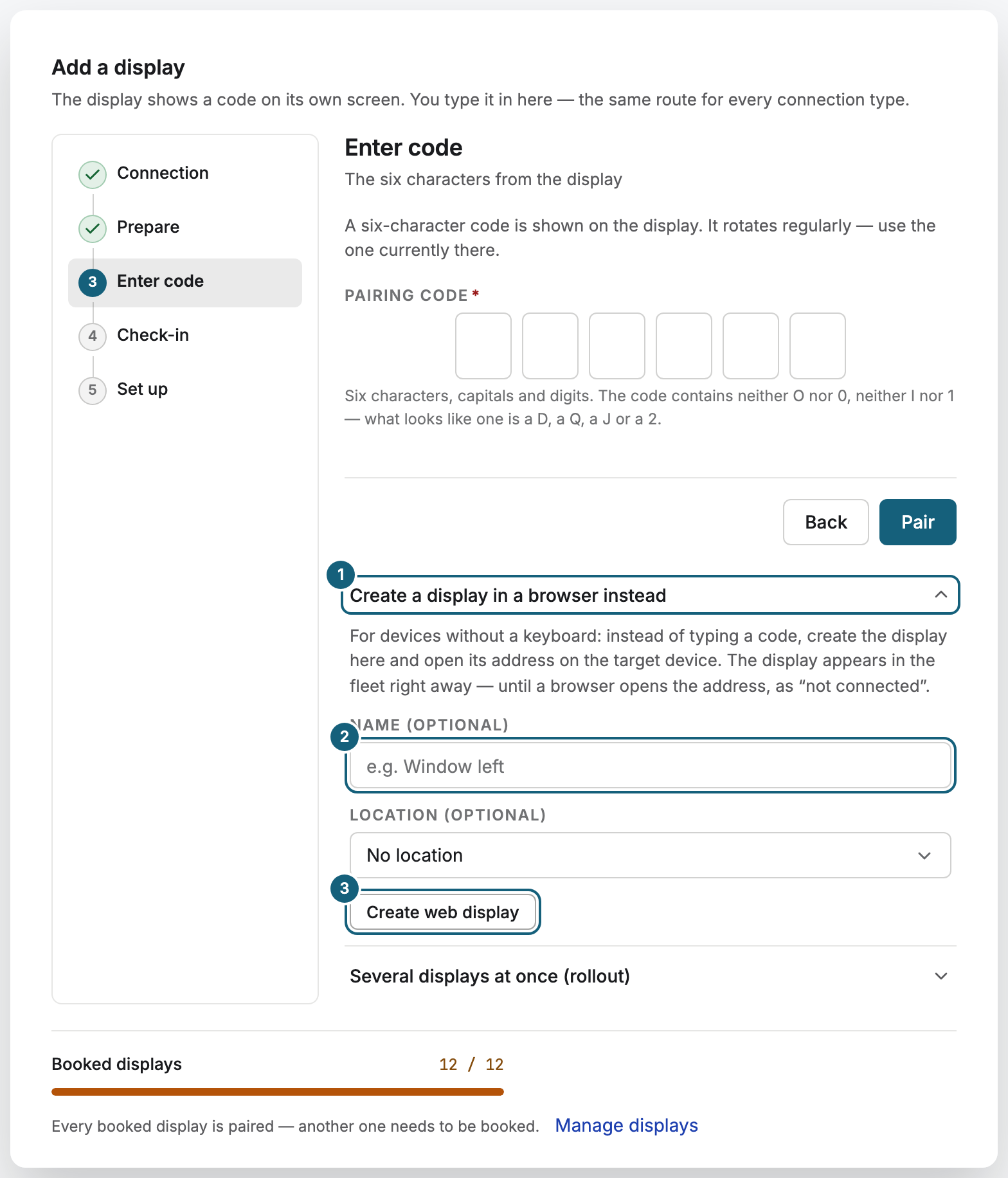
- In the Enter code step, choose Create a display in a browser instead.
- Enter a name if you like, and click Create web display. The display appears in your list right away as Not connected.
- Scan the QR code with the TV, or open the address there. It works once, within 24 hours.
Keep the display running
- Turn off the screensaver, energy saving, and automatic browser updates on the device.
- Keep the tab in the foreground and in full screen. A tab in the background shows nothing, and the portal then says in the background.
- The display's access is stored in the browser. If you clear the browser data or switch to another browser, it starts over as a new display. To move it on purpose, open the display's Settings tab and click Create a new address in Connection and lifecycle. Name, content, and seat stay the same.
- To remove the display, click Delete web display in the same card. Its seat becomes free again.
What a web display can't do
- No remote maintenance. Restarting reloads only the tab, and the computer and its browser get no updates from Szenera.
- No control over the TV. Switching on and off and real brightness are missing. Dimming only darkens the picture.
- No hardware video decoding. Videos play in the browser, which is fine for most content but not for demanding 4K video.
- One display per browser profile. A second display needs a second profile and takes its own seat.
- Screenshots only with the display extension. It works in Chrome 116 and later. Support tells you how to get it.
If something goes wrong
| Symptom | Cause | Solution |
|---|---|---|
| Web browser is locked when pairing | Web displays are switched off for your contract. | Your organization can book them, or pair a player instead. |
| The display address doesn't load at all | The device has no internet, or a firewall blocks the address. | Open another website in the same browser. If that works, see Network requirements for your IT. |
| A pairing code appears instead of your content | The browser lost its stored data. | Click Create a new address in the display's Settings and open it on the device. |
| The display stays Not connected | Nobody has opened the address on the device yet. | Open it there. If it has expired, create a new one. |
| The portal says in the background | Another window covers the tab. | Bring the tab to the front and leave it in full screen. |
Related
Was this helpful?