Set up the TV for all-day use
The TV switches itself off, crops the picture, or hangs in portrait.
- For
- anyone who installs a TV or monitor for Szenera
- Prerequisite
- the TV's remote control. For the settings in the portal, the Owner or Manager role.
- Where in the portal
- Displays › display › Screen
On this page
A TV set up for home use switches itself off, crops the picture, or shows its own menus. Change a few settings on the TV once, then set orientation, picture fit, and brightness in the portal.
Steps
1. Change the settings on the TV
Open the TV's settings with the remote control. The names differ from one manufacturer to the next.
| Setting | What to choose | Why |
|---|---|---|
| Energy saving, sleep timer, automatic power off | Off | Otherwise the TV switches off after a few hours without input from the remote control. |
| HDMI-CEC, called Anynet+, SimpLink, or Bravia Sync, for example | On | Szenera can then switch the TV on and off and bring it back to the right input. |
| Picture size or overscan | An option without overscan, such as Just Scan | Otherwise the TV cuts off the edges of the picture. |
| Behavior after a power cut | Last state or On | The TV then comes back on by itself after a power cut. |
| Input | The HDMI input of the player | The TV shows the player's picture right after switching on. |
On a computer monitor, switch on DDC/CI in its on-screen menu. Szenera can then set its brightness.
2. Set orientation and picture fit
- Open Displays, choose the display, and switch to the Screen tab.
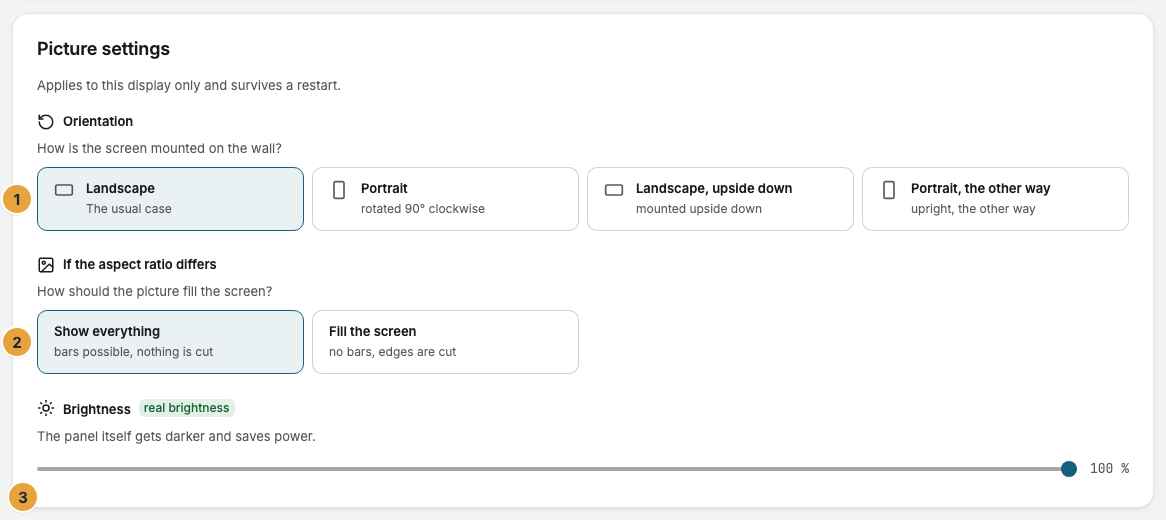
- In Picture settings, choose the Orientation that matches how the TV hangs: Landscape, Portrait, Landscape, upside down, or Portrait, the other way. The display goes black for a few seconds.
- Under If the aspect ratio differs, choose Show everything for content where nothing may be cut off, such as prices, or Fill the screen for photos and videos.
3. Set brightness and power
- Drag the Brightness slider. The label next to it shows how it works: real brightness dims the TV itself and saves power. software dimming only darkens the picture, while the TV keeps shining at full strength.
- To switch the TV off remotely, click Turn off in the Turn the screen on and off card. Turn on wakes it up again.
Switching on and off needs a TV with HDMI-CEC or a monitor with DDC/CI, and the Pro package or higher. Only the TV goes dark. The player keeps running and reporting.
Check the result
The card What this display can do shows whether Screen on/off and Brightness control are available. The player tests this itself and repeats the test regularly, so a setting you just changed on the TV shows up within half an hour.

If something goes wrong
| Symptom | Cause | Solution |
|---|---|---|
| The TV switches off after a few hours | An energy-saving or sleep setting is still on. | Switch off every energy-saving, timer, and automatic power-off setting on the TV. |
| The edges of the picture are cut off | The TV enlarges the picture (overscan). | Set the picture size on the TV to an option without overscan, such as Just Scan. |
| This screen does not expose it next to Screen on/off | HDMI-CEC is off, or the cable or a switch in between doesn't pass it on. | Switch on HDMI-CEC on the TV and connect the player directly with the cable that came with it. |
| The slider moves, but the TV doesn't get darker | The TV doesn't let Szenera set its brightness, so software dimming applies. | Lower the brightness on the TV itself, or switch the TV off when nobody is watching. |
| The Turn the screen on and off card is missing | Your package doesn't include it, or the display is a web display. | Switching needs the Pro package or higher and a player. |
Related
- Which hardware do you need?: which TVs can be switched and dimmed.
- Schedule off-air time: show nothing at planned times.
- How do you design content that people can read?: avoid bars in the picture.
Was this helpful?