Maintain a device remotely: restart, log, update
You want to restart a device, fetch its log, or see how it is doing.
- For
- anyone who looks after devices from a distance
- Prerequisite
- to send commands, the Owner or Manager role
- Where in the portal
- Devices › device
On this page
Most problems can be fixed from the portal: restart the device, fetch its log, or check for updates. The device page also shows how the device is doing, which software it runs, and what is stored on it.
Find a device
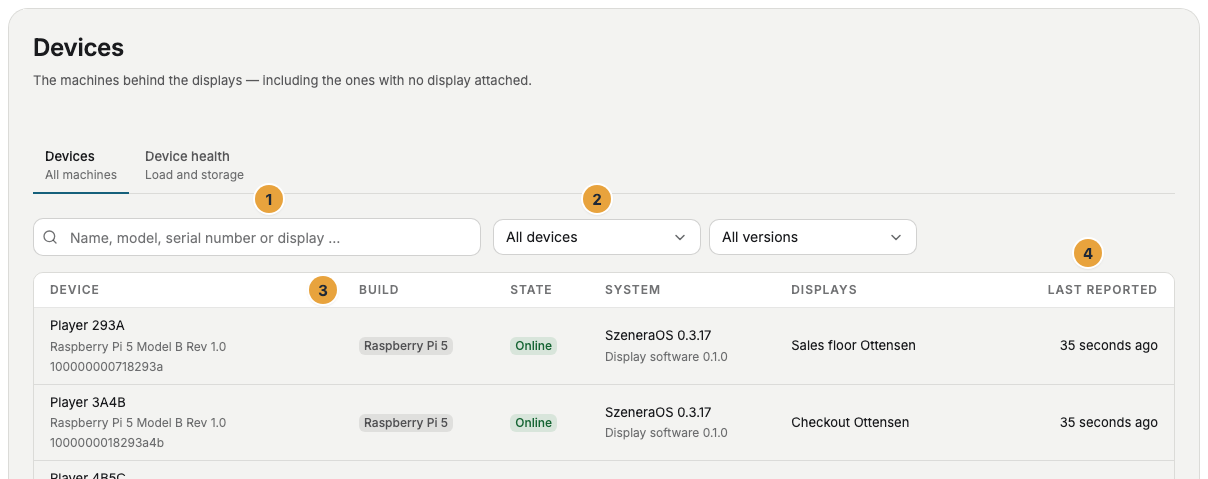
Under Devices, you see every device of your organization, including those without a display. Search by name, model, serial number, or display. The filter Display software outdated shows devices that haven't picked up the latest version yet.
The device page
| Tab | What you find there |
|---|---|
| Overview | The connectors with their displays, the last 24 hours, software, connection, measured position, and the latest events. |
| Diagnostics | Restart, log, and update check, the progress of each command, and the list of past commands. |
| Hardware | Processor, memory, storage, network, the connected TV, and a history of up to 90 days. |
| Software and data | Software versions, the apps on the device, and the content stored for offline playback. |
| Lifecycle | Re-pair the device, restore its factory state, remove it, or report it as lost. |

Steps: restart the device or fetch its log
- Open Devices and choose the device.
- Switch to the Diagnostics tab. Under The device behind it, choose Restart, Fetch log, or Check for updates.
- For Restart, the dialog Restart device lists every display that goes dark. Confirm with Restart.
- Watch the status of the command. It moves from sent to accepted to done.
Fetch log and Restart are also at the top of the device page. Actions that affect only one display, such as Reload content, Screenshot, and Identify, are on the Diagnostics tab of that display.
What the actions do
| Action | What it does | What the display does |
|---|---|---|
| Restart | Restarts the device. This fixes most problems. | It stays black for about a minute, on every display of the device. |
| Fetch log | Fetches the latest lines of remote maintenance from the device and opens them below. | Nothing. |
| Check for updates | Asks whether newer software is available for the device. | Nothing. An update then installs by itself. |
Read the log
- The log opens with warnings and errors, because that's usually what you are looking for. The chips above it filter by source and level.
- The search field filters by any text, for example an error code.
- The newest lines are at the bottom. Older lines load with the button below the list.
- Download saves the original text, for example to send it to support.
Check the result
| Status | Meaning |
|---|---|
| sent | The command is on its way to the device. |
| accepted | The device has received the command. |
| done | The command has been carried out, with the time it took. |
| failed | The device couldn't carry it out. The reason appears below. |
| no answer | The device didn't respond in time. |
Below that, Commands lists the latest commands for this device and its displays.
If something goes wrong
| Symptom | Cause | Solution |
|---|---|---|
| This device is not reporting right now | The device is offline. | Commands wait and run as soon as the device reports again. If that takes too long, they expire. |
| no answer | The device didn't respond in time. | Check whether the device is reporting, then send the command again. |
| The device behind it is missing | The device can't take these commands, for example a web display. | Restart the computer or browser on site, see Web display: a display in the browser. |
| An action is grayed out | Your role doesn't allow commands. | Ask someone with the Owner role. |
| The display stays dark after a restart | A restart takes about a minute. After that, the cause lies elsewhere. | Continue with Troubleshooting: where to start. |
Related
- Re-pair, reset, remove, or report a device as lost: when a device leaves your organization.
- How does a player stay up to date and running?: what happens after Check for updates.
- Monitor your displays: the same tools for a single display.
Was this helpful?