Pair a display
A new TV shows a pairing code, or a second TV hangs on the same player.
- For
- anyone who brings a new TV or monitor into the portal
- Prerequisite
- the Owner or Manager role, a free seat, and a player or browser that shows a pairing code
- Where in the portal
- Displays › Pair display
On this page
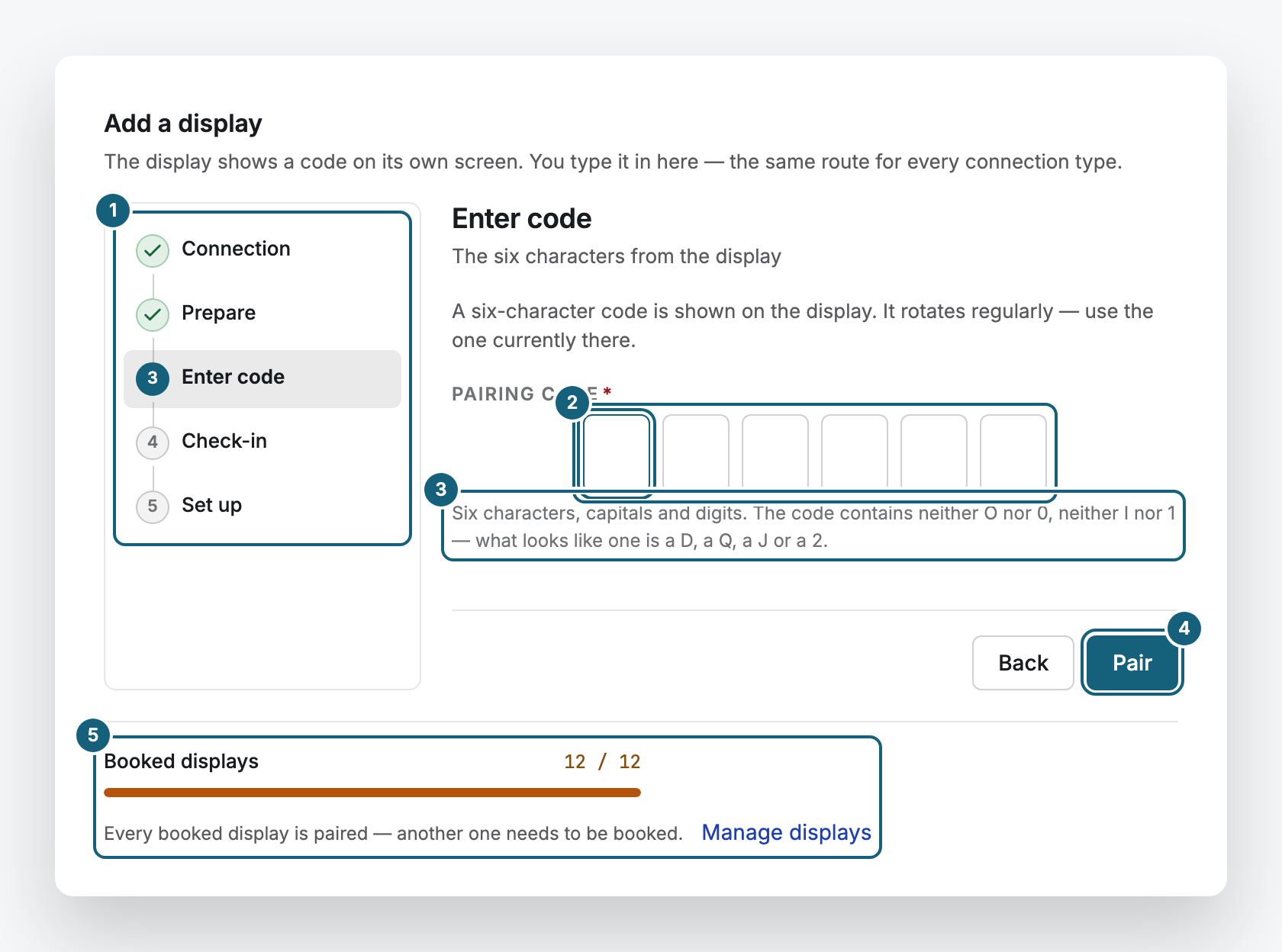
Pairing connects a TV or monitor with your organization: the TV shows a code, you enter it in the portal, and the new display is ready for content. A second TV on the same player needs no code.
Steps
- Open Displays and click Pair display.
- Under Connection, choose Own device for a player, or Web browser for a computer, tablet, or smart TV.
- The Prepare step explains how the code gets onto the TV. For a web display, open the address shown there on the device, as described in Web display: a display in the browser.
- Under Enter code, type the six characters from the TV into Pairing code and click Pair. The code changes every minute, so always enter the one shown right now.
- Wait for the Check-in. Then, under Set up, enter a Display name, choose what should run with Choose a program, and set the Orientation and Content fit. You can also click Set up later.
A second TV on the same player
A Player Pro drives two TVs. The second one shows no code, because the player already belongs to you. In Pair display, choose Another screen on an existing device, select the player and its free connector, and click Create display. If a pairing finds a second connected TV, the dialog offers Add another display right away.
Seats
Each display takes one seat in your contract. The line Booked displays at the bottom of the dialog shows how many are free. If all are taken, the portal says Every booked display is paired. Click Book another display, or remove a display you no longer need.
Check the result
The display appears under Displays with the status Online. The TV shows your content, or your brand as a placeholder if nothing is assigned yet.
If something goes wrong
| Symptom | Cause | Solution |
|---|---|---|
| “We do not know this code. Check the six characters on the display.” | A typo. The code contains no O, 0, I, or 1. | Read the code again and enter it. |
| “The code has expired — please enter the one currently displayed.” | The code changed more than five minutes ago. | Enter the code the TV shows right now. |
| “No device was found for this code.” | The device has stopped showing this code. | Check that the device is on and shows a code. |
| “This device has already been paired.” | It already belongs to an organization. | If it's yours, you find it under Displays. Otherwise, it must be re-paired there first. |
| “Every booked display is paired.” | No seat is free. | Click Book another display, or remove a display you no longer need. |
| The TV shows no code | The device has no power or no network. | Check the power and network, see Unpack and connect. |
Related
- The pairing screen and other messages on the display: what the TV shows before and after pairing.
- Assign a program to a display: decide what the new display shows.
- Packages, trial, and what you pay for: how many displays your contract covers.
Was this helpful?