Show something else now, such as an urgent notice
Something has to appear on a display right away, without changing the program.
- For
- anyone who needs to show something else on a display at short notice, such as a notice, an announcement, or a closure
- Prerequisite
- the Owner or Manager role, and the content that should run: a program, a scene, a playlist, or a media file
- Where in the portal
- Displays › display › Program › Show something else now
On this page
An override puts other content on a display right away, for 30 minutes, an hour, a day, or until you end it. The program stays untouched and takes over again when the override ends.
Steps
Start an override
- Open Displays, choose the display, and switch to the Program tab.
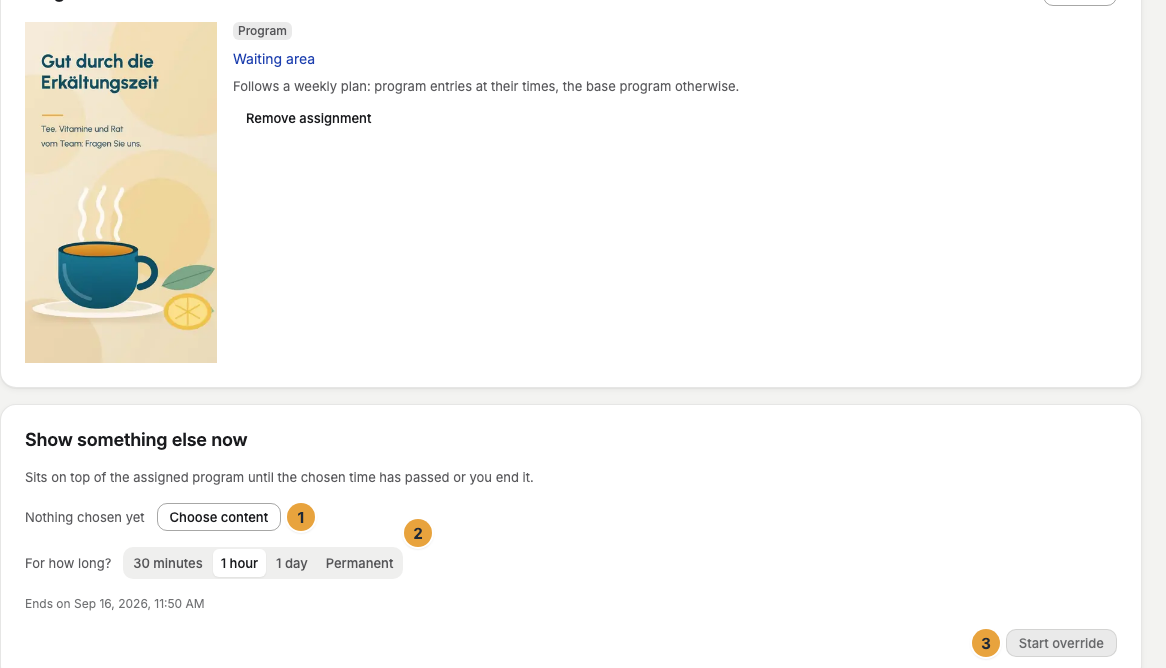
- In the Show something else now card, click Choose content.
- Under What should run now?, choose a program, a scene, a playlist, or a media file.
- Under For how long?, choose 30 minutes, 1 hour, 1 day, or Permanent. Below it, the card shows when the override ends.
- Click Start override. The portal confirms with Override is running.
End an override
Open the display's Program tab. The card is now called Override is running. Click End override, and the program takes over again at once. An override with a time limit ends on its own, a permanent one only when you end it.

Reach several displays at once
An override applies to one display. To show a notice on several displays at once, use the program they share. Add a One-off only program entry for today, from now until the notice should end. A one-off entry beats every recurring entry, so it appears on every display that runs the program. See Show content at specific times.
Check the result
- The Override is running card shows the content, Runs until … or Permanent — until you end it., and who set it when.
- On the Overview tab, the display names Override as the source of what it shows.
- The timeline on the Program tab shows the override above the program entries and the base program. Show composition reveals the layers.
If something goes wrong
| Symptom | Cause | Solution |
|---|---|---|
| The card says Part of a video wall | The video wall decides what its displays show. | Follow Go to the video wall and change the content there, see Set up a video wall. |
| Start override is grayed out | No content is chosen, or your role doesn't allow it. | Choose content first. Otherwise ask someone with the Owner or Manager role. |
| Setting the override failed | Saving didn't go through. | Reload the page and start the override again. |
| An override has been running for days | It was set to Permanent. | Click End override. |
| The display doesn't change | The device hasn't loaded the change yet. | Wait a moment, or send Reload content, see Remote maintenance: send commands to a display. |
Related
Was this helpful?