
Live stream
A live picture or a radio station in the scene, calm even when offline.
From your organization the app reads: nothing.
The stream address you enter: The display fetches the live picture or sound directly from the camera or the broadcaster. What leaves your account: The IP address of the display, which the source learns when loading.
The app embeds third-party content. The device loads it directly from the outside provider, which receives the network address of the device in the process. You show only what you may play in public, respecting platform terms, rights to music, images and sound as well as GEMA and GVL. You do not get around any access restrictions. We accept no liability for the availability, content, advertising or age rating of outside sources. Read the full terms


- For
- anyone who wants to show a live picture or play a radio station
- Prerequisite
- the app installed, permission to edit scenes, and the address of the stream
- Where in the portal
- Apps › Discover apps › Live stream. The widget is in the scene editor under Web & video.
On this page
The Live stream app shows a live picture in a scene, such as a camera, an encoder, or a broadcaster’s channel. It can also play a radio station in your shop.
What the app shows
The app comes with one widget: Stream. It can do two things:
- Video: The picture fills its frame edge to edge. If the stream is live, a red LIVE badge sits at the top left, and at the top right, if you like, a name, such as “Harbor camera”.
- Radio: The app plays the sound of a station and shows it as a calm tile or bar: the name large, below it a subtitle such as the location, and a sign made of bars. If the station sends along what is playing, it appears below, for example “Now playing: Morning harbor concert”.
Five templates place the widget at a suitable size:
| Template | Size | Shows |
|---|---|---|
| Live picture | 1280 × 720 | the stream filling the frame, with LIVE badge and name |
| Tile | 540 × 540 | a section of the picture on a square tile |
| Portrait | 608 × 1080 | the picture in a tall frame at the edge |
| Radio bar | 1320 × 110 | station and what is playing in a bar, with sound |
| Radio tile | 300 × 300 | the station large, what is playing, with sound |
Playback is set up for continuous operation: the stream keeps its buffer small, chooses the resolution to match the size of the frame, and starts by itself as soon as its scene is visible. If the picture hangs or the network drops, the display notices, repairs the stream, and reconnects, first after a few seconds, then at growing intervals, and immediately when the network is back. If the stream was already running, the last picture stays slightly blurred until then, with the note “Last updated 02:05 PM · reconnecting”.
On still areas, that is, in the thumbnails of the scene list, nothing is loaded. A radio appears there as a calm tile, a video as a plain area.
Settings
Open the settings with the gear icon on the toolbar above the widget. They are on the tabs Content, Appearance, Data, and Playback. The toolbar also offers Template and Colors, plus Type and Sound.
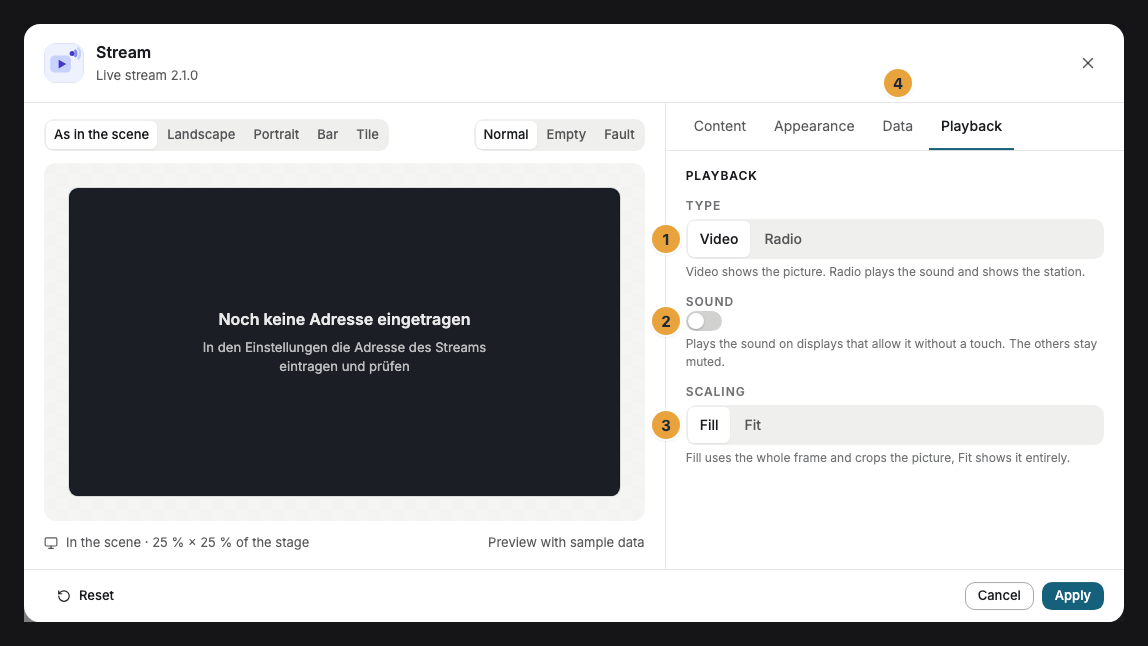
| Setting | Tab | Meaning | Default |
|---|---|---|---|
| Address | Data | The address of the stream, usually ending in .m3u8, or of a radio station. Check says what is playing there and on which of your displays it plays. |
empty |
| Type | Playback | Video shows the picture, Radio plays the sound and shows the station. If a video stream carries only sound, the app shows it as a radio as well. | Video |
| Sound | Playback | Plays the sound on displays that allow it without a touch. When sound is on, the line below says which of your displays play it and which stay muted. The radio templates switch it on. | Off |
| Scaling | Playback | Only for Video: Fill uses the whole frame and crops the picture, Fit shows it entirely. | Fill |
| Colors and Font | Appearance | Style of the app, Brand colors, or Custom colors, plus the font. See Configure widgets. | Style of the app |
| Name | Appearance | Appears small at the top right for video, large for radio. | empty |
| Subtitle | Appearance | Only for Radio: small below the name, for example the station’s location. | empty |
| Background | Appearance | Night (a deep blue for the radio), Dark, Light, Glass, or Transparent. | Dark, or Night for radio |
| Corners | Appearance | Rounded, growing with the frame, or Sharp. | Rounded |
| On failure | Content | Under Advanced: what appears as long as the stream has never played: the calm Surface, a short Sentence, or an Image from the library. | Surface |
Limits
- Formats: HLS (
.m3u8) runs on all displays, as do audio streams such as MP3 and AAC and video files. RTSP cameras need a conversion that delivers HLS. - Sound: Displays with SzeneraOS and Fire TV play the sound. Without a touch, browsers and TVs from Samsung and LG play only muted. For music and sound in your shop, you need the rights, for example through GEMA and GVL.
- “Now playing” appears only if the station sends the information along in its HLS stream. Many stations do not, and then the line is left out.
- Unencrypted addresses (
http://) play only on a display with SzeneraOS, for example for a camera on your own network. Check names the other displays. - No network, no live picture: Without a connection, the last picture stays with a note.
- Outside requests: The source learns the display’s network address when the stream is fetched.
If something goes wrong
| Symptom | Cause | Solution |
|---|---|---|
| The widget stays empty on the display. | The address is missing, is not an HLS address, or does not respond. | Press Check and follow the report. Under Advanced, choose a sentence or an image for the failure case. |
| The picture shows “reconnecting”. | The stream or the network has failed. | Nothing to do. The display reconnects by itself. If it stays this way, check the source. |
| The radio stays silent. | Sound is off, or the display plays sound only after a touch. | Switch Sound on. The line below names the displays that stay muted. |
| A radio tile appears instead of the picture. | The stream carries sound only. | Enter an address with a picture, or use the stream as a radio. |
| A camera in the shop plays on only one display. | It delivers only unencrypted (http://), which only SzeneraOS plays. |
Switch the camera to https:// or use the displays with SzeneraOS. |
| The widget cannot be inserted. | The app is not installed, an update is waiting for your decision, or it shows Not in your package. | Check the status under Apps (When an app doesn’t work). |
Related
- YouTube — videos and live broadcasts from YouTube.
- Configure widgets: template, preview, and fields
Was this helpful?