
RSS feed
Headlines from sources in the catalog or from a feed of your own, calmly set and with their source.
From your organization the app reads: player-location.
Catalog sources and the feeds you enter: Our feed service fetches the chosen feeds in rhythm, the widget reads the latest state. Only the pictures are loaded by the display itself.
The app shows headlines from sources in the catalog or from a feed whose address you enter, with the source named and without editing. For your own feed, teasers and pictures appear only once you confirm that you may show them. Do not pass the content on, and keep the source credit in place. We give no warranty for accuracy, timeliness or availability. The device loads pictures directly from the provider. Read the full terms


- For
- anyone who wants to show news from their own sources
- Prerequisite
- the Pro package, the app installed, and permission to edit scenes. For a feed of your own, its address.
- Where in the portal
- Apps › Discover apps › RSS feed. The widget is in the scene editor under News & info.
On this page
The RSS feed app shows stories from any source that offers a feed, such as your website’s blog, an association’s news, or a trade publication. Up to twelve sources form one sequence.
What the app shows
The app comes with one widget: RSS feed. It sets stories in a calm, readable layout: at the top, the source as a colored circle with its initial, beside it name and address, and below that section, headline, teaser, and story age. The picture sits framed beside the text and is never blown up. A picture always appears with its photo credit: in the corner of the picture, and in the list in the line below the headline. Sources from the catalog without a photo credit of their own show their name there. A feed of your own without a photo credit shows no pictures, and the list then shows the story number. The background is white or dark, glassy or transparent.
You choose the sources from our catalog, such as tagesschau, NDR, or BBC News, or you enter a feed of your own. Several sources form one sequence, the newest first. The next story appears every ten seconds, and at most six take turns. Page dots with “1 / 5” show where the sequence stands. Each time the scene appears, the sequence starts with the newest story.
Five templates place the widget at a suitable size:
| Template | Size | Shows |
|---|---|---|
| Article | 1280 × 720 | the headline large with teaser, the picture framed beside it |
| Square | 600 × 600 | source, headline, and the picture if it is large enough |
| Portrait | 540 × 960 | one story and below it, under Next, what comes next |
| Headlines | 640 × 640 | several headlines one below the other with a small picture or number, the list pages through |
| Band | 1300 × 110 | source, headline, time, and page dots in one line, narrow in two lines |
After that, the widget arranges itself to fit its frame. If you drag the frame smaller, things drop out in a fixed order: first the following stories, then the teaser, the section, lines of the headline, the story age, and finally the picture. Source and headline always stay. Dragging wider never removes anything. The list pages through at most three pages.
Two examples: A club shows the feed of its own website as an Article in the foyer. A pharmacy puts the stories of its association and the tagesschau in the side column as Headlines.
Settings
Open the settings with the gear icon on the toolbar above the widget. They are on the tabs Content, Appearance, and Data. The toolbar also offers Template and Colors, plus Background and View.
| Setting | Tab | Meaning | Default |
|---|---|---|---|
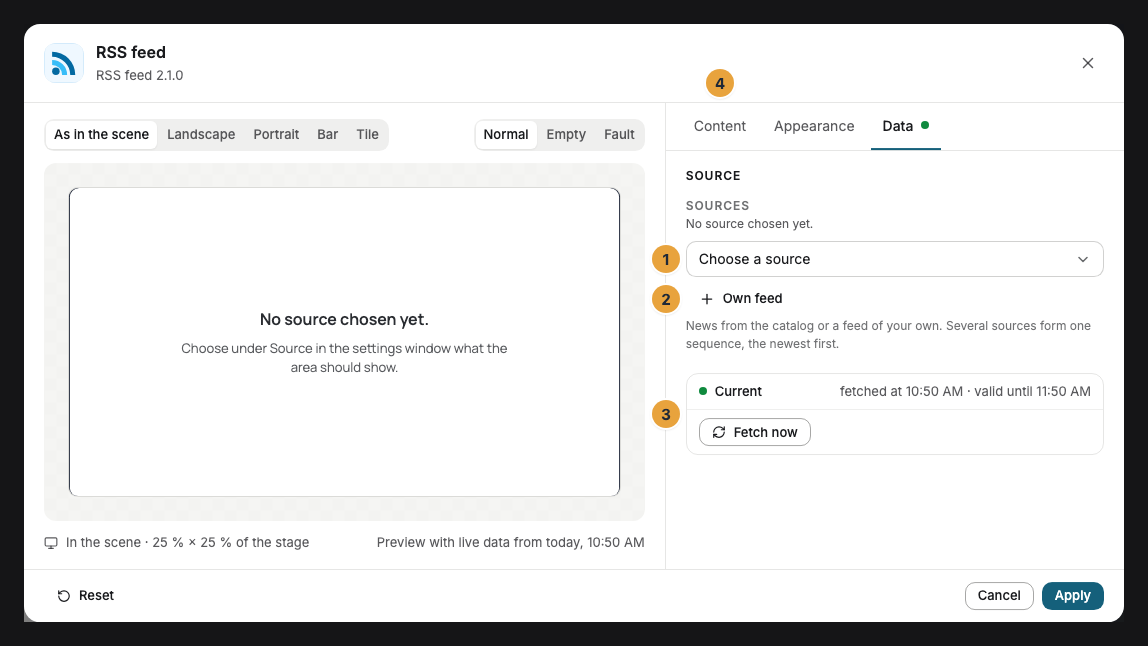
| Sources | Data | The Choose a source picker adds a source from the catalog, and on the entry you choose its Section. Own feed adds a feed by its address. Up to twelve sources form one sequence, the newest first. | none |
| View | Content | One story at a time with a large headline, or Headlines one below the other. | One story at a time |
| Picture | Content | With picture puts the picture framed beside the text, if the source may show one. Without shows text only. | With picture |
| Story age | Content | How old a story is, for example “2 hr. ago”. | On |
| Colors and Font | Appearance | Style of the app, Brand colors, or Custom colors, plus the font. See Configure widgets. | Style of the app |
| Background | Appearance | Light, Dark, Glass (glassy over the scene), or Transparent. | Light |
| Corners | Appearance | Rounded or Sharp. | Rounded |
| Maximum age | Content | Under Advanced: 6 hours, 12 hours, 24 hours, or Two days. Older stories drop out. | Two days |
| Exclude keywords | Content | Under Advanced: up to 20 words. Stories whose headline contains one of them do not appear. | none |
To add a feed of your own: under Sources, click Own feed, enter the Feed address, and choose Check. The report below it says what is at the address. If the check found a feed, Use feed appears. With I may show the teaser and image of this feed, you confirm that you hold the rights to them. Without this confirmation, the widget shows headline, source, and time. You can give the confirmation later on the feed’s entry.
For sources from the catalog, the entry shows what they may display: With teaser and image or Headline, source and time. For NDR, the entry offers By the display’s location: displays in Hamburg, Lower Saxony, Schleswig-Holstein, and Mecklenburg-Western Pomerania then show the stories of their state. For this, the app reads the federal state at the display’s location.
The app chooses the pace and the number of stories itself. Anything that is switched on but has no room in the frame (picture, story age) stays switched on. Below the preview, the window says that it is missing in this frame.
Limits
- Formats. A feed of your own is available as RSS, Atom, or JSON Feed and can be reached without signing in. The address of an ordinary web page is not a feed.
- Each catalog source once. A source from the catalog appears in the list with one section.
- We handle the fetching. We read each source every five minutes, once for all customers, and a feed of your own as long as a display shows it. If a source fails, the latest state stays on the display, and stories older than two days drop out. The display loads the pictures directly from the provider. Without a network, it shows the latest state without pictures.
- We leave out small pictures. If a feed specifies a picture narrower than 640 pixels, the story appears without a picture. It looked blurry on the display.
- Stories, not full text. Entries that the feed marks as paywalled do not appear. Nothing is clickable, because a display has no mouse.
- A calm sentence instead of an error message. If there are no stories, the widget shows No stories at the moment. The preview in the scene editor names the reason.
- Time and language. The story age follows the display’s time zone, and the words around the stories appear in your organization’s language. Thumbnails show the first story as a still.
- Outside requests. We query only the chosen sources, and only read. No data of your organization is transmitted.
If something goes wrong
| Symptom | Cause | Solution |
|---|---|---|
| The preview shows No source chosen yet. and the display shows No stories at the moment. | Nothing is chosen under Sources. Every newly inserted RSS widget starts this way. | Choose a source from the catalog or add a feed of your own. |
| Use feed does not appear. | The check found no feed at the address. | Read the report and enter the address of the feed, not that of the web page. Many sites list it under “RSS” or “Feed”. |
| The preview shows The source is being read for the first time. | A feed of your own was newly added. | Wait. The stories will appear by themselves within a few minutes. |
| The preview shows The source is not responding and there is no earlier state yet. | The feed cannot be reached. | Check the address in a browser. As soon as the feed responds, the stories appear. |
| The preview shows The source has no matching stories at the moment. | Maximum age or keywords exclude all stories, or the feed is older than the maximum age. | Under Advanced, extend the maximum age or remove keywords. |
| A feed of your own shows no teaser and no picture. | The confirmation for teaser and picture is missing, including for feeds entered before the update. | On the feed’s entry, switch on I may show the teaser and image of this feed. |
| No pictures appear. | Picture is set to Without, the source may not show any, the pictures are too small, or the display cannot reach the provider at the moment. | Check Picture and the source’s entry. |
| The widget cannot be inserted. | The app is not installed, an update is waiting for your decision, or it shows Not in your package. | Check the status under Apps (When an app doesn’t work). |
Related
- Tagesschau — a source in the style of information displays, with the brand’s logo.
- Configure widgets: template, preview, and fields
- When an app update is waiting for your decision — agreeing to new terms and access.
Was this helpful?