
Web page
Bring an outside page into the scene, whole or as a section, calm even when offline.
From your organization the app reads: nothing.
The web address you enter: The display loads the page itself and shows it. What leaves your account: The IP address of the display when it loads the page, nothing else.
The app embeds third-party content. The device loads it directly from the outside provider, which receives the network address of the device in the process. You show only what you may play in public, respecting platform terms, rights to music, images and sound as well as GEMA and GVL. You do not get around any access restrictions. We accept no liability for the availability, content, advertising or age rating of outside sources. Read the full terms


- For
- anyone who wants to show an existing web page
- Prerequisite
- the app installed, and permission to edit scenes
- Where in the portal
- Apps › Discover apps › Web page. The widget is in the scene editor under Web & video.
On this page
The Web page app shows an existing web page as part of a scene, such as an overview, a status page, an occupancy plan, or your own home page. The page must open without signing in.
What the app shows
The app comes with one widget: Web page. It shows the page edge to edge in its frame, without extras. The display loads the page itself from the outside provider, and the app fetches no data.
Four templates place the widget at a suitable size:
| Template | Size | Shows |
|---|---|---|
| Whole page | 1280 × 720 | the page as seen on a computer |
| Section | 640 × 640 | part of the page as seen on a phone, large on a tile |
| Portrait | 608 × 1080 | the page as seen on a phone, for the edge |
| Full-screen | 1920 × 1080 | an overview filling the whole display, without rounded corners |
After that, you drag the frame as you like. The page always fills it in width.
Two examples: A repair shop shows the occupancy dashboard from its own planning tool at the reception. A pharmacy shows only the band with the opening hours from its home page in the shop window, as a section.
If the network drops, the most recently loaded state stays, slightly blurred and with the note “Last updated 02:05 PM · reconnecting”. The display tries again at growing intervals and loads immediately as soon as the network is back. A browser error page never appears.
On still areas, that is, in the thumbnails of the scene list and in the store, nothing is loaded. A calm area with the name of the page appears there.
Settings
Open the settings with the gear icon on the toolbar above the widget. They are on the tabs Content, Appearance, and Data. The toolbar also offers Template and Colors, plus the View.
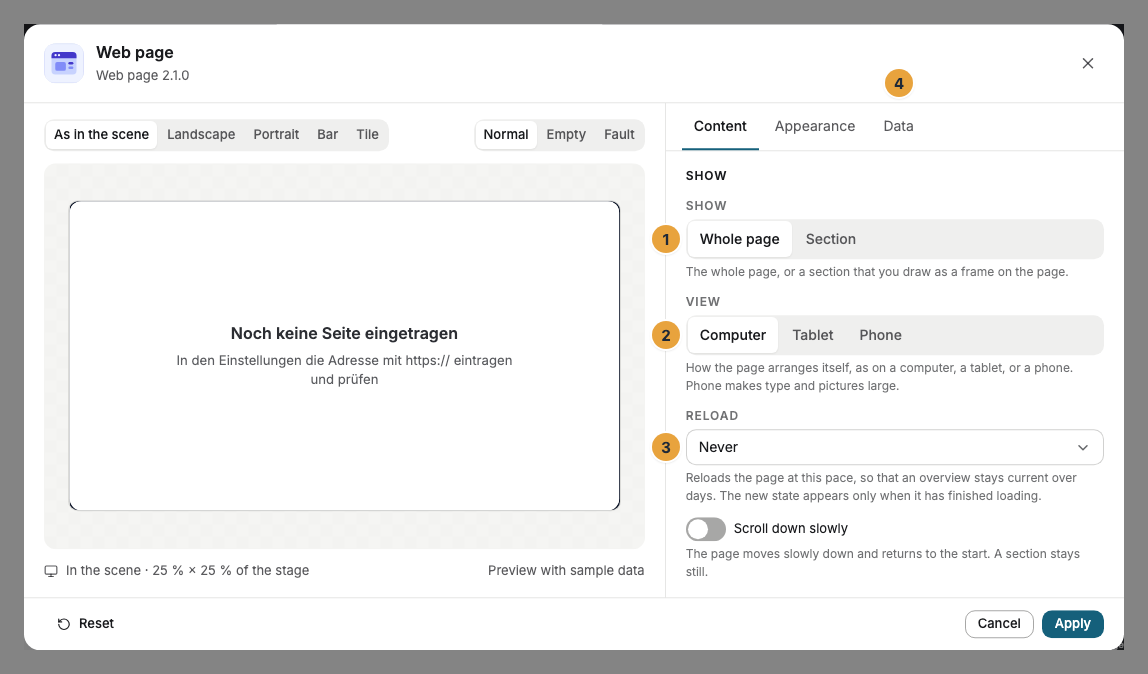
| Setting | Tab | Meaning | Default |
|---|---|---|---|
| Address | Data | The complete address with https://. Check shows below whether the page can be embedded, whether it is encrypted, whether it shows a notice about cookies, and on which of your displays it runs. |
empty |
| Show | Content | Whole page or Section. | Whole page |
| Section | Content | Only for Section: Draw a frame on the page over the part the displays should show. Move it with the arrow keys, and change its size with Shift and the arrow keys. Without a frame, the displays show the whole page. | none |
| View | Content | Computer, Tablet, or Phone: this is how the page arranges itself. Phone makes type and pictures large, Computer shows the most. | Computer |
| Reload | Content | Never, Every 5 minutes, Every 15 minutes, Every hour, or Once a day. The new state appears only when it has finished loading. | Never |
| Scroll down slowly | Content | The page moves slowly down and returns to the start. A section stays still. | Off |
| Colors and Font | Appearance | Style of the app, Brand colors, or Custom colors, plus the font. See Configure widgets. | Style of the app |
| Background | Appearance | Light, Dark, Glass, or Transparent: the background behind the page while it loads. | Light |
| Corners | Appearance | Rounded, growing with the frame, or Sharp. | Rounded |
Limits
- Not every page can be embedded. Many providers prohibit displaying their pages inside other pages. Check tells you beforehand, and the display then shows only the calm background. Show a QR code to the page or a picture instead.
- Only pages without sign-in. The widget accepts no clicks or typing. A page that shows something only after signing in stops at its sign-in form.
- Cookie notices are not clicked away. Choose a section without the notice.
- Unencrypted addresses (
http://) are shown only by a display with SzeneraOS. Fire TV, TVs, and browsers do not show them, and Check names the affected displays. - Not the device itself. Addresses such as
localhostor127.0.0.1and the address of the display software are never embedded, for security reasons. Pages from your own network, such ashttp://192.168.1.20, run on displays with SzeneraOS. - Scrolling does not know the length of the page. The page moves down twice its visible height. A shorter page ends earlier in its own base color.
- Outside requests: The outside provider learns the display’s network address with every request. Show only what you may play in public.
If something goes wrong
| Symptom | Cause | Solution |
|---|---|---|
| The widget stays empty on the display. | The provider prohibits embedding, or the address is missing. | In the settings, press Check and follow the report. If embedding is prohibited, show the content another way, such as a QR code. |
| The last state with “reconnecting” appears instead of the page. | The display cannot reach the page at the moment. | Check the display’s network. The display loads by itself as soon as the page can be reached again. |
| Type and pictures are too small. | The Computer view shows a lot in little space. | Choose Tablet or Phone, or draw a Section. |
| A cookie notice covers the page. | The page asks every visitor, including the display. | Choose a Section without the notice. |
| The content is out of date. | Reload is set to Never. | Choose an interval, such as Every 15 minutes. |
| The page shows a sign-in form. | It is not accessible without signing in, and nobody can sign in on a display. | Use a publicly accessible address. |
| The widget cannot be inserted. | The app is not installed, an update is waiting for your decision, or it shows Not in your package. | Check the status under Apps (When an app doesn’t work). |
Related
- Embed — for content that a provider supplies as an embed code.
- YouTube — videos and live broadcasts without the detour through a page.
- Configure widgets: template, preview, and fields
Was this helpful?