
QR Code
A scannable code for a web address, Wi-Fi access, contact details or text.
From your organization the app reads: nothing. The app calls no outside service.
The app shows content you create yourself. No data goes to third parties in the process. You make sure the content is lawful: rules on advertising medicinal products, prices including the total price, labeling of allergens and additives, rights to images and trademarks, and the target of a QR code. The display does not replace a legally required notice. We do not review your content, accept no liability for it and owe no legal advice. Read the full terms


- For
- anyone who wants to offer viewers something to scan
- Prerequisite
- the app installed, and permission to edit scenes
- Where in the portal
- Apps › Discover apps › QR Code. The widget is in the scene editor under Text & design.
On this page
The QR Code app passes something from the display to a viewer’s phone: a web address, access to your guest Wi-Fi, a contact card, or a short text.
What the app shows
The app comes with one widget: a real code on a white plate, and beside it, in a few words, what scanning offers. The code is created on the device from the widget’s settings, without an outside image service and without any call to the outside. The widget fetches nothing and stores no data of its own.
The code looks after its own quiet zone, contrast, and error correction: dark modules on white, a light margin of four modules all around, and error correction that forgives reflections. The plate stays white on every background, because a code on a colored ground scans less reliably.
Five templates place the code at a suitable size:
| Template | Size | Shows |
|---|---|---|
| Tile | 360 × 420 | the code at the top, headline and sentence below it, centered |
| With text | 640 × 300 | the code on the left, overline, headline, and sentence on the right |
| Upright | 340 × 560 | the code across the full width, the headline large below it, the sentence at the bottom |
| Bar | 1200 × 160 | a small code on the left, headline and sentence in one line each, Scan with your camera on the right |
| Guest Wi-Fi | 360 × 480 | the headline Guest Wi-Fi, the code, and below it network name and password as text |
After that, the widget arranges itself to fit its frame: the texts go beside the code in landscape, below it in portrait, and in one line in a bar. If the frame becomes too small, the sentence drops out first, then the overline, and finally the headline. The code always stays, and no text gets smaller than legible. The settings window names what drops out below the preview. Without texts, the code stands alone and as large as possible.
On the display, the widget speaks your organization’s language: Guest Wi-Fi, Network, Password, and Scan with your camera appear in German or English.
Two examples: A pharmacy puts a tile next to the register with How did we do today? and a code that leads to its review page. A café hangs the Guest Wi-Fi template in the entrance so that nobody has to ask for the password at the counter.
Settings
Open the settings with the gear icon on the toolbar of the selected widget. They are on the tabs Content, Appearance, and Data. Only the fields of the chosen Type are ever visible. The values of the other types are kept when you switch back and forth. The toolbar also offers Template and Colors, plus the Background.
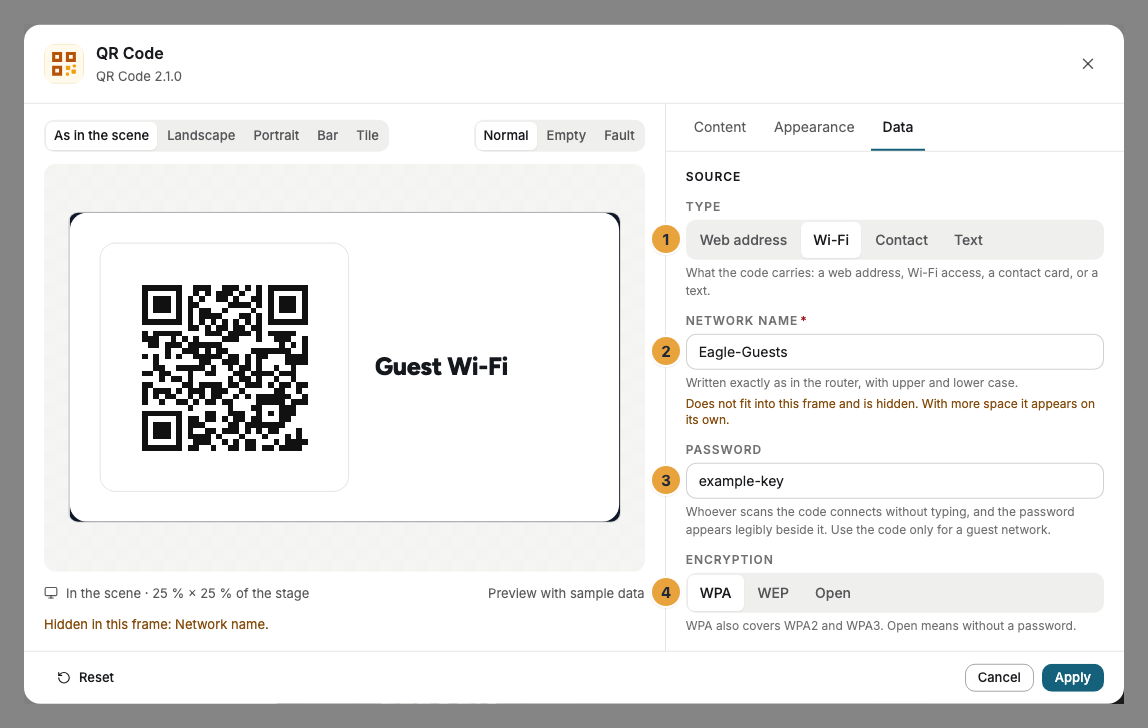
| Setting | Tab | Meaning | Default |
|---|---|---|---|
| Type | Data | Web address, Wi-Fi, Contact, or Text. Determines what the code carries and which fields are visible. | Web address |
| Web address | Data | Only for Web address, required: the page the scan leads to, at most 500 characters. If https:// is missing, it is added. |
empty |
| Network name | Data | Only for Wi-Fi, required: written exactly as in the router, at most 64 characters. | empty |
| Password | Data | Only for Wi-Fi: at most 64 characters. It appears legibly beside the code. Use the code only for a guest network. | empty |
| Encryption | Data | Only for Wi-Fi: WPA, WEP, or Open. WPA also covers WPA2 and WPA3. | WPA |
| Name, Phone, Email, Company | Data | Only for Contact: the details of the contact card, at most 80 characters each. At least one is required. | empty |
| Text | Data | Only for Text, required: at most 500 characters, encoded unchanged. | empty |
| Overline | Content | One or two words above the headline in uppercase, at most 40 characters. Not for Wi-Fi. | empty |
| Headline | Content | Says what the scan offers, at most 80 characters. Not for Wi-Fi, where it reads Guest Wi-Fi. | empty |
| Sentence | Content | A short sentence below the headline, at most 160 characters. Not for Wi-Fi. | empty |
| Colors and Font | Appearance | Style of the app, Brand colors, or Custom colors, plus the font. See Configure widgets. | Style of the app |
| Background | Appearance | White, Sand, Night, Glass, or Transparent. The code always sits on white. Also selectable on the toolbar above the widget. | White |
| Corners | Appearance | Rounded or Sharp. | Rounded |
Limits
- Only web targets for the Web address type. Only targets with
httporhttpsare encoded there, and anything else produces no code. Nobody can see what is behind a target before scanning. - No code without the required detail. If the detail for the chosen type is missing, the widget stays empty on the display. The editor says what is missing, for example No web address yet.
- The colors of the code, its margin, and its error correction are fixed. A light code on a light ground or a margin that is too narrow could not be scanned. That is why these settings do not exist. The Colors on the Appearance tab apply to the surface and the texts, and the plate under the code stays white.
- The headline has at most three lines, the sentence two. Longer text ends with “…”, and the code keeps its size. In the bar, each text stands in one line.
- Content that is too long does not fit. If the detail no longer fits into a code, the widget stays empty instead of showing half a code. Shorten long addresses.
- Timing: The code is a still image and never changes by itself. A change reaches the display with the next publication.
- Offline: The app needs no connection to the outside. It does not check whether the target of the scan can be reached.
If something goes wrong
| Symptom | Cause | Solution |
|---|---|---|
| The display stays empty, and the editor says No web address yet. | The Web address field is empty, or the target is not a web address. | Enter an address, for example beispiel.de/bestellen. |
| The display stays empty, and the editor says No network name yet. | The Network name field is empty. | Enter the network name exactly as it appears in the router. |
| The code scans up close but not from five meters. | The modules are too small for the distance. | Give the widget more area or shorten the texts, and the code gets larger. |
| The sentence is missing on the display. | The frame is too small for all texts. The settings window names what drops out below the preview. | Drag the frame larger or choose another template. |
| The phone does not connect to the network. | Network name, password, or Encryption do not match. The network name is case-sensitive. | Compare the details, and for an open network choose Open. |
| The widget stays empty although everything is filled in. | The content no longer fits into any code. | Shorten the address or text considerably. |
| The last name is wrong in the address book. | The last name is derived from the last word of the Name field. | Write the name as first name and last name, with no title at the end. |
| The widget cannot be inserted. | The app is not installed, an update is waiting for your decision, or it shows Not in your package. | Check the status under Apps (When an app doesn’t work). |
Related
- Configure widgets: template, preview, and fields
- Notice board — the written text whose first link becomes the code.
- Place and arrange widgets on the stage — how much area a code gets.
Was this helpful?