
Calendar
Events from a calendar subscription, Outlook or Google as a list, a week or the next event large.
From your organization the app reads: your organization's master data, player-location, data-sources.
The addresses of your calendars: We fetch every calendar subscription every fifteen minutes and process it.
We fetch the calendar whose subscription address (ICS) you enter, read-only, and use only the title, time, all-day flag and location. No account is connected. Anyone who knows the subscription address can read the calendar. You decide which details of your events become publicly visible and whether that is permitted. We accept no liability for the availability of the calendar service or for changes to it. Read the full terms


- For
- anyone who wants to show events from a calendar
- Prerequisite
- the Pro package, the app installed, and permission to edit scenes. To add a calendar subscription, the Manage calendars permission. For Outlook or Google, a source of the form Events under Data sources.
- Where in the portal
- Apps › Calendar › Calendars. The widget is in the scene editor under News & info.
On this page
The Calendar app shows the events of a calendar you already keep, in Google, Outlook, or iCloud, for example. For a calendar subscription you only need the calendar’s ICS address. An Outlook or Google calendar that your organization has connected under Data sources works too.
What the app shows
The app comes with one widget: Calendar. It shows the events of one calendar of your organization with time, title, and, where available, location. Recurring events, exceptions, and individually moved occurrences are taken into account, including series such as “every last Friday of the month”.
You create the calendar subscriptions themselves once, with a name and an address. After that, a widget names only the calendar, never its address. The address stays with us and appears neither in a scene nor on a display. This matters because almost every calendar subscription address contains an access key: Anyone who knows it can read the calendar.
The events come from one of two origins. Calendar subscription reads an address (ICS). Microsoft or Google reads an Outlook calendar from Microsoft 365 or a Google calendar that your organization has connected under Data sources. On the display, both look the same.
The widget arranges itself to fit its frame. Making it wider never removes anything.
- Day list — today with the current event highlighted and its time left, and the next day with events at the foot.
- Column — in tall, narrow frames, several days one below the other.
- Week — in wide frames, seven days from today side by side, multi-day events as a band.
- Today and Next event — the current or next event large with the time until then, beside or below it the ones that follow.
- Bar — in flat bands, Now and After that in one line.
If a list doesn’t fit, it turns calmly to the next page every ten seconds instead of shrinking the type.
Two examples: A medical practice shows the Day list with Busy only in its waiting area. Patients see how full the day is, but no names. A club sets up the Week with the booking times of its rooms in the foyer.
Add a calendar
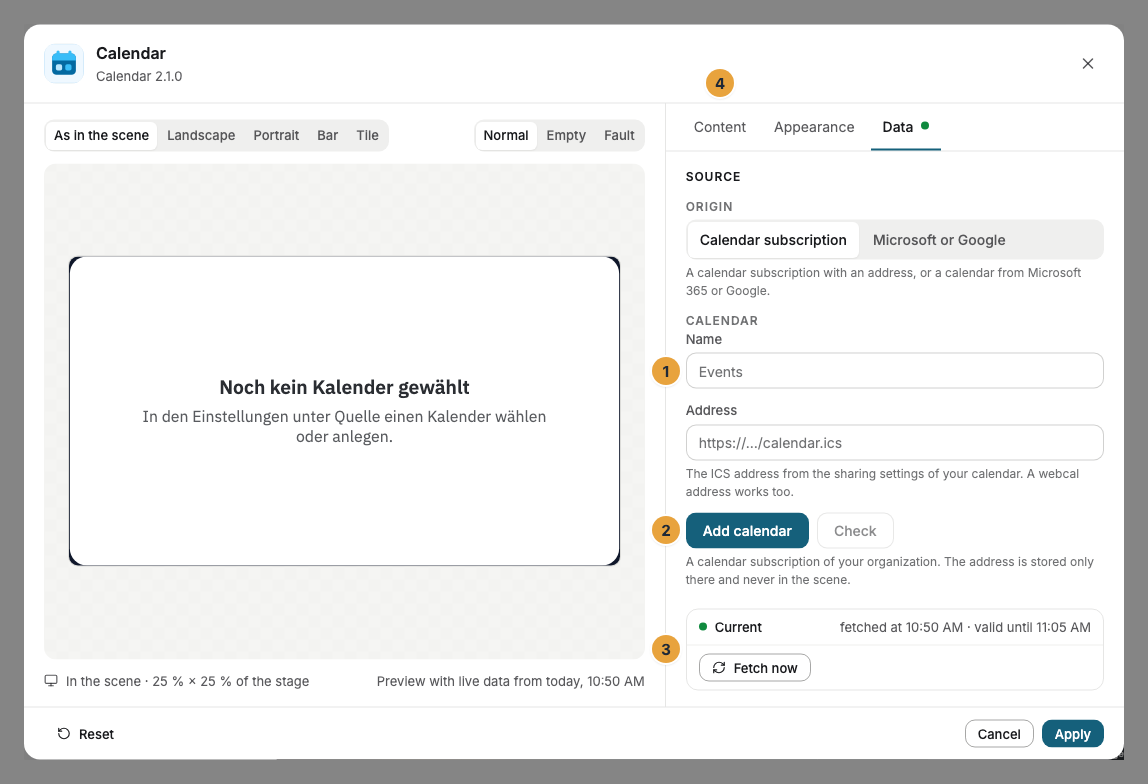
This is the way for the origin Calendar subscription. The quickest way is in the widget itself: Under Source, you find Add calendar. Enter a name and the address. When you leave the address field or click Check, the platform fetches the calendar once and tells you what it finds, such as There is a calendar “Events” at this address and 12 events in the next few weeks. If no name is entered yet, the form takes the name of the calendar. After Add calendar, the new calendar is chosen in the widget.
All calendars of your organization are listed on the app’s page, in the Calendars data area. There you rename a calendar, replace its address, or delete it. The address appears there only shortened, such as calendar.google.com/…/basic.ics. To change it, enter it again. An empty address field keeps the current one.
You find the ICS address in the sharing settings of the calendar: at Google under Secret address in iCal format, at Outlook under Publish calendar as ICS link, at iCloud under Public Calendar. An address starting with webcal:// works too.
Use a calendar from Outlook or Google
The events of a Microsoft 365 or Google calendar reach the widget through a data source.
- Have an Owner connect Microsoft 365 or Google under Settings › Organization › Connections, with Calendars checked (Connect Microsoft 365, Google, or Grafana).
- Under Data sources, use Create source to create the Outlook calendar or the Google Calendar and choose the Calendar (Create a data source and show it in a widget).
- In the widget, set the Origin under Source in the Data tab to Microsoft or Google and choose your Calendar.
The source delivers the events from yesterday to eight days ahead, with title, time, and location. Description, attendees, and attachments never arrive. Canceled events are left out. Events marked private or confidential arrive without title and location and always show as Busy. You set the interval at the source.
Settings
Open the settings with the gear icon on the toolbar above the widget. They are on the tabs Content, Appearance, and Data. The editor hides fields that have no effect in the chosen view, and their value is kept. The toolbar also offers Template and Colors, plus View and Background.
| Setting | Tab | Meaning | Default |
|---|---|---|---|
| Origin | Data | Where the events come from: Calendar subscription or Microsoft or Google. | Calendar subscription |
| Calendar | Data | With Calendar subscription, one of the calendars of your organization, with Add calendar below it. With Microsoft or Google, a source of the form Events with connection, state, and Fetch now. | none |
| View | Content | List or Next event. The frame determines how the list looks. | List |
| Period | Content | Only for the list: Today, 3 days, or Week. In wide frames, the week shows columns. | 3 days |
| Events | Content | With title or Busy only. Events marked private or confidential always appear only as Busy. | With title |
| Show location | Content | Only with titles: the location below the title. | On |
| Colors and Font | Appearance | Style of the app, Brand colors, or Custom colors, plus the font. See Configure widgets. | Style of the app |
| Background | Appearance | Light, Dark, Glass over the scene, or Transparent. | Light |
| Corners | Appearance | Rounded or Sharp. | Rounded |
| Time zone | Content | Under Advanced: Display location, Organization time zone, or Fixed time zone. With the display location, each branch shows its own time. | Display location |
Busy only already takes effect on our side: Titles and locations then never reach the display and are not in its cached state either.
Limits
- Read-only, never write. The app does not create, change, or delete events. A calendar subscription needs no account and grants no sharing. Szenera reads Outlook and Google through a connection, also read-only.
- Only calendar subscription addresses with https. A calendar that offers no such address can be included only through Outlook or Google, if it lives there. The app does not accept addresses with a user name and password.
- At most 20 calendar subscriptions per organization.
- A little over two weeks ahead for a calendar subscription, eight days for Outlook and Google. Ongoing events stay, expired ones drop out.
- No description texts. Only the title, time, and location are transmitted, nothing more. This way, credentials from an event description never end up on a display.
- Time zones, pragmatically. Common zone names, the names Outlook uses, and custom zones defined in Outlook are understood. If the calendar subscription carries an unknown name, those events appear shifted by the offset, and the check reports that name.
- Calendar subscriptions are fetched every 15 minutes. The interval is fixed. All widgets of the same calendar share one fetch. For Outlook and Google, you set the interval at the source: every 5 min, every 15 min, or hourly.
- We handle the fetching, not the display. At most 4 MiB per fetch and a twelve-second timeout.
If something goes wrong
| Symptom | Cause | Solution |
|---|---|---|
| In the editor: No calendar chosen yet | No calendar is chosen under Source. On the display, the widget stays empty. | Choose a calendar or create one with Add calendar. |
| In the editor: The chosen calendar no longer exists | The calendar was deleted in the Calendars data area, or the source was deleted under Data sources. | Choose another calendar or add it again. |
| In the editor: The calendar could not be read. | With Microsoft or Google, the source has no data yet or its fetch failed. | Check on the Data sources page whether the calendar is connected. |
| There is no calendar at this address when checking | The address returns a web page, usually the sharing or sign-in page. | In your calendar program, copy the ICS address, not the address from the address bar. |
| The provider refuses the request when checking, The calendar server denied access. in the editor | The calendar is not shared, or the access in the address is no longer valid. | In your calendar program, generate a new calendar subscription address and enter it in the Calendars data area. |
| The calendar server did not respond in time. | The response did not arrive within twelve seconds. | Wait. If it persists, check with the provider of the calendar. |
| The calendar is too large for the display. | The file exceeds 4 MiB, usually because of years of history. | Maintain a separate calendar for the display only and subscribe to that. |
| No events | The fetch succeeded, nothing is due in the period. | Set Period to Week. |
| Events are an hour off. | Under Advanced, a fixed zone is set that is not the zone of the location, or the display location has no time zone. | Choose Display location and check the time zone at the location. |
| Busy appears instead of every title. | Events is set to Busy only, or the events are marked private or confidential in the calendar. | Set it to With title, or change the mark in the calendar. |
| Add calendar reports You do not have permission for this. | You lack the Manage calendars permission. | Clarify the permissions with your team (Roles and permissions). |
| A calendar widget from before the data area shows nothing. | The address used to be stored in the widget. Today each widget chooses a calendar of the organization. | Add the calendar once with its address and choose it in the widget. |
| The widget cannot be inserted. | The app is not installed, an update is waiting for your decision, or it shows Not in your package. | Check the status under Apps (When an app doesn’t work). |
Related
- Configure widgets: template, preview, and fields
- Find the right app — categories, collections, and filters in the store.
- Show content at specific times — where the time zone of the organization comes from.
Was this helpful?