Your first display in 15 minutes
Connect a TV, upload an image or video, and pair the display. Then finish setting up your account.
- For
- anyone setting up Szenera for the first time
- Prerequisite
- the Owner or Manager role, a TV or monitor with an HDMI input, and either a Szenera player or a device with a current Chrome or Edge browser. The 30-day trial includes one display.
- Where in the portal
- Library, Displays
On this page
Put your own image or video on a TV or monitor in three steps: get the hardware ready, upload a file, and pair the display. Scenes, playlists, and schedules can wait until the basics work.
Steps
1. Get the TV or monitor ready
Decide how the TV or monitor gets its picture:
- With a Szenera player. Connect the HDMI cable to the TV and to the HDMI 0 socket next to the player’s power connector. Plug in a network cable if there is one nearby, then connect the power supply. The player starts by itself, and after about a minute the TV shows a six-character pairing code. If there is no cable, the TV shows a setup card with a QR code instead, and Connect to the network walks you through the Wi-Fi setup.
- With a web browser. A smart TV, a computer, or a tablet can be a display, too. You open its display address in step 3, so there is nothing to prepare now. This is also the quickest way to try Szenera: use your laptop as a test display.
2. Upload an image or video
Open the Library, click New, and choose Upload file. Drag your file onto Drag files here, or click Choose files. Large videos upload in parts, and the sidebar shows the progress above your user card. An image fills the display best at its native resolution, which is 1920 × 1080 pixels for most landscape TVs. File types, sizes, and storage lists everything the portal accepts.
3. Pair the display and choose what it shows
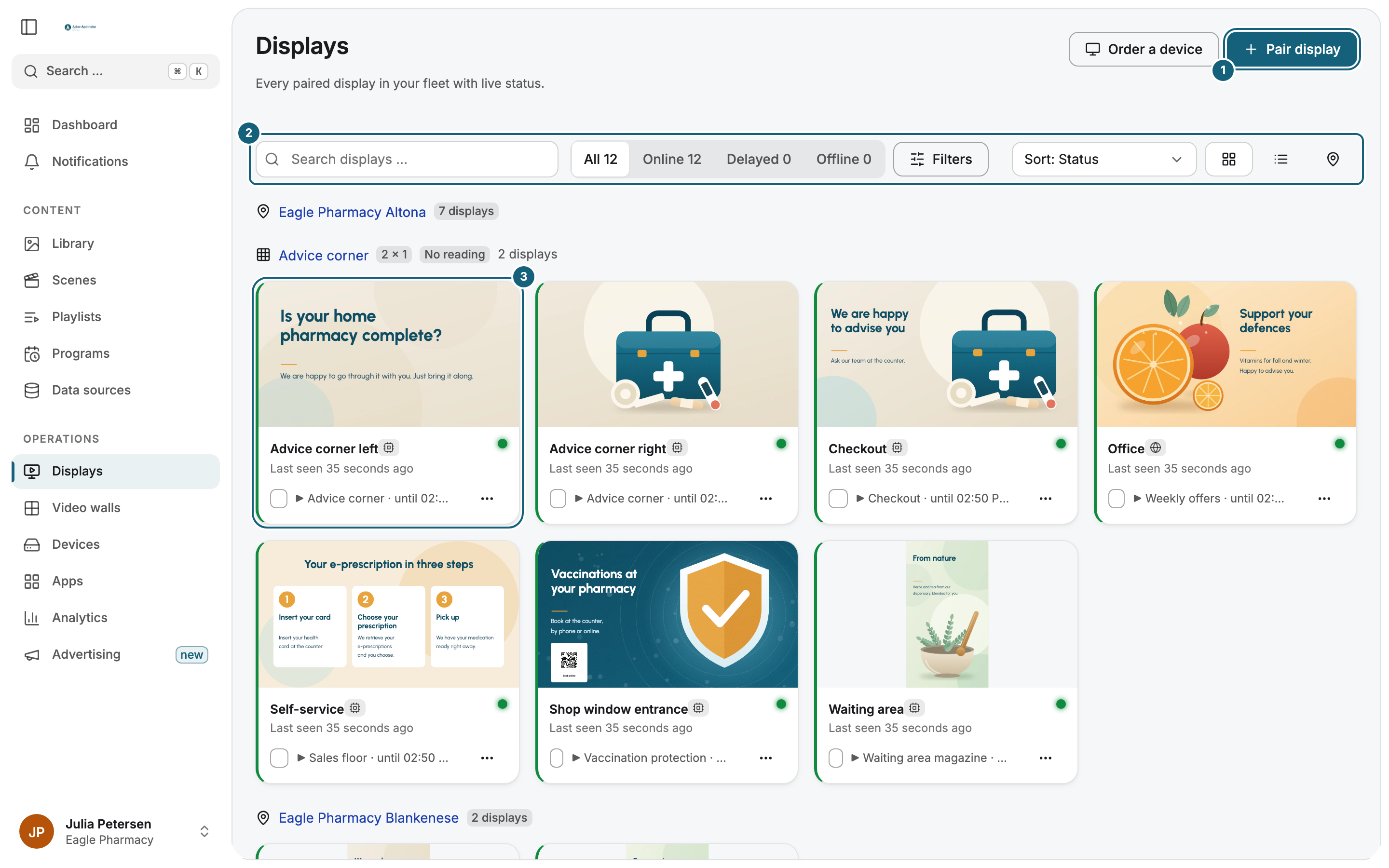
- Open Displays and click Pair display.
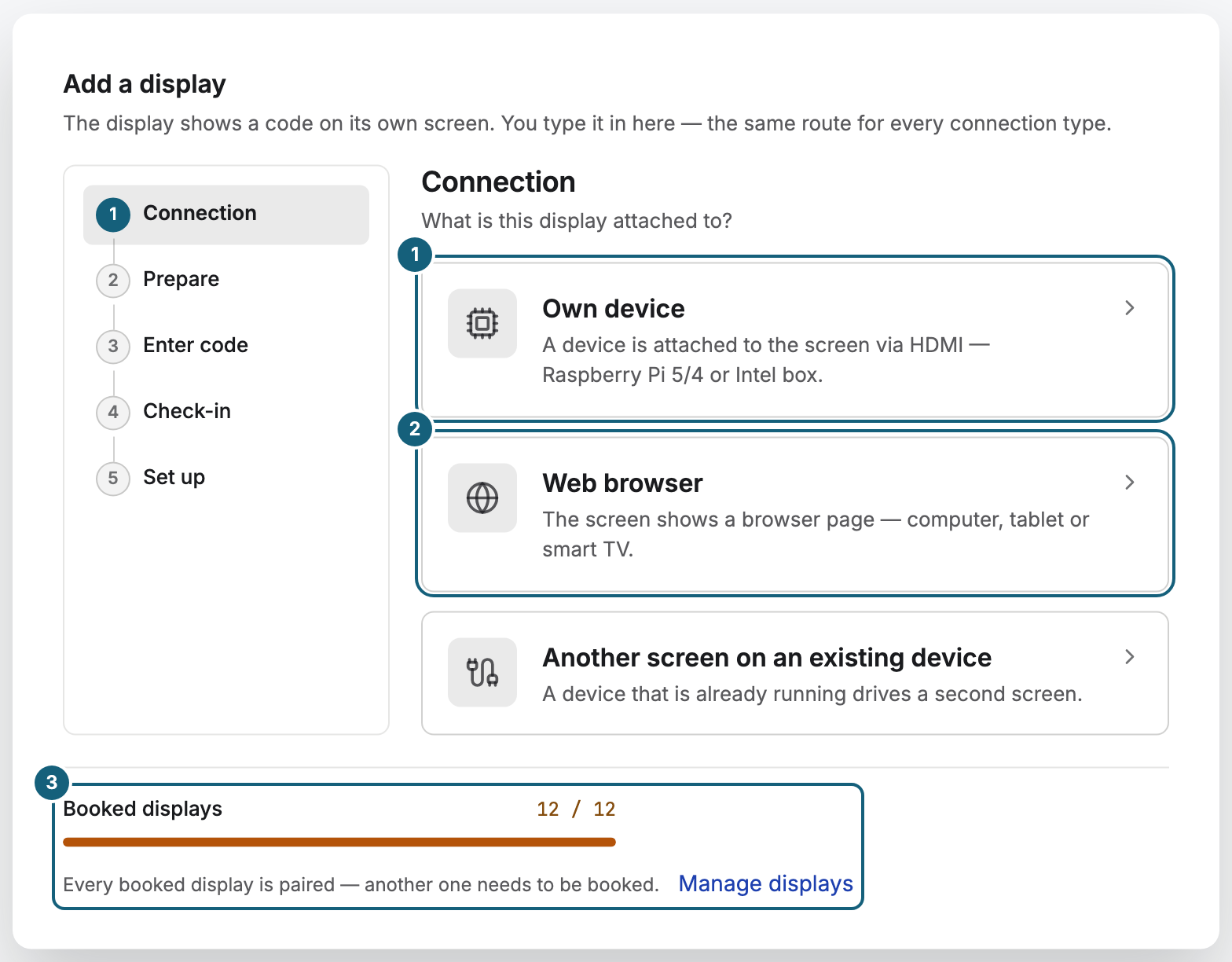
- Under Connection, choose Own device for a Szenera player or Web browser for a TV, computer, or tablet.
- For a web browser, the Prepare step shows the display address. Open it on the device that drives the display: copy it with Copy address, or scan the QR code with that device. The display then shows a pairing code.
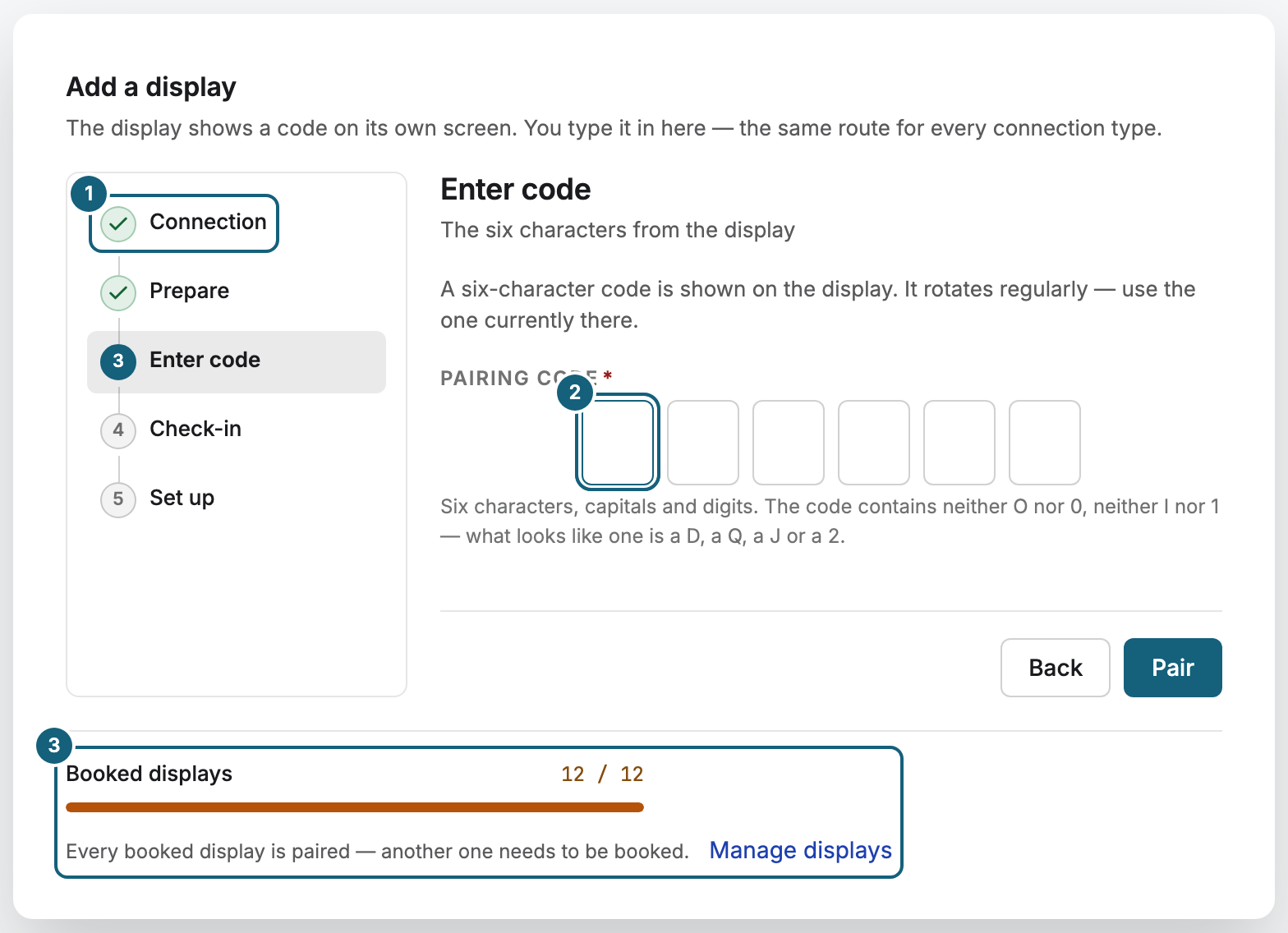
- Type the code shown on the display into Pairing code and click Pair. The code changes regularly, so always use the one shown right now.
- Wait until the display checks in, then click Set up.
- Enter a Display name, for example “Window left”. Under Program, click Choose a program, switch to Media, and select your file. Set the Orientation to match how the TV hangs, then click Done.
Check the result
Within a few seconds, the display shows your image or video in full screen. In the portal, the display now appears under Displays with the status Online and a thumbnail of what it is playing.
Finish the setup
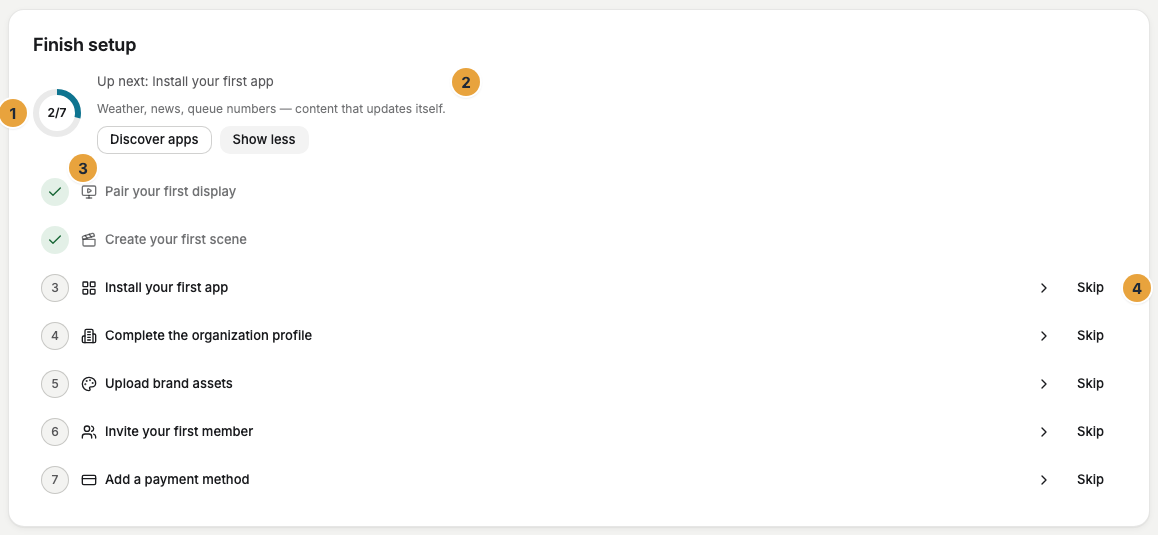
The Finish setup card stands at the very top of the dashboard, right below the greeting. A ring shows the progress, such as 2/7, and next to it stand the next step with a short reason and a button that takes you straight to the right place. All steps opens the list of all seven steps. If you don't need a step, click Skip there.
| Step | Why it matters | Read more |
|---|---|---|
| Complete the organization profile | Your address and legal name appear on every invoice. | Master data of the organization |
| Upload brand assets | Your logo, colors, and fonts appear in templates and on your sign-in page. Apps take them over on request. | Brand: logo, colors, and fonts |
| Invite your first member | Everyone who helps out gets their own access. | Invite members and decide on join requests |
| Add a payment method | Your displays keep running when the trial ends. | Add a payment method |
| Install your first app | Apps add content that updates itself, such as the weather or news. | Install or book an app |
| Create your first scene | A scene combines your files with a clock, the weather, or text. | Create a scene: blank or from a template |
| Pair your first display | Done as soon as a display is paired. | Pair a display |
The card shows only the steps your role allows. Once every step is done or skipped, the card disappears.
If something goes wrong
| Symptom | Cause | Solution |
|---|---|---|
| The TV stays black | The TV shows a different input, or the player has no power. | Select the HDMI input the player is connected to, and check the power supply. |
| The TV shows a setup card with a QR code | The player has no network connection. | Connect a network cable or set up the Wi-Fi as described in Connect to the network. |
| “We do not know this code. Check the six characters on the display.” | A character was mistyped, or the code has changed in the meantime. | Enter the code that the display shows right now. |
| “Every booked display is paired.” | All seats in your package are in use. | Remove a display you no longer need, or click Book another display. |
| The display shows a placeholder instead of your file | Nothing is assigned yet, for example because you clicked Skip. | Open the display and assign your file as described in Assign a program. |
Related
- Create a scene: combine your picture with a clock, the weather, or a news ticker.
- Create a playlist: let several images and videos take turns.
- Create a program: show different content at different times of day.
Was this helpful?