The portal at a glance
What the sidebar, the user card, and the dashboard show, and where to find things on a phone.
- For
- everyone finding their way around the portal for the first time
- Prerequisite
- an account in your organization
- Where in the portal
- sidebar, user card, and Dashboard
On this page
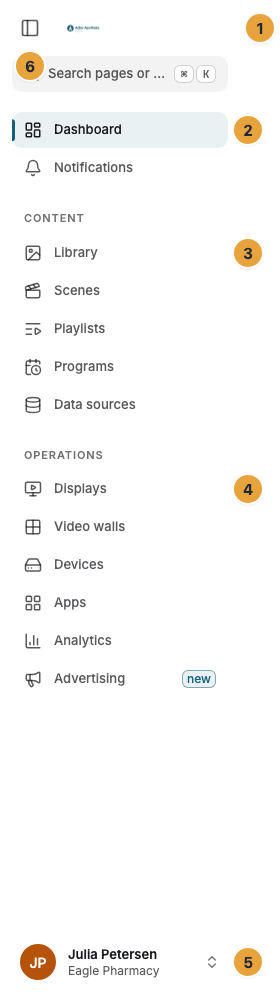
The sidebar on the left holds search at the top and takes you to every area, your user card at the bottom left leads to your settings and to help, and the dashboard shows whether your displays are running.
The sidebar
Search sits at the very top. Below it, Dashboard and Notifications stand on their own, and after them the areas are grouped into Content and Operations. Everything that concerns you or your organization, such as team, locations, billing, and the change log, is in the settings.
| Group | Area | What you do there |
|---|---|---|
| Dashboard | See whether your displays are running and what to do next. | |
| Notifications | Read what the portal has reported to you. A red counter shows the number of unread messages. | |
| Content | Library | Upload files and set up apps as app contents, and organize both. |
| Content | Scenes | Design what a display shows, using your files, app contents, and widgets. |
| Content | Playlists | Let several scenes, files, and app contents take turns. |
| Content | Programs | Plan what runs when. |
| Content | Data sources | Set up the connections and sources that apps such as Posts, Table, or Warning get their data from. |
| Operations | Displays | Pair displays, assign content, and check their status. |
| Operations | Video walls | Combine several displays into one large picture. |
| Operations | Devices | Look after the players and other devices behind your displays. |
| Operations | Apps | Add apps from the store, such as weather, news, or a menu board. |
| Operations | Analytics | See what actually played, and how often. |
| Operations | Advertising | Sell ad slots on your displays. |
If an area is missing, your role doesn't include it. A member, for example, sees only Dashboard, Notifications, Displays, and Apps. Video walls appears once the Video wall app is installed. Advertising appears once the owner has switched it on under Settings › Organization › Features, see Switch on advertising.
Your user card
Your name and your organization stand at the bottom left of the sidebar. If you work in several organizations, you always see which one you are in. A click opens the menu:
| Entry | What it does |
|---|---|
| Settings | Opens your settings. |
| Language | Switches between English and German. The choice is saved in your account. |
| Appearance | Switches between System, Light, Crisp, and Dark. The choice stays on this device. |
| Help | Opens a submenu. Help for this area shows the handbook page for your area in a drawer next to the page, Open docs opens the handbook in a new tab, and Start tour shows you around in about three minutes. |
| Install app | Puts the portal on your computer. Appears only where your browser offers it. |
| Sign out | Ends your session. |
Collapse and expand the sidebar
The icon at the top left collapses the sidebar. Collapsed, it is gone entirely, and the content uses the full width. Move the mouse over the icon and the sidebar slides over the content for a moment, then closes again once you move the mouse away. A click on the icon expands it for good. In narrow windows it is collapsed on its own, and in the settings it stays expanded.
The settings
Open them through your user card or with Ctrl + , (⌘ + , on a Mac) from any page. The sidebar then shows the settings instead of the areas, and the arrow at the top takes you back to where you were. Instead of the search across the whole portal, the sidebar there holds the search Search settings.
The settings have three groups. My account applies only to you, for example your profile, password, and language. Below it, your organization stands under its own name with what applies to everyone, such as Company details, Locations, Brand, Connections, Team, Roles, Billing, and Change log. At the bottom of the sidebar, For developers stands collapsed with Custom address, Company sign-in, API keys, and Webhooks, and below it the Danger zone on its own. You see only the areas your role may read. My account: profile, time zone, theme, and language explains the groups.
The dashboard
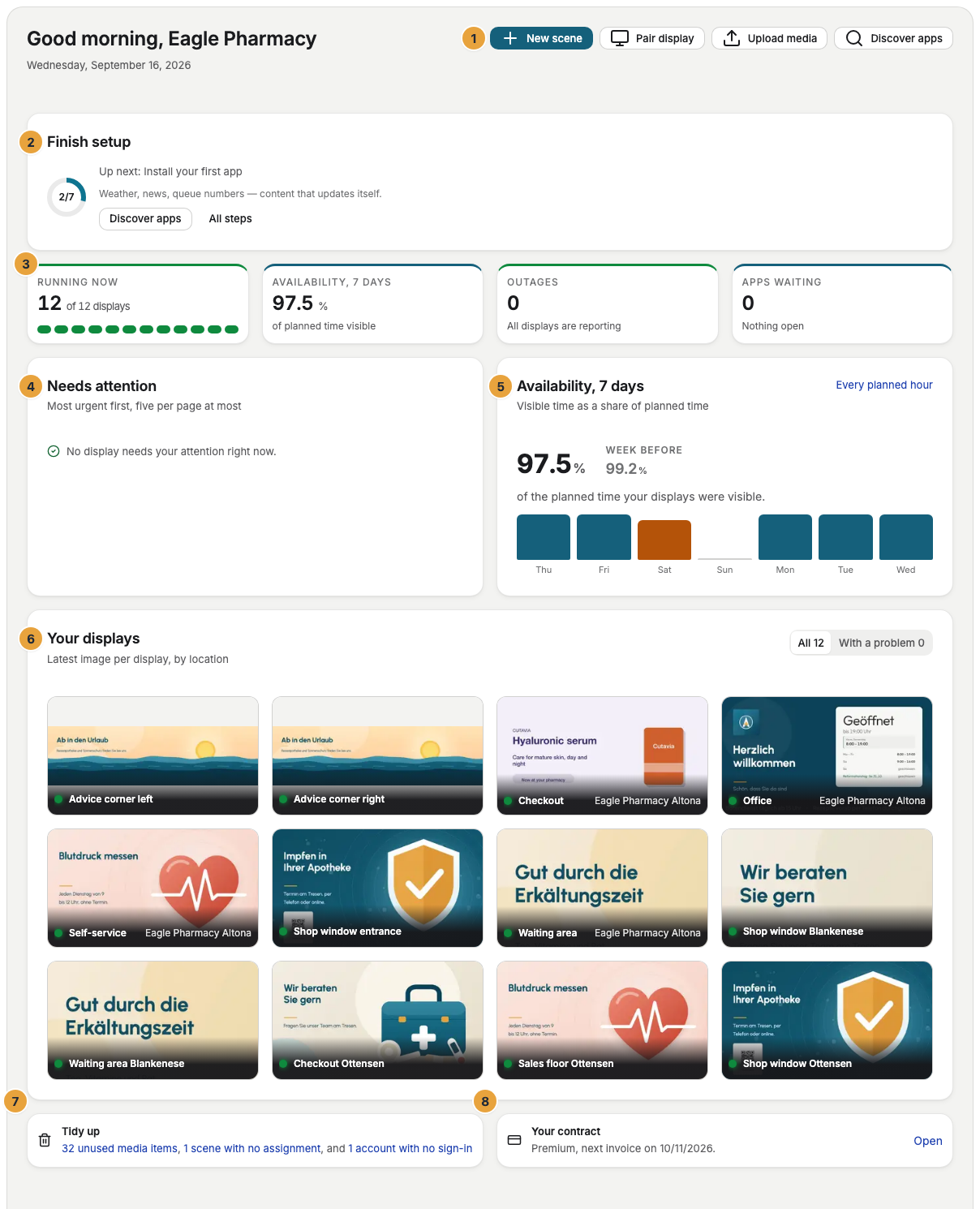
The dashboard is the first page you see after signing in. From top to bottom it answers the questions you open it for: are my displays running, where do I need to step in, how did the week go, and what are the displays showing right now? On a phone the cards stand one below the other, the four figures in pairs and ahead of the setup.
| What you see | What it tells you |
|---|---|
| The date under the greeting | The day you are looking at. Whether your displays are running is answered by the Running now figure. |
| Finish setup | The state of the setup as a ring, with the next step. All steps opens the list of all seven steps. Once every step is done, the card disappears. How the steps go is in Your first display in 15 minutes. |
| Four figures: Running now, Availability, 7 days, Outages, and Apps waiting | Four tiles of equal size, each leading to its area. Running now says how many of your displays are reporting, such as “12 of 12 displays”, and draws one field per display: green for “online”, yellow for “delayed”, red for “offline”. Delayed is not an alarm, the display runs and only reports later. Availability, 7 days is the share of the planned time your displays were visible. Outages counts the displays that are not reporting and leads to the list of displays that are offline. Apps waiting counts the app updates that wait for your decision. |
| Needs attention | The displays you should look after, as a list with the most urgent first, five per page. With more items you page below it with Next and Previous, and at the top right it says how many are open. A display that no longer reports stands with its name, how long, and the Diagnosis button, and so does one that has never reported. Displays without a program stand as one line at the end, with Assign as the way to assign one. When everything runs, it says “No display needs your attention right now.” |
| The Availability, 7 days card | The share of the planned time that was visible over the last seven days, with the week before beside it and one bar per day. While reports can still come in, “so far” is added and the figure can still rise. Analytics shows the range, and Every planned hour leads there. A day below 90 % stands in the warning color. |
| Your displays | One tile per display with the latest picture it reported, ordered by location. A failed display stands dimmed and carries the red tag “Offline · last seen 2 hours ago”, on a phone just “Offline”. With a problem shows only the failed ones. No more than 12 tiles appear, the failed ones first, and See all 14 displays leads to the list. |
| Tidy up | What has been left lying around, such as media without use or displays without a program. Each number opens the matching list. If nothing is lying around, the card is missing. |
| Your contract | Your package and the day of the next invoice, with Open for billing. If the contract is stuck, its full view stands at the top of the page. |
At the top, the New scene button stands in the header, with Pair display, Upload media, and Discover apps beside it. On a phone only New scene stays, and the other three lie behind the button with the three dots (More actions).
Search, location, and banners
On a desktop, the portal has no header bar. The content sits as a rounded surface next to the sidebar, and the tools that apply on every page have fixed places:
| Element | Where it sits | What it does |
|---|---|---|
| Search … | at the top of the sidebar | Jump to any area or setting, start an action such as Pair display, or search the handbook. Ctrl + K (⌘ + K on a Mac) opens it too. |
| Notifications | in the sidebar | Opens the page with all your messages. The red counter shows the unread ones. Notifications: inbox and delivery channels explains the page. |
| Help | in the menu of your user card at the bottom left | Opens the help for this area, the handbook, or the tour. |
| Location | above the page title | Shows the way to the page, such as Settings › Profile. It appears only from the second level on, and each step before the last leads back. |
| Uploads | in the sidebar above your user card | Appears while something is uploading and shows how far it is. A click opens the list. |
The search lists only what you may do. In the settings, you open it with Ctrl + K (⌘ + K on a Mac), because the sidebar there holds the search Search settings.
Colored banners sit above the content and point out things like an open payment or planned maintenance. They stay until the matter is resolved. Messages and banners in the portal explains each one. During the trial, the badge Trial · … days left stands next to the page title. A click on it leads to billing.
On a phone
- A bar at the bottom holds Dashboard, Displays, Library, and Scenes. More opens all other areas, including Notifications with the red counter.
- A slim header bar stays at the top. On its left it shows the location in short form, with an arrow back to the parent page on deeper pages. On its right are the magnifier for search and, while something is uploading, the Uploads indicator.
- Your user card sits at the bottom of More. Its menu also holds Help and the tour.
- Scenes are designed on a tablet or computer. On a phone, you can preview them.
- Add Szenera as an app puts the portal on your home screen.
Related
Was this helpful?